
Extract data from complex tables
In the enterprise world, most data extraction systems can only handle neatly formatted rows and columns. But what about irregular, hierarchical, multilingual, or merged tables with dense line items? You still end up entering that data manually.
To solve this, we launched Intelligent tables. It handles any type of table in any document, across any industry, from POs in retail to hospital bills in insurance, to machine parts inventories in manufacturing.
How to setup?
It’s a 3-step process: we create models, map them to a queue, and scan documents to create a model. Navigate to the models module here.
Create a model
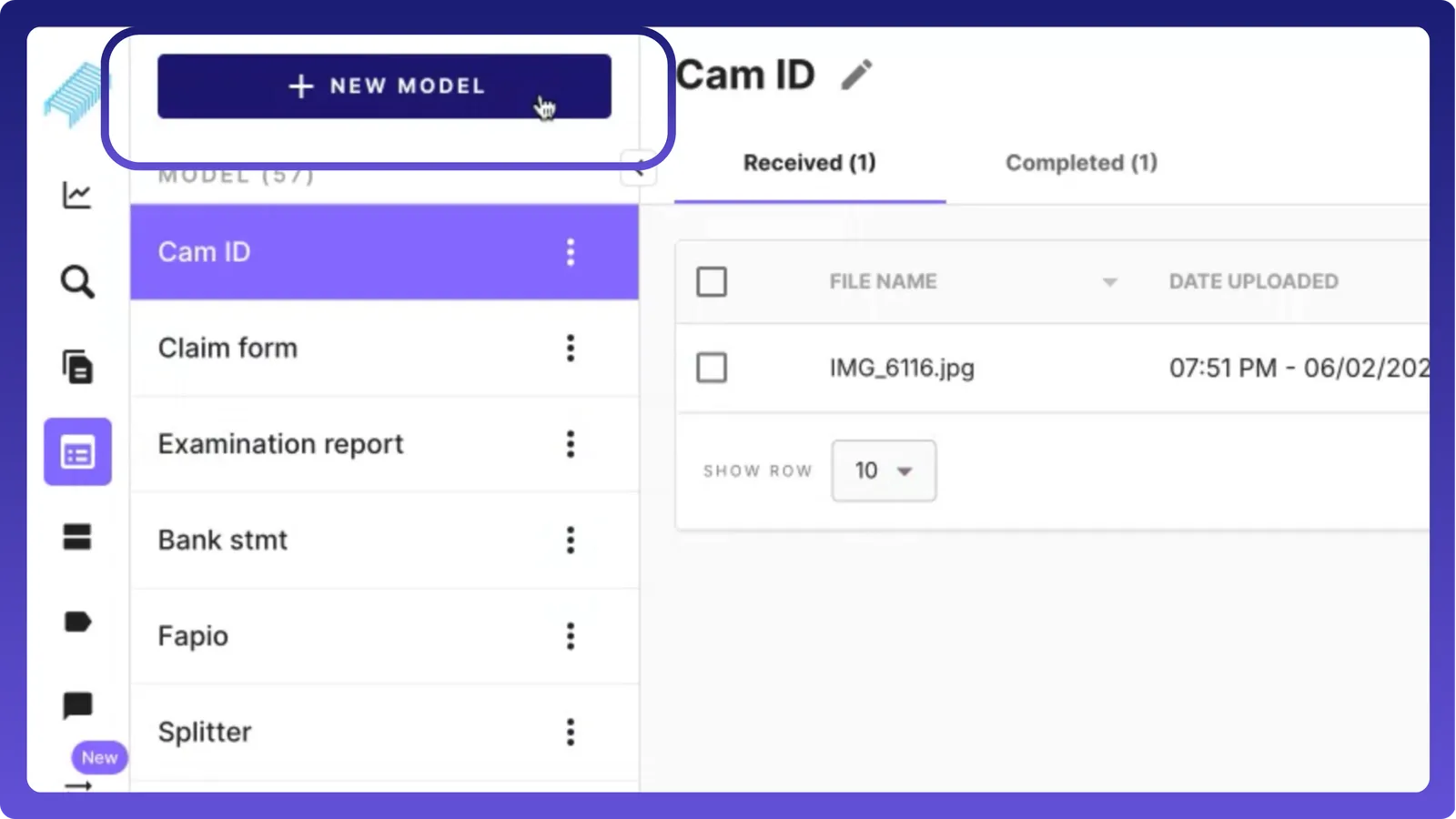
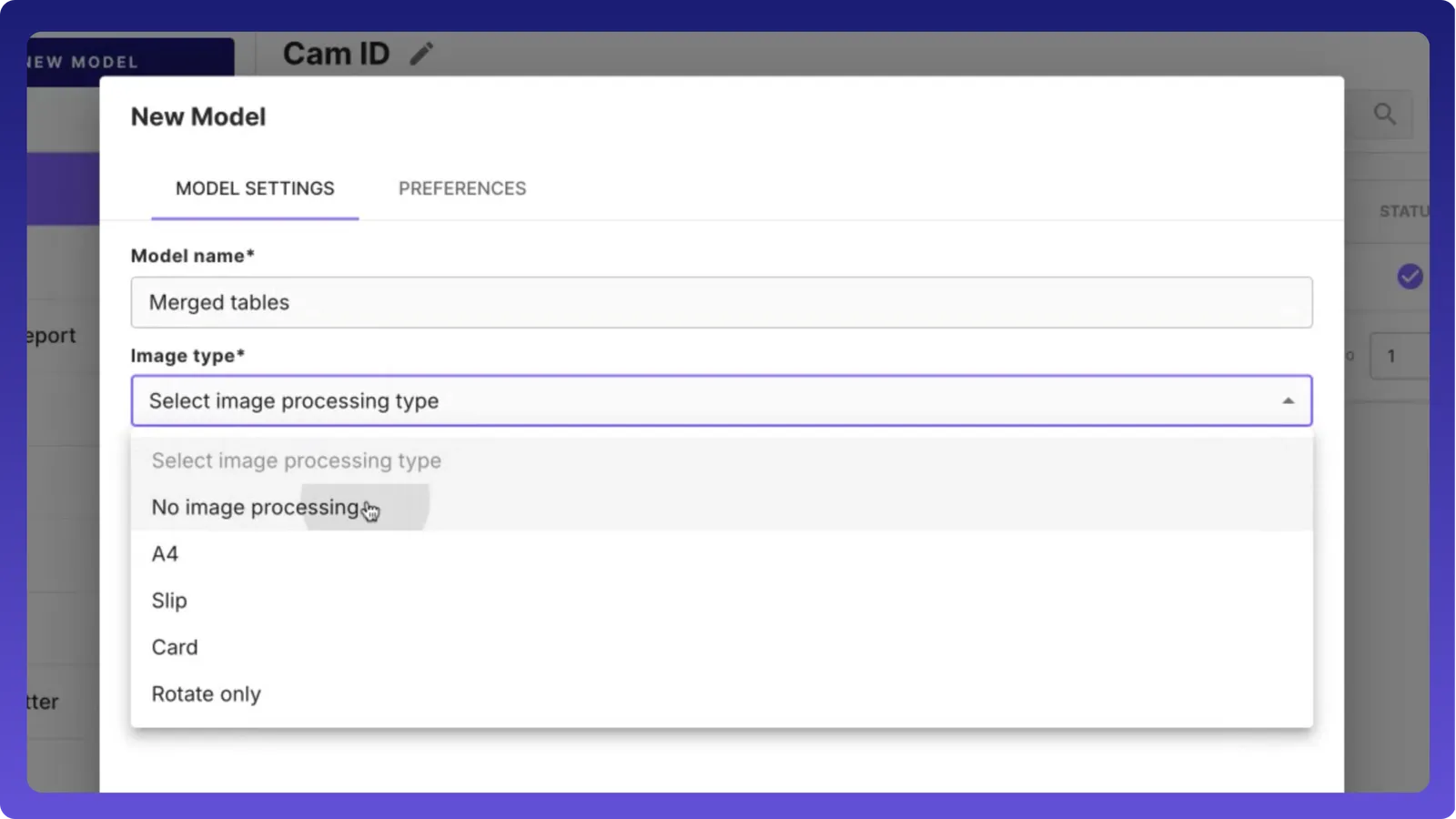
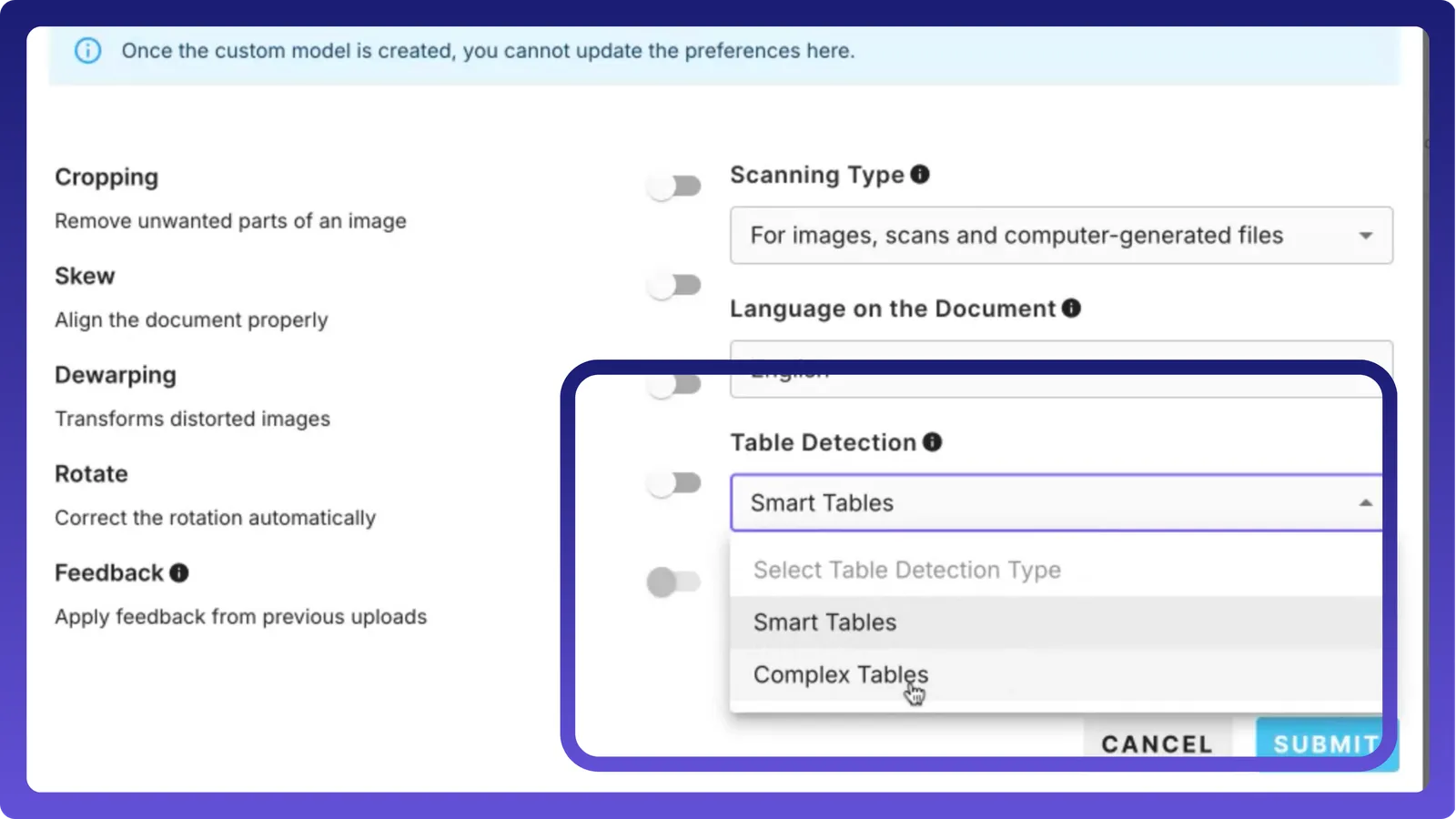
Go to the Models module. Click on the new module and give it a name. Under preferences, choose complex tables and click on submit.

Click on the new module and give it a name. Under preferences, choose complex tables and click on submit.
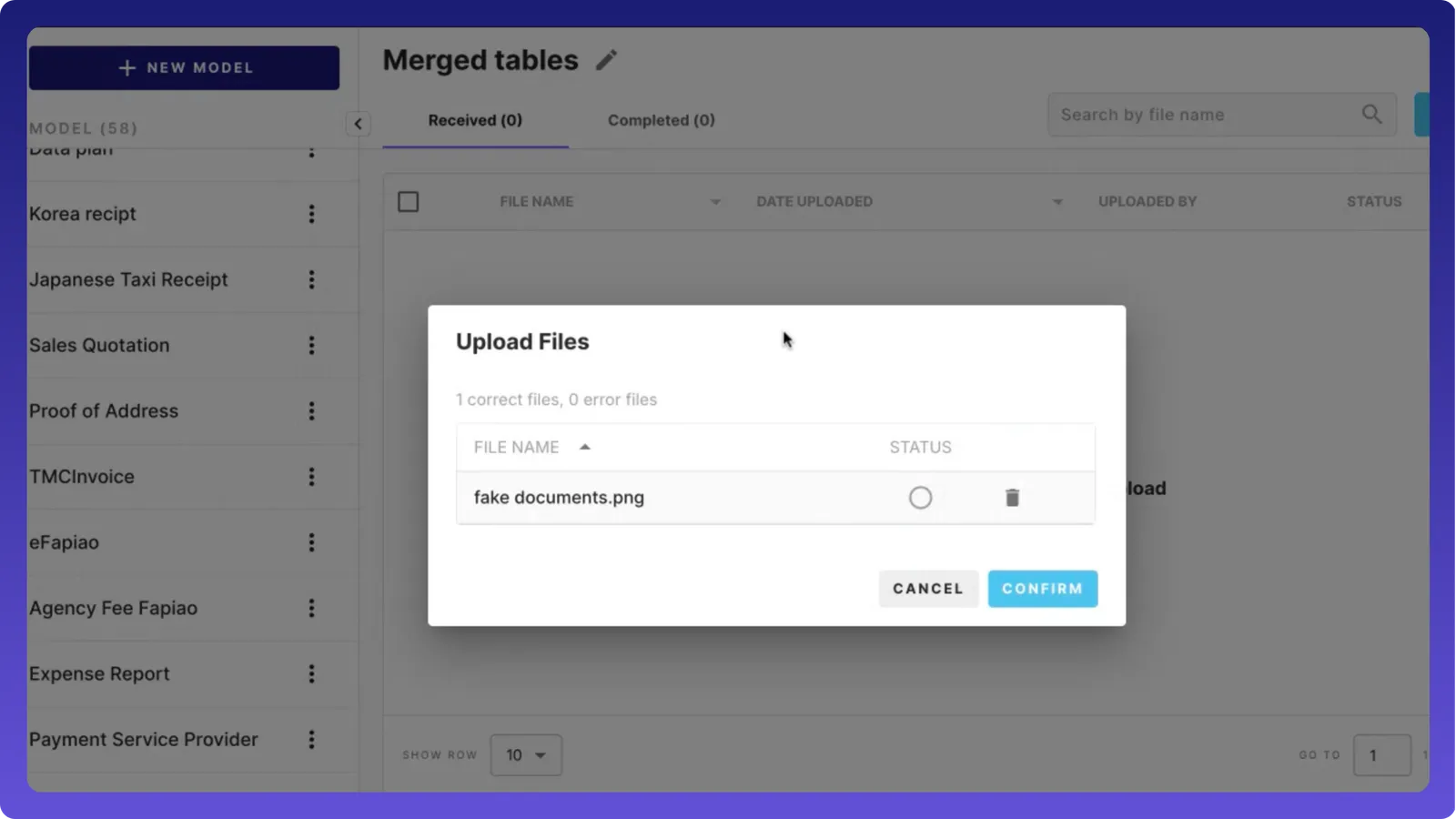
Now, let us upload a file and create a model.
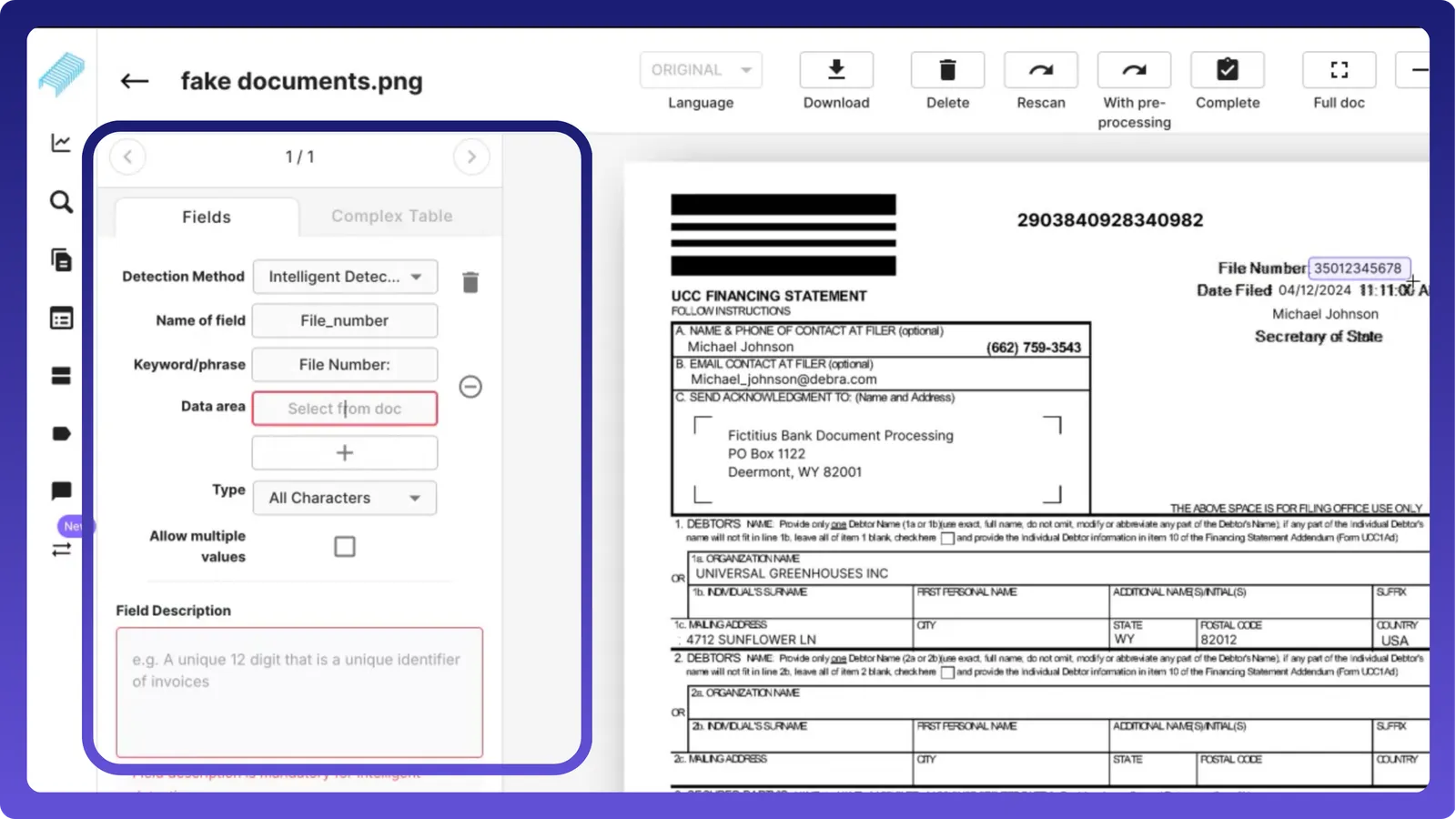
Let us first create a header field.
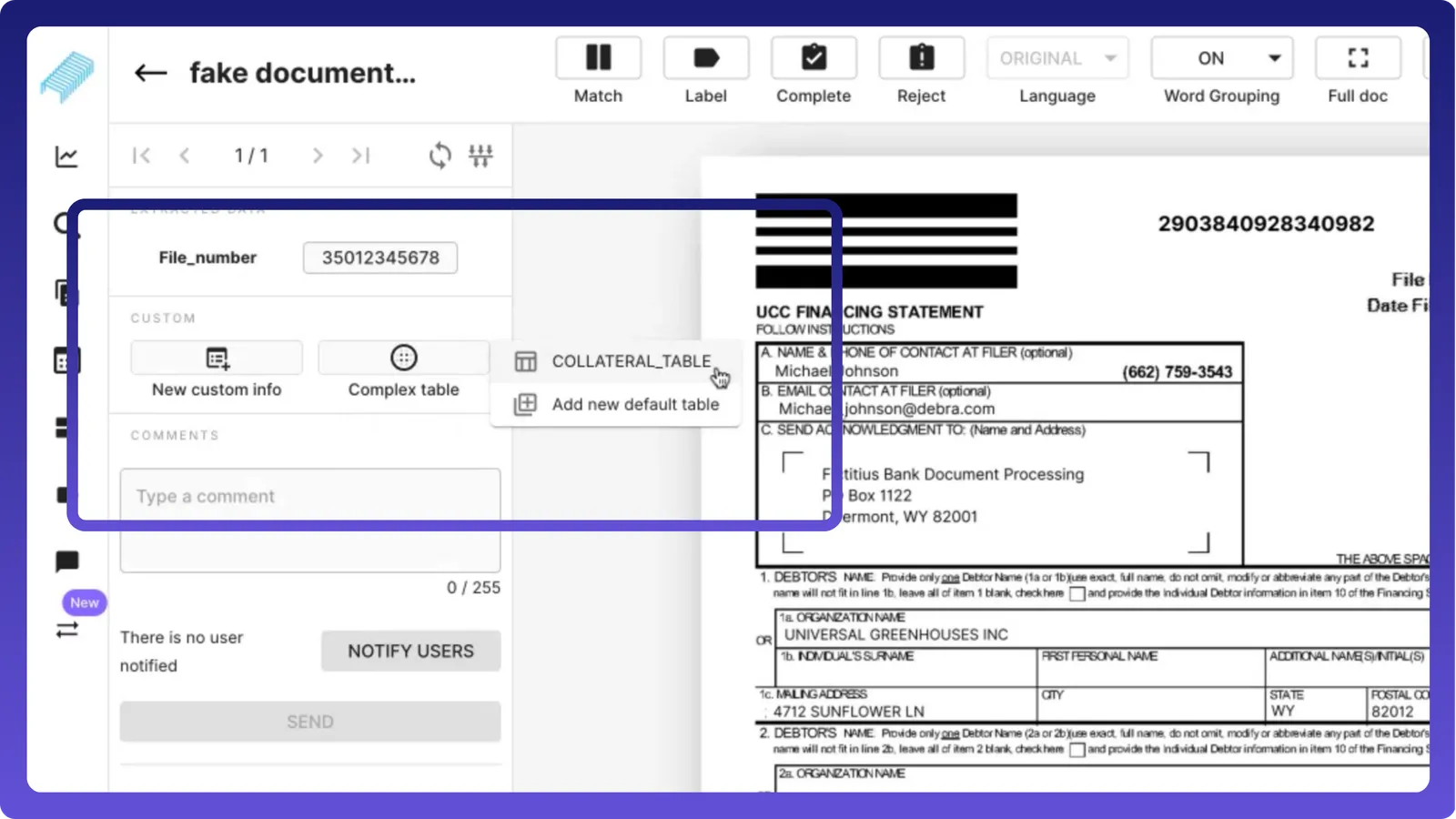
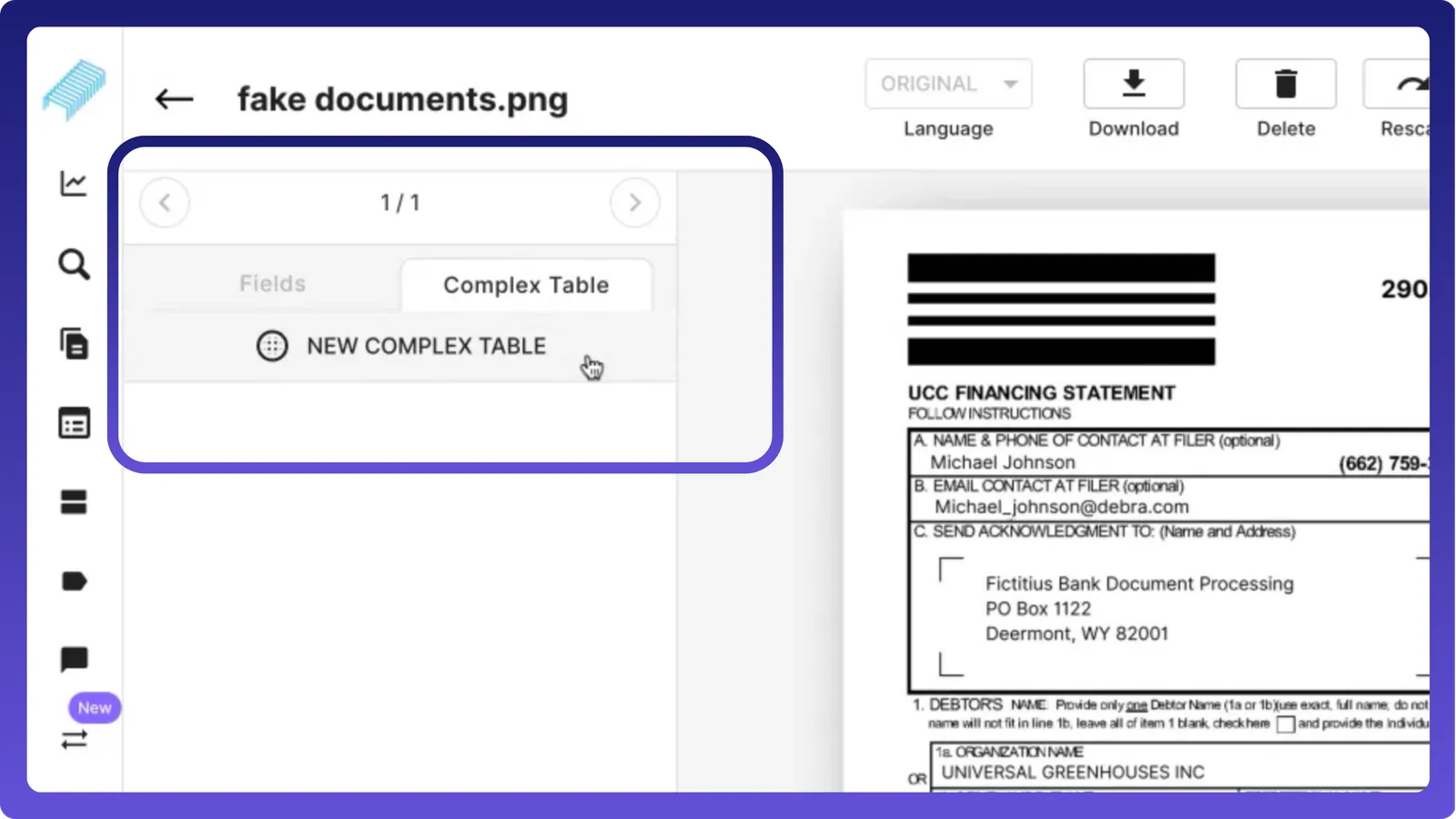
Now, let us go to complex tables. The moment I click on the complex table, you can see the table here. Let us move the table as required and give a name first, then choose the title on the document.
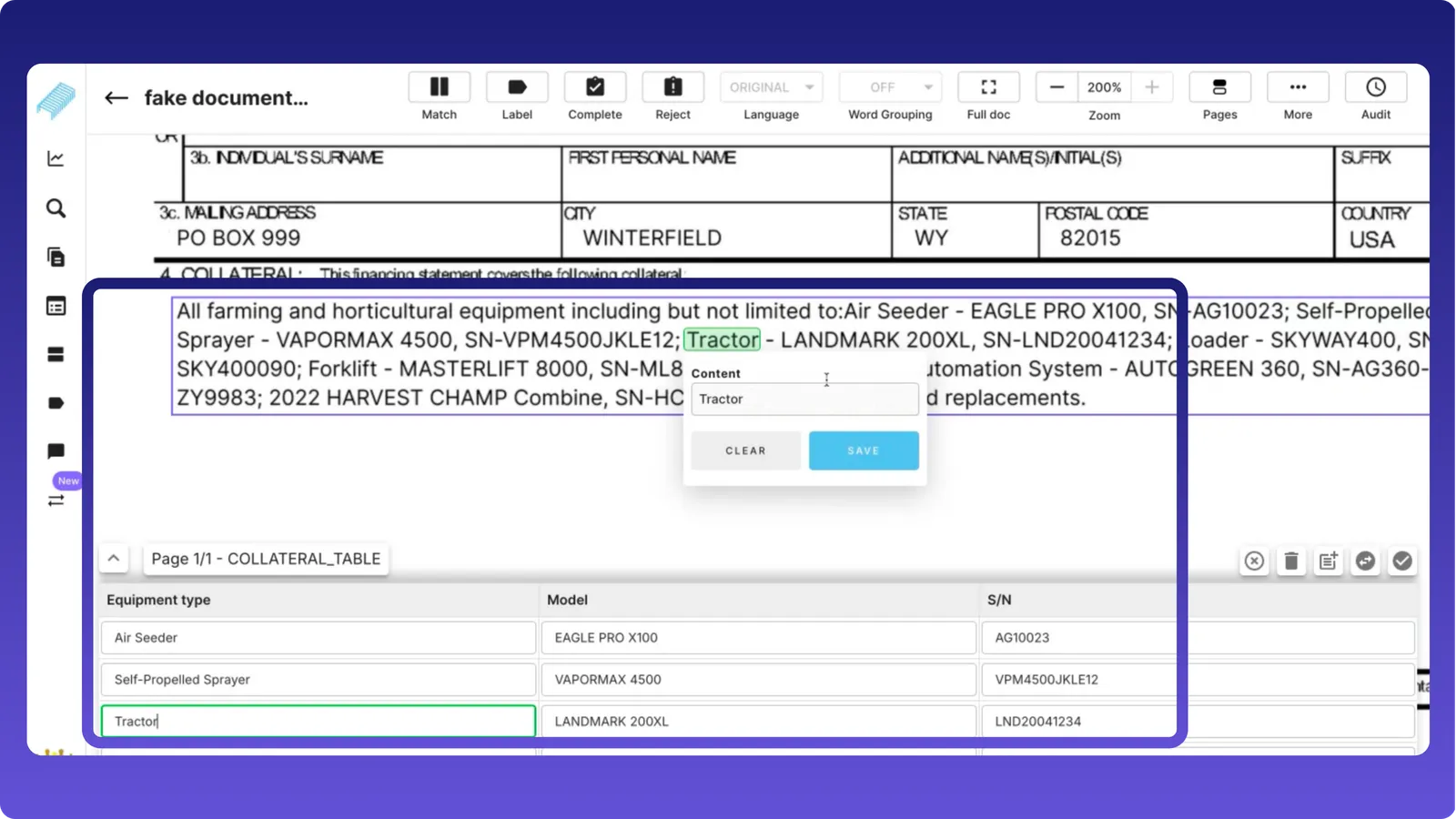
We need 3 headers here. Let us quickly create those headers. Please enter these details shortly and briefly with the appropriate information because this helps capture the data.
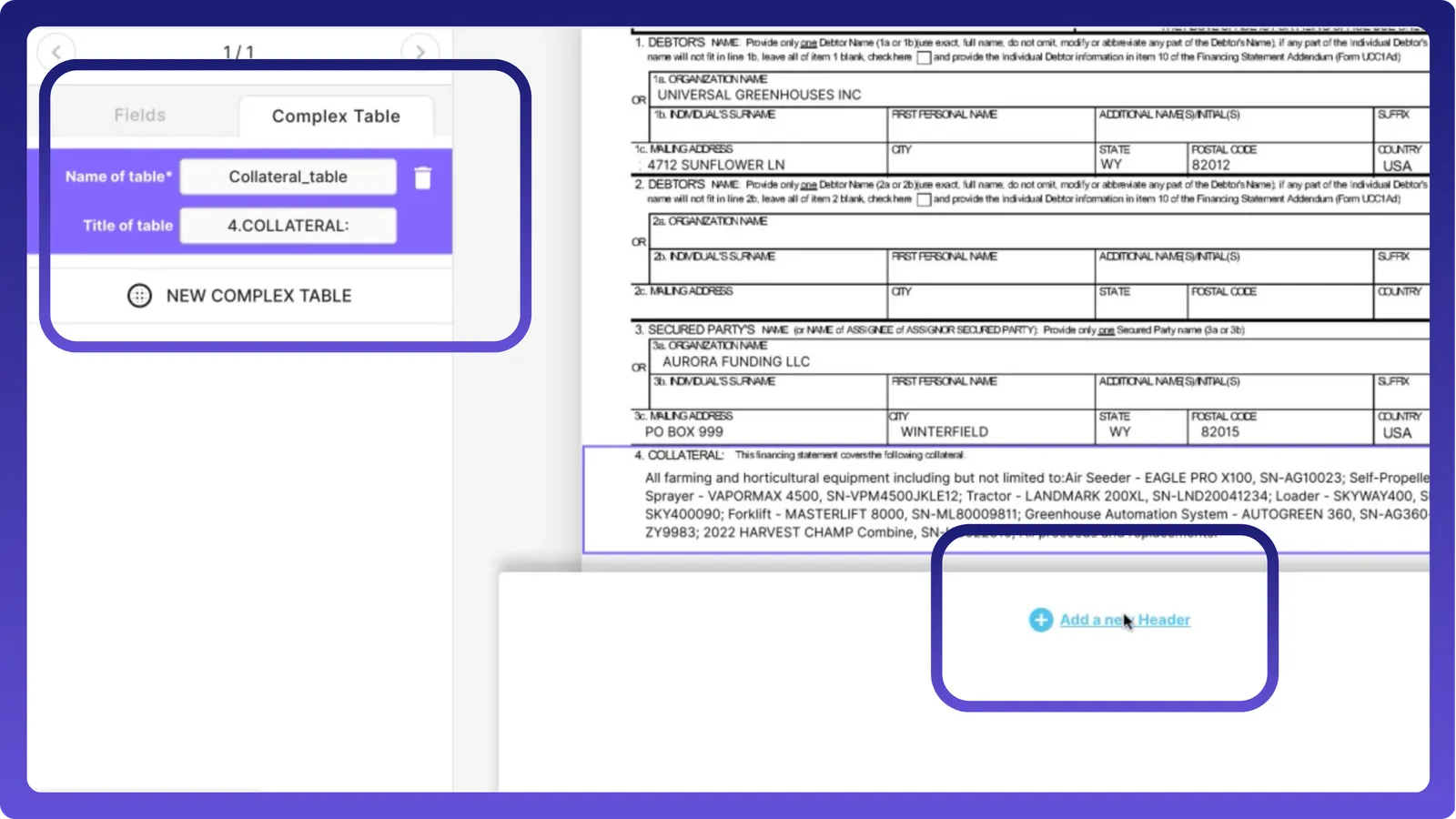
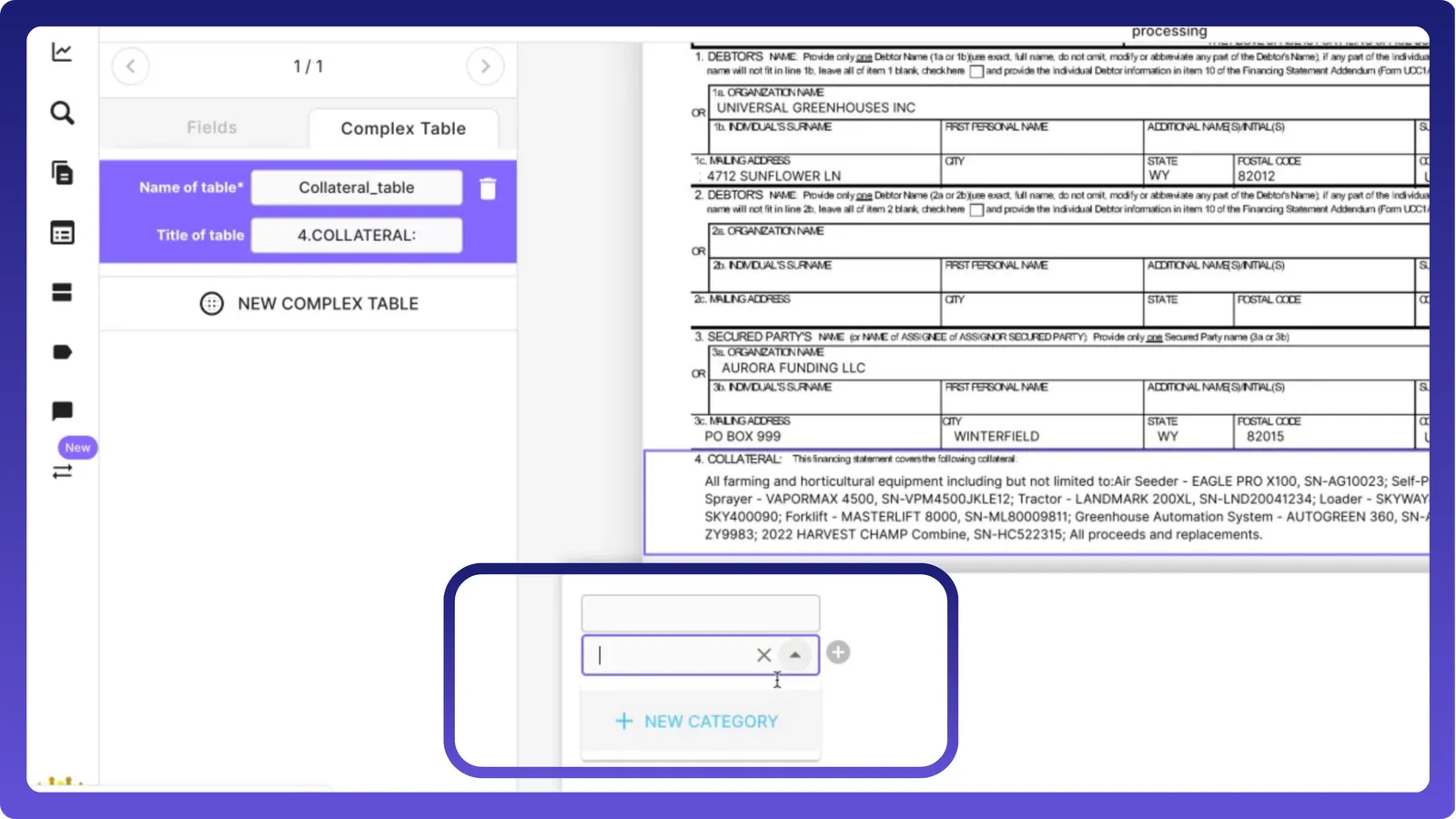
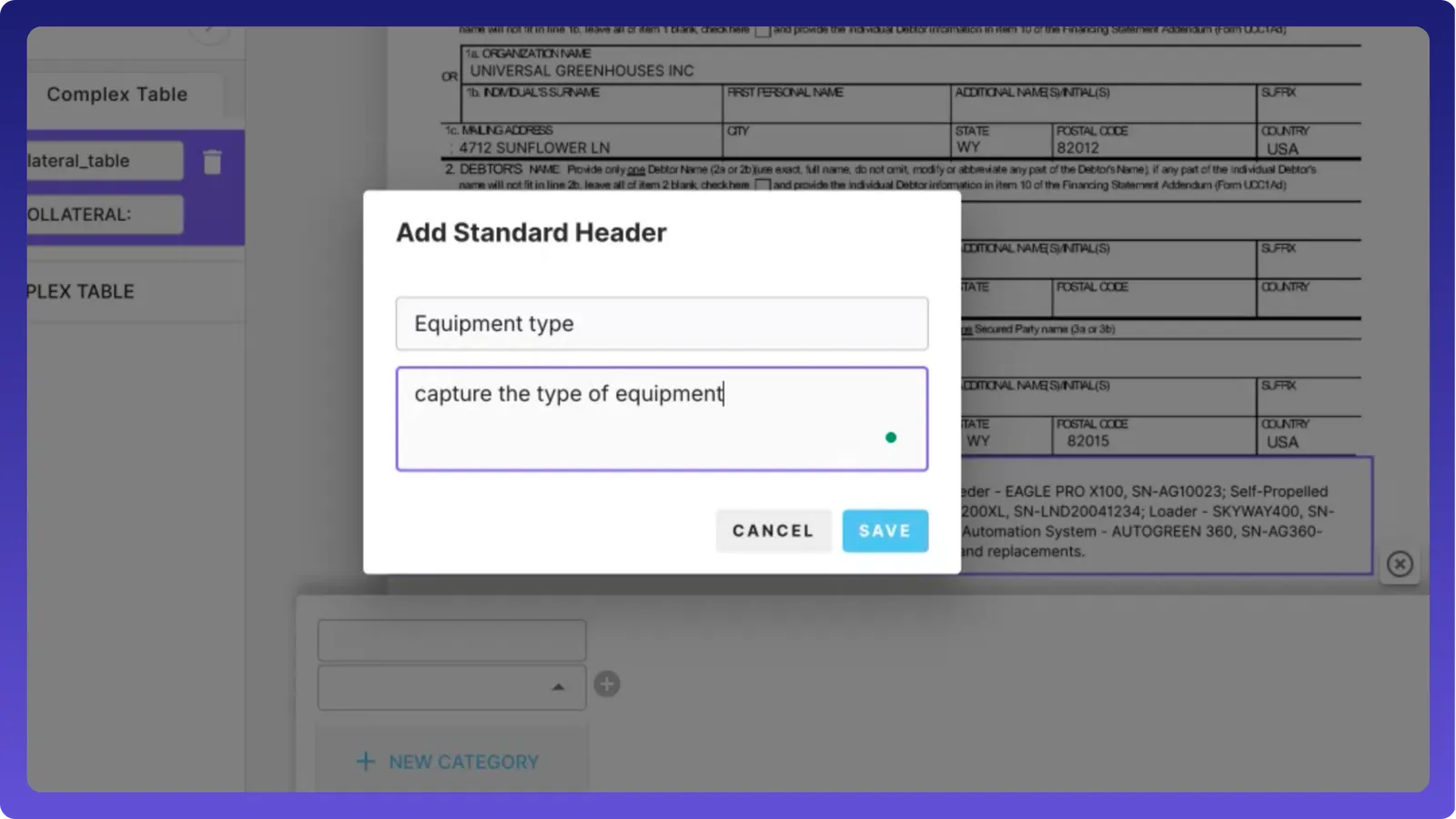
Once we have created the headers, let’s quickly smart fill the table.
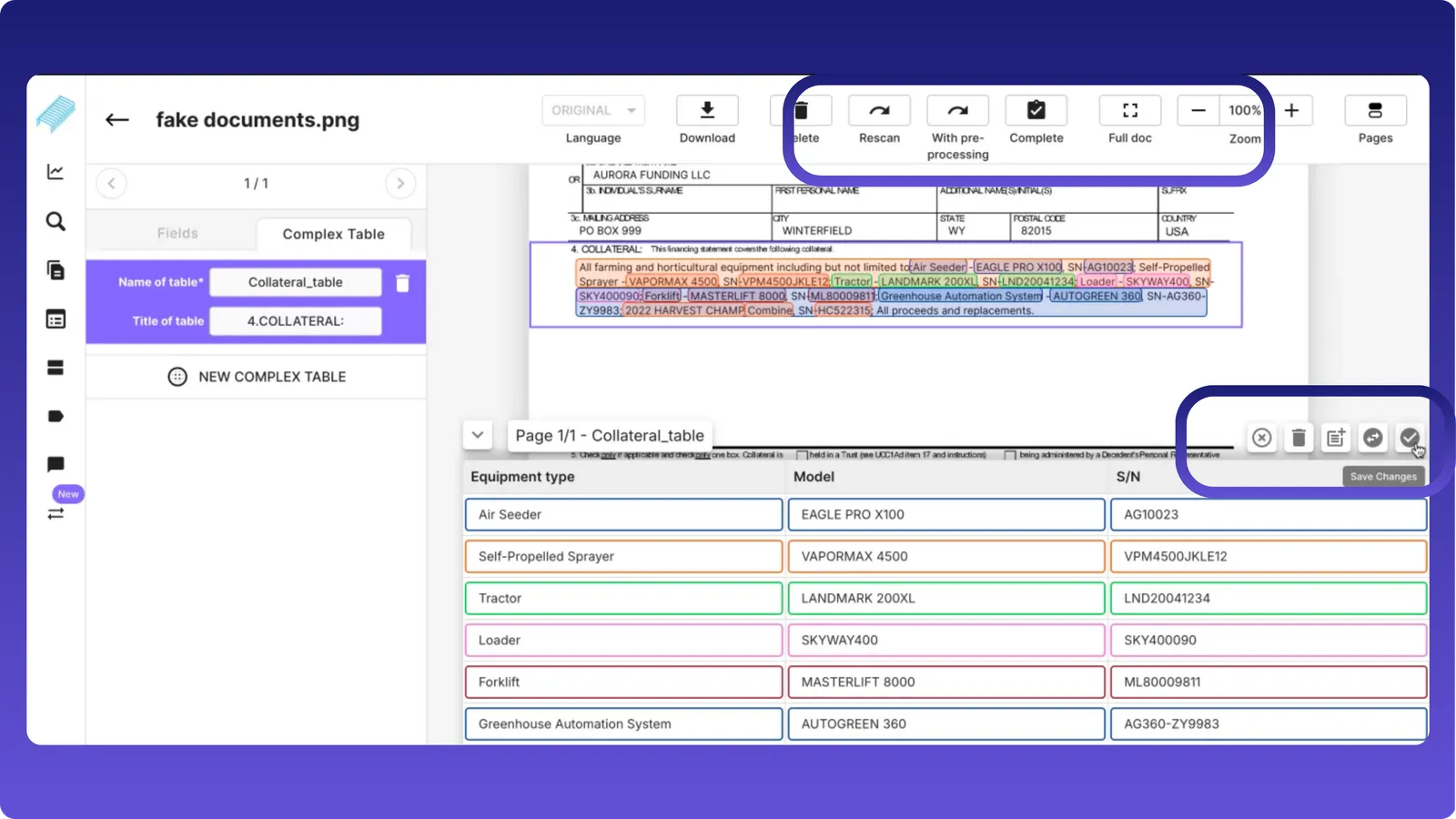
It will automatically analyze and capture this data and convert it into a table. Here we can see the data being captured correctly: model, serial number, equipment type. It can also be edited as required.
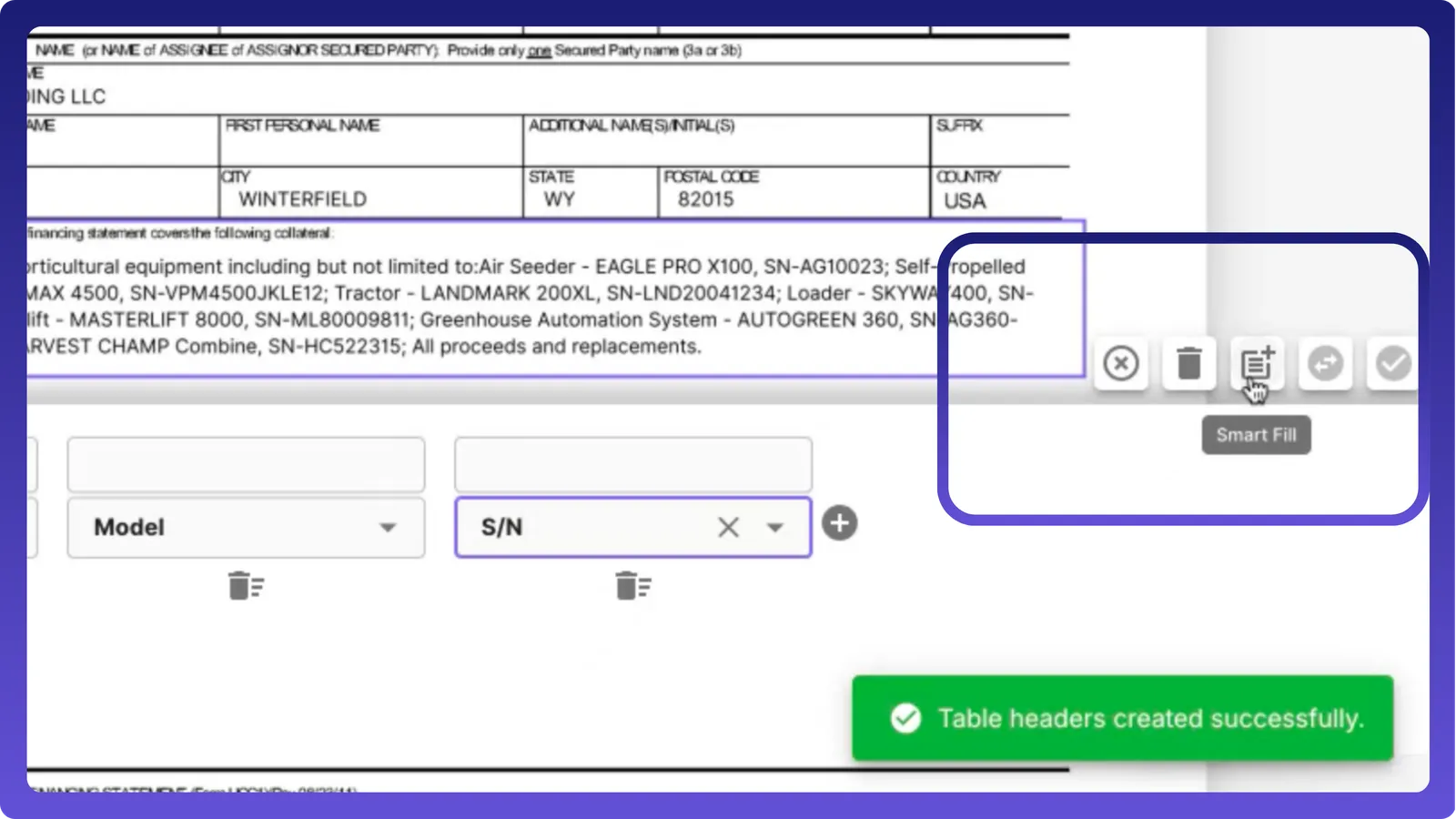
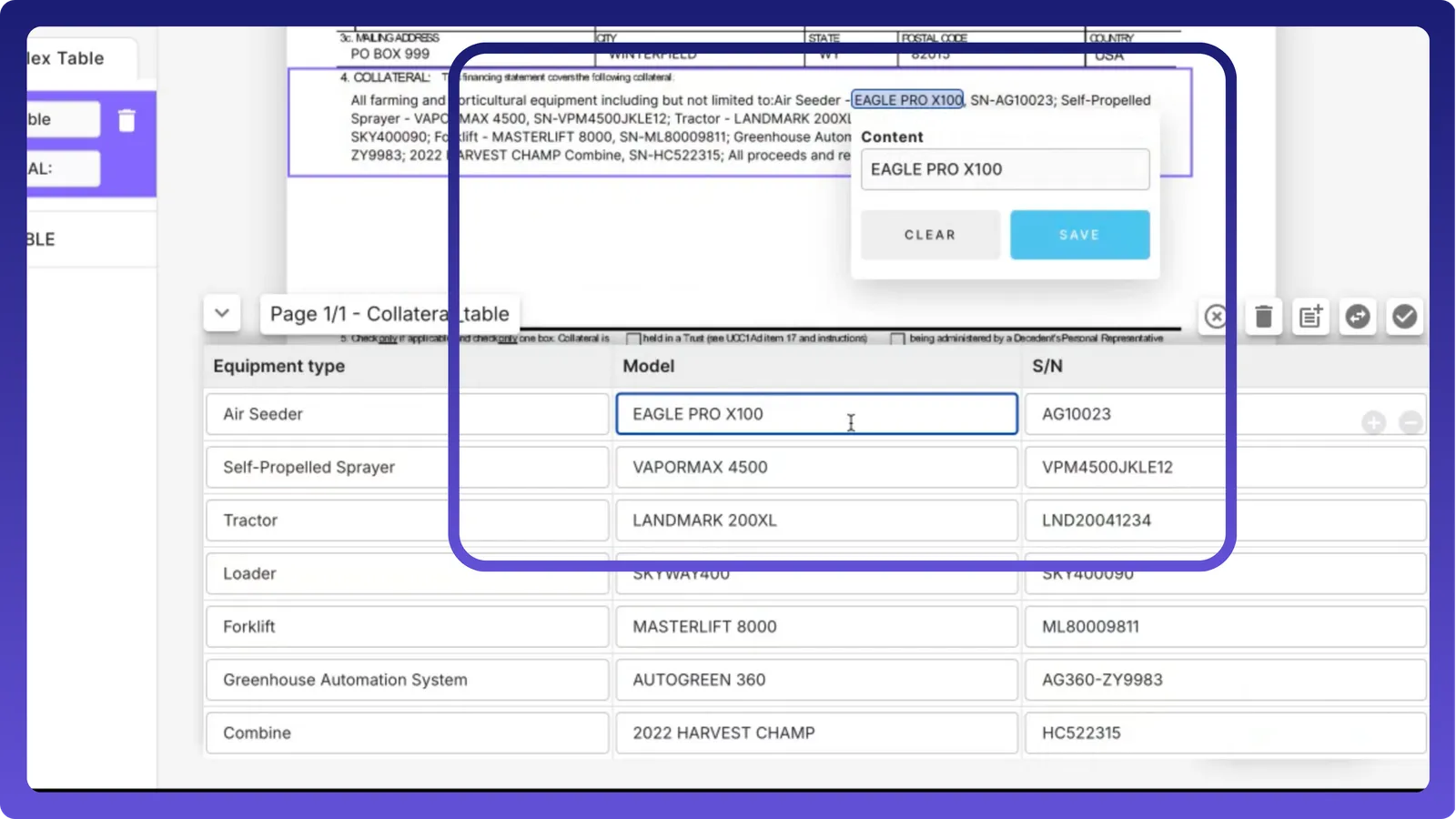
So once it is captured, click on the tick mark and click on complete to save the model.
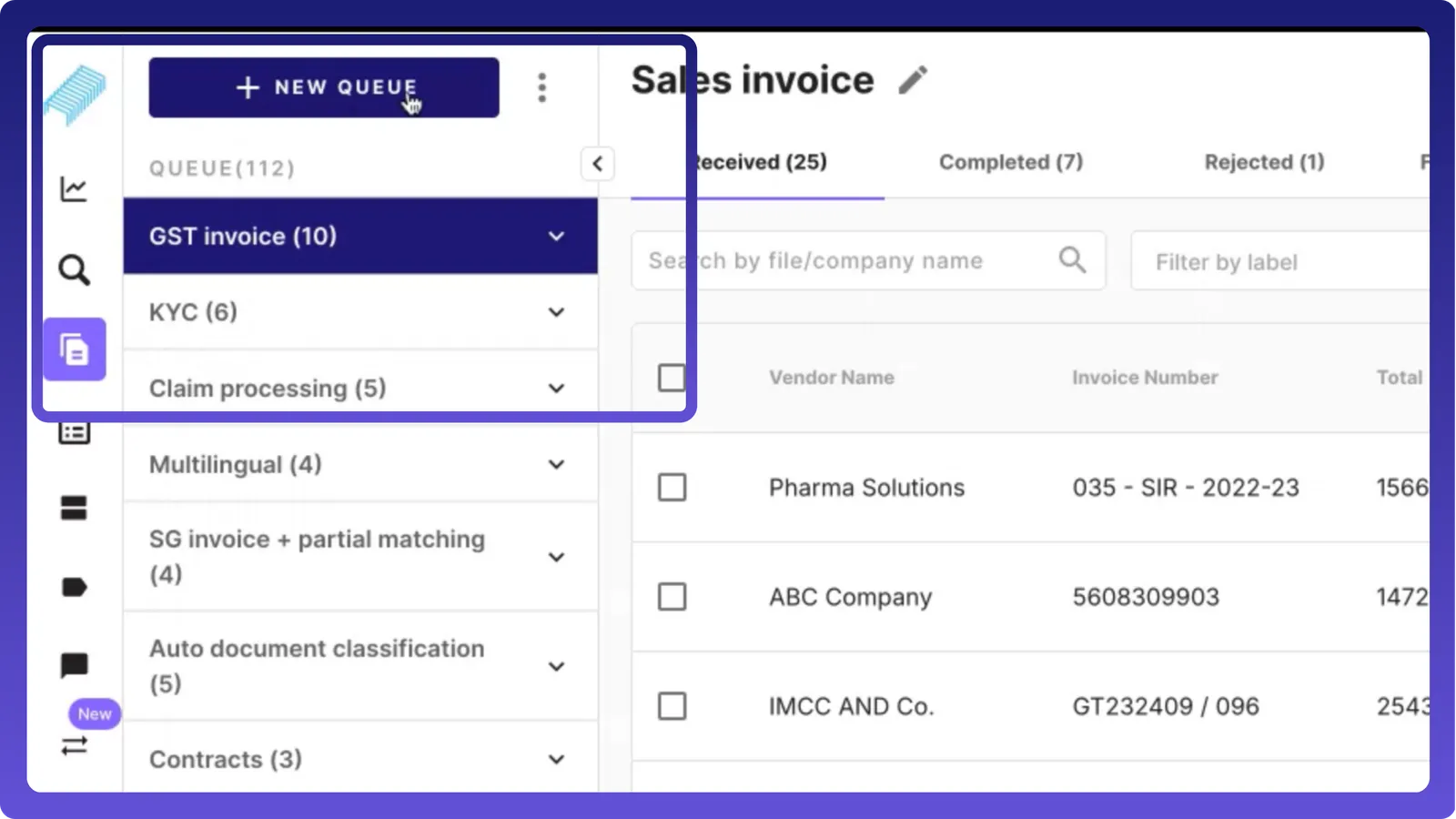
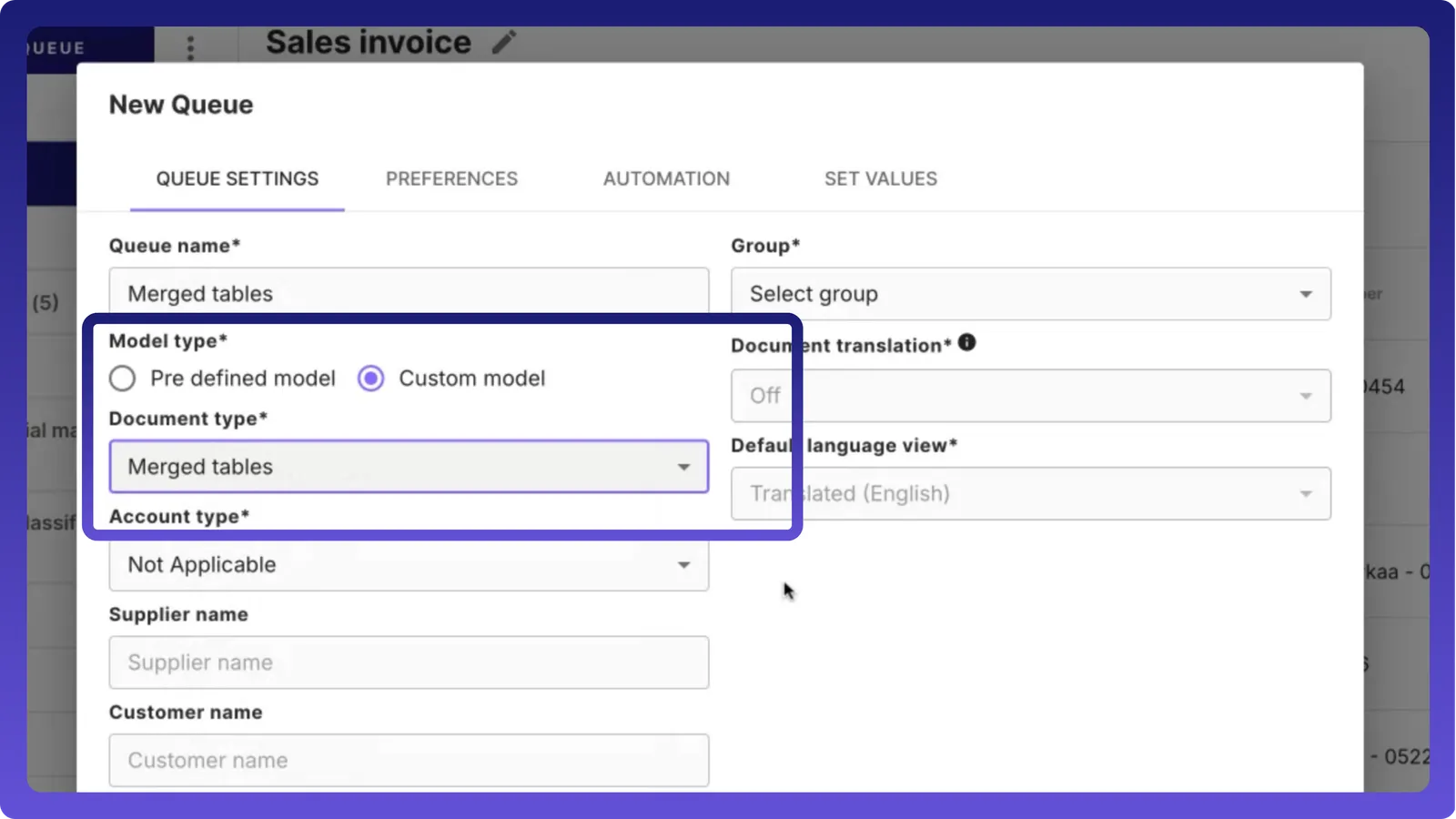
Create a queue and map the model
Once the model is created, we need to quickly go and map it to the queue.
Upload the documents
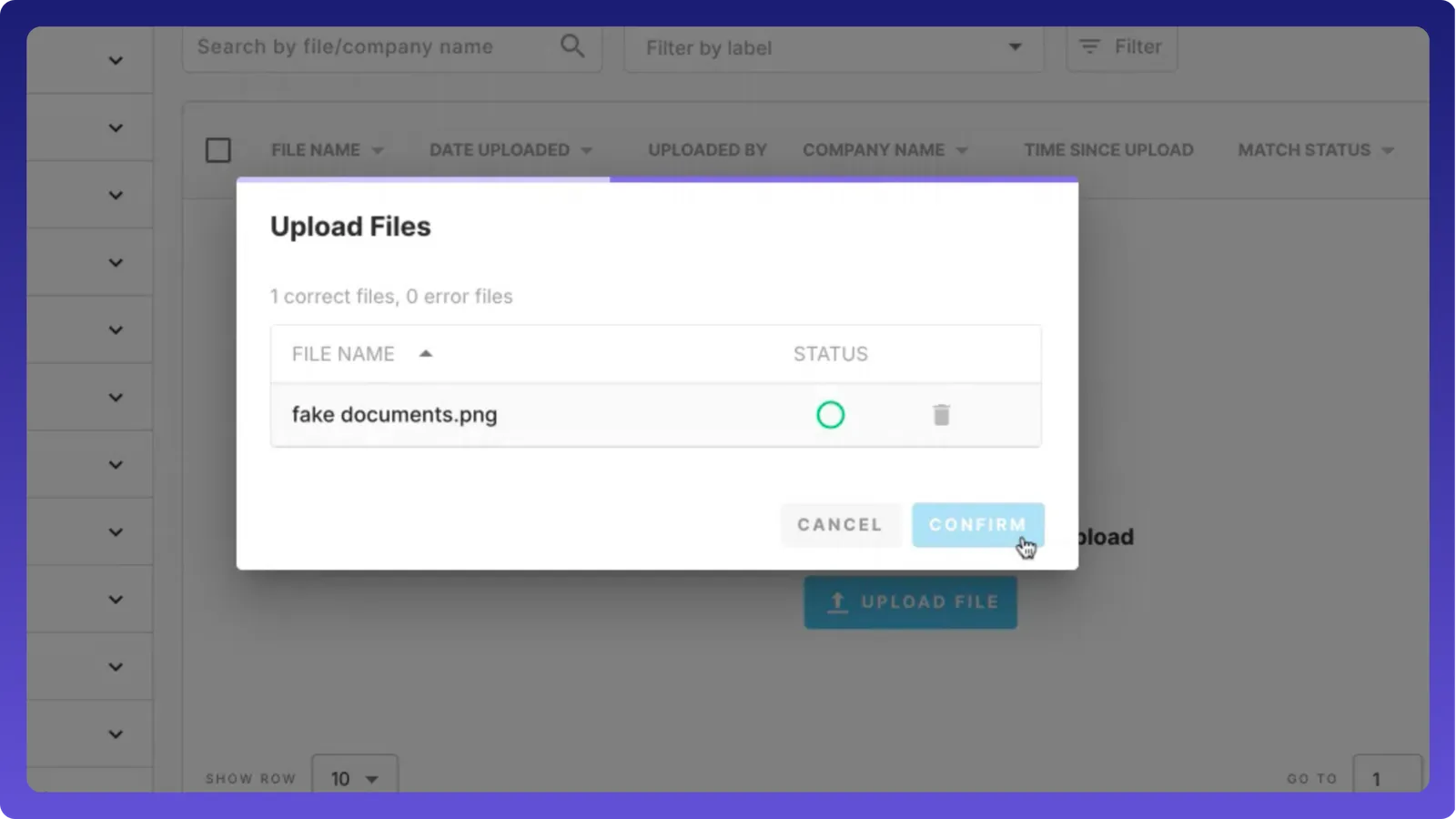
Now that we have a queue, let us add documents and check the effectivenss of document scanning.
When you land here, you will find the “complex table” option. Click on it and select the table we’ve created. You can see the data captured perfectly under the table headers: model, equipment type, and serial number.