
How to handle multi-table varieties?
The system has been enhanced to improve the way you interact with complex tables in your documents.
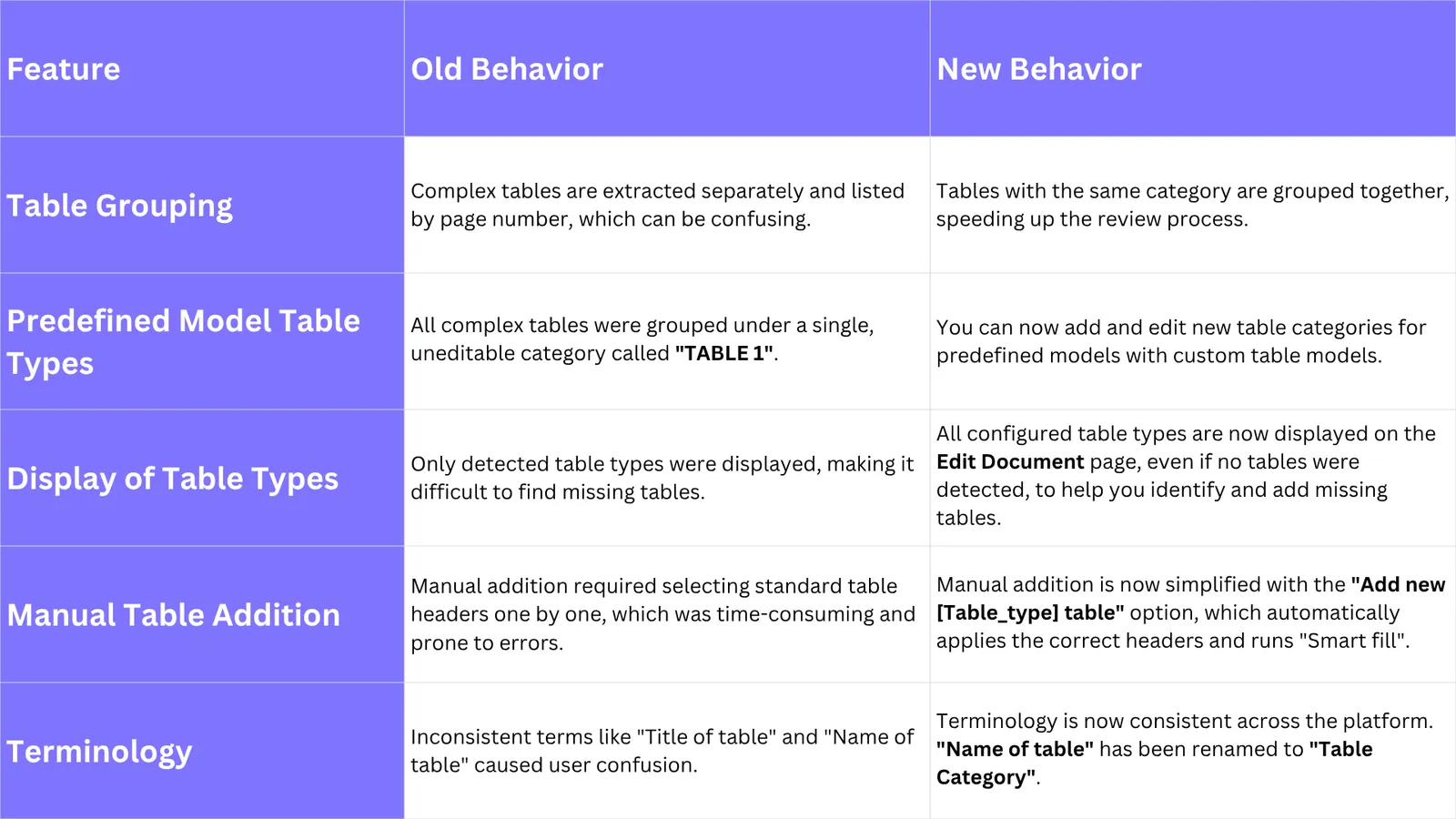
Introducing to Complex Table Type Management. The new features focus on grouping tables by type to streamline the review process and reduce manual effort. Instead of navigating between different table types scattered across a document, you can now review all tables of the same type at once.
Grouping Tables by Type
Tables are now grouped by Table Category(also referred to as table type) on theEdit Document page. For example, all “Collateral” tables will be listed together, followed by “Debtor” tables, and so on. This allows you to focus on a single type of table at a time, which speeds up the review process. The system displays the list of tables sorted by page number within each group.
Defining Table Categories
-
For Custom Models:You can define a table’s category by entering a”Name of table” on the Model Creation page.
-
For Predefined Models:You can now create new table types (called”Table Category”) directly on theEdit Document page.
-
To do this, click the “Add new table category” button.
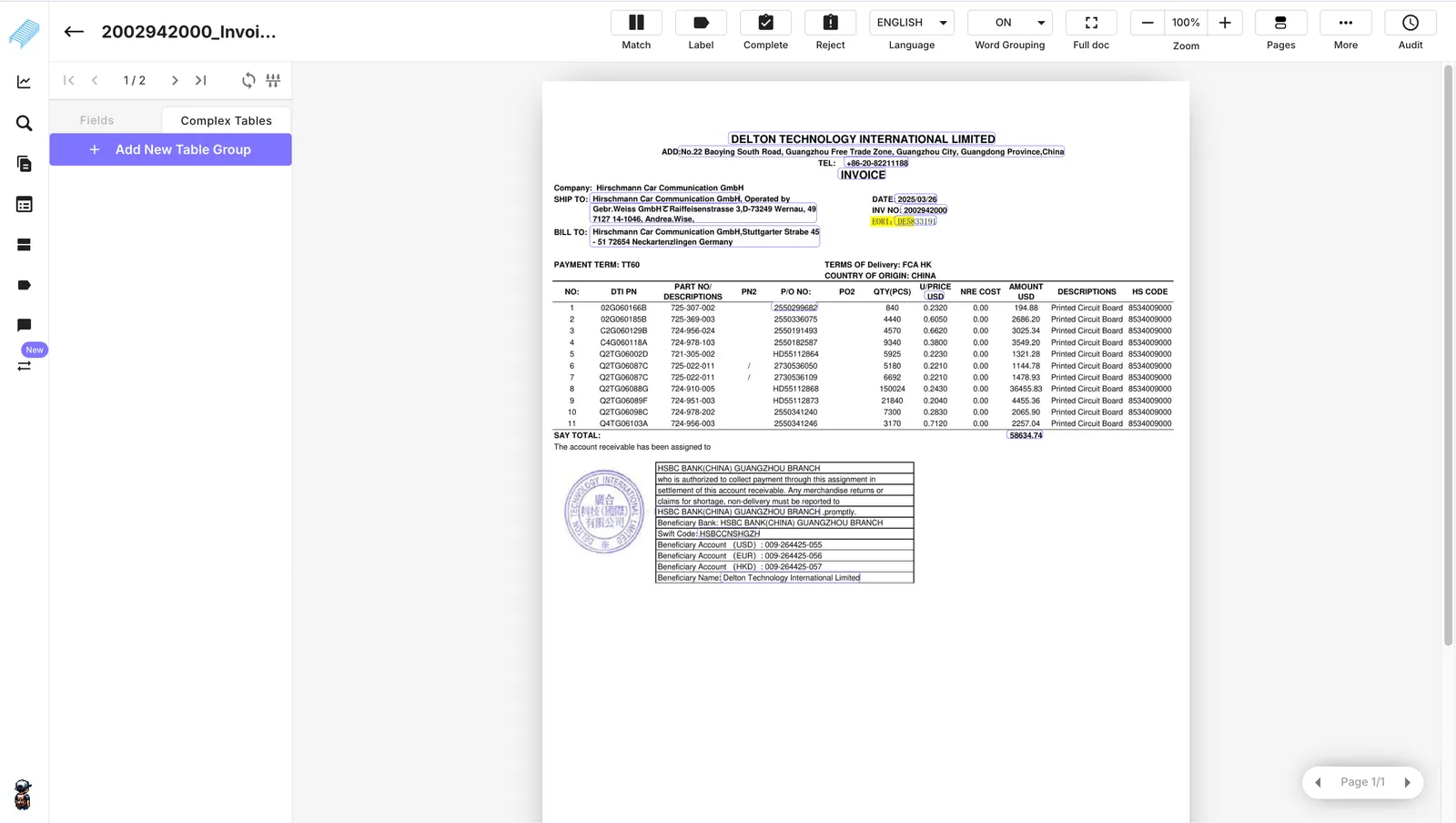
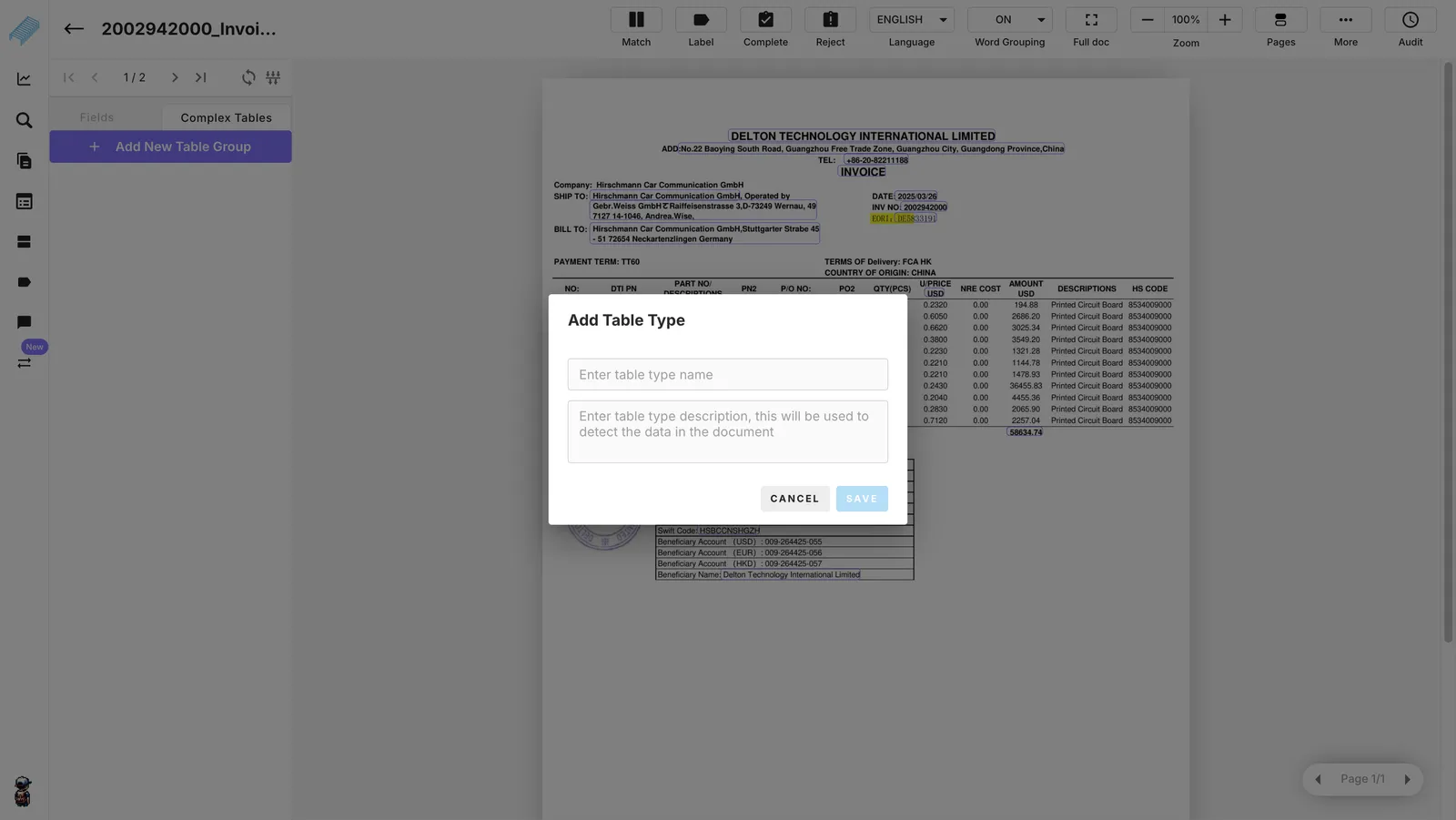
A card will appear, asking you to enter a Table Category(required) and an optionalTable Description.
For “Invoice” Predefined Complex table models: When using the “Invoice” predefined document and table models, the system automatically assigns all complex tables to the**“INVOICE TABLE”** category. This is a fixed setting, and you cannot add, edit, or delete table categories or headers for this model.
Editing Existing Table Categories
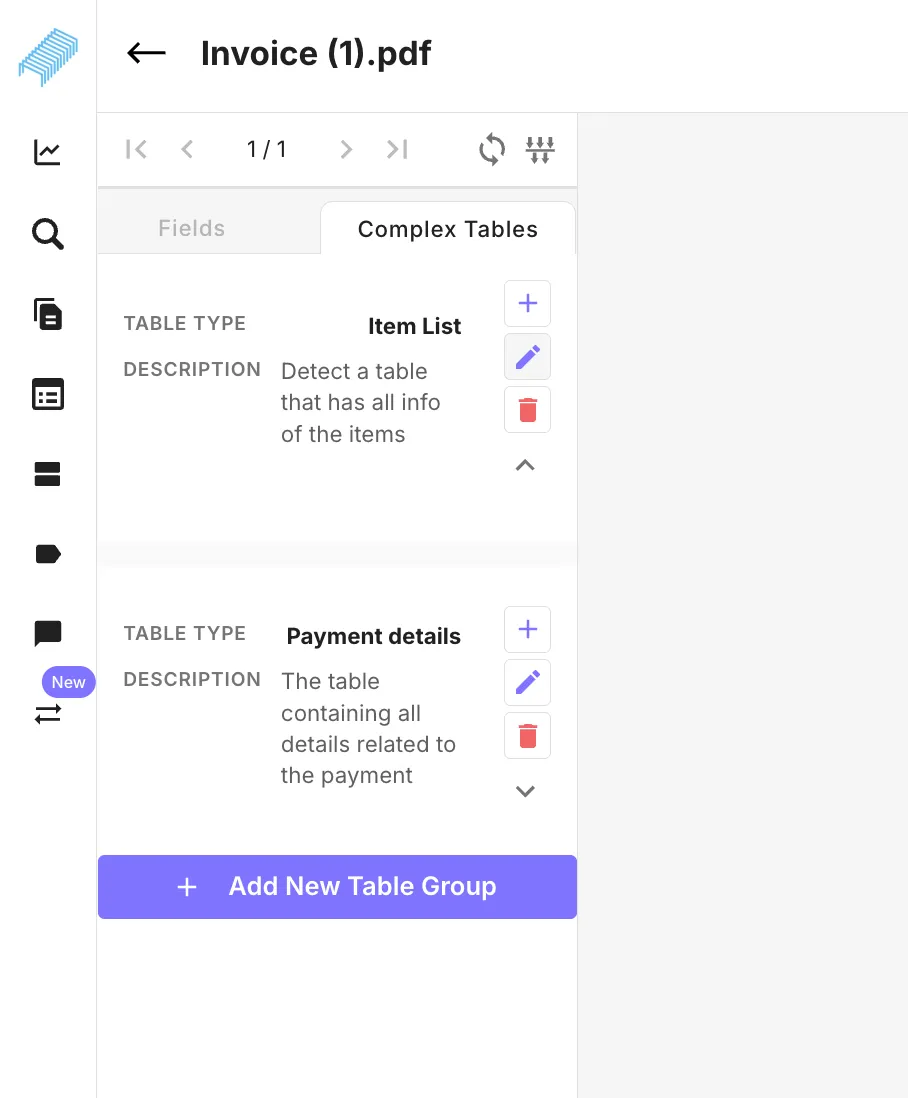
Users with the appropriate permissions can edit the name and description of existing table categories directly on the Edit Document page. After editing, the system immediately updates all references to that table category, including the table names and the “Add new [Table_type] table” buttons.
Manually Adding Tables
If the system misses a table, you can now manually add it under the correct table category.
-
On the Edit Documentpage, click the**“Tables”** tab.
-
All configured table categories are displayed, including those with zero detected tables. This helps you identify missing tables.
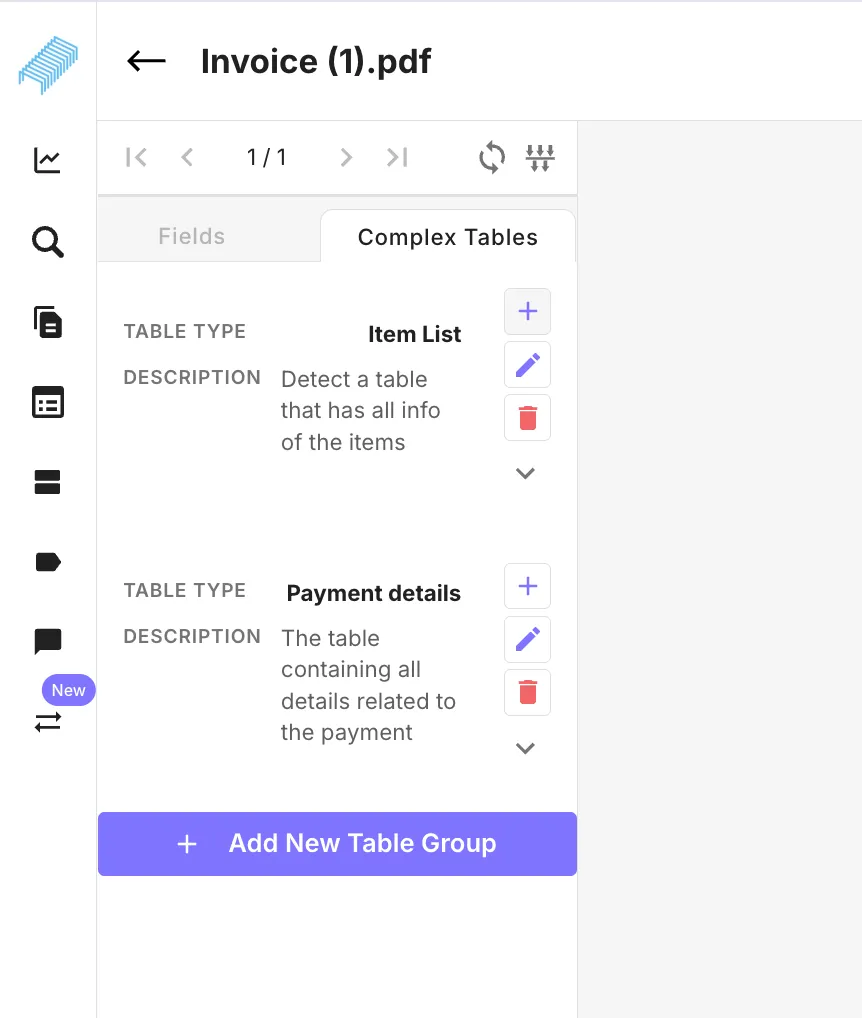
- Select the desired table category and click the “Add new [Table_type] table” option at the end of the list
- Adjust the bounding box around the table on the document and click “Process”
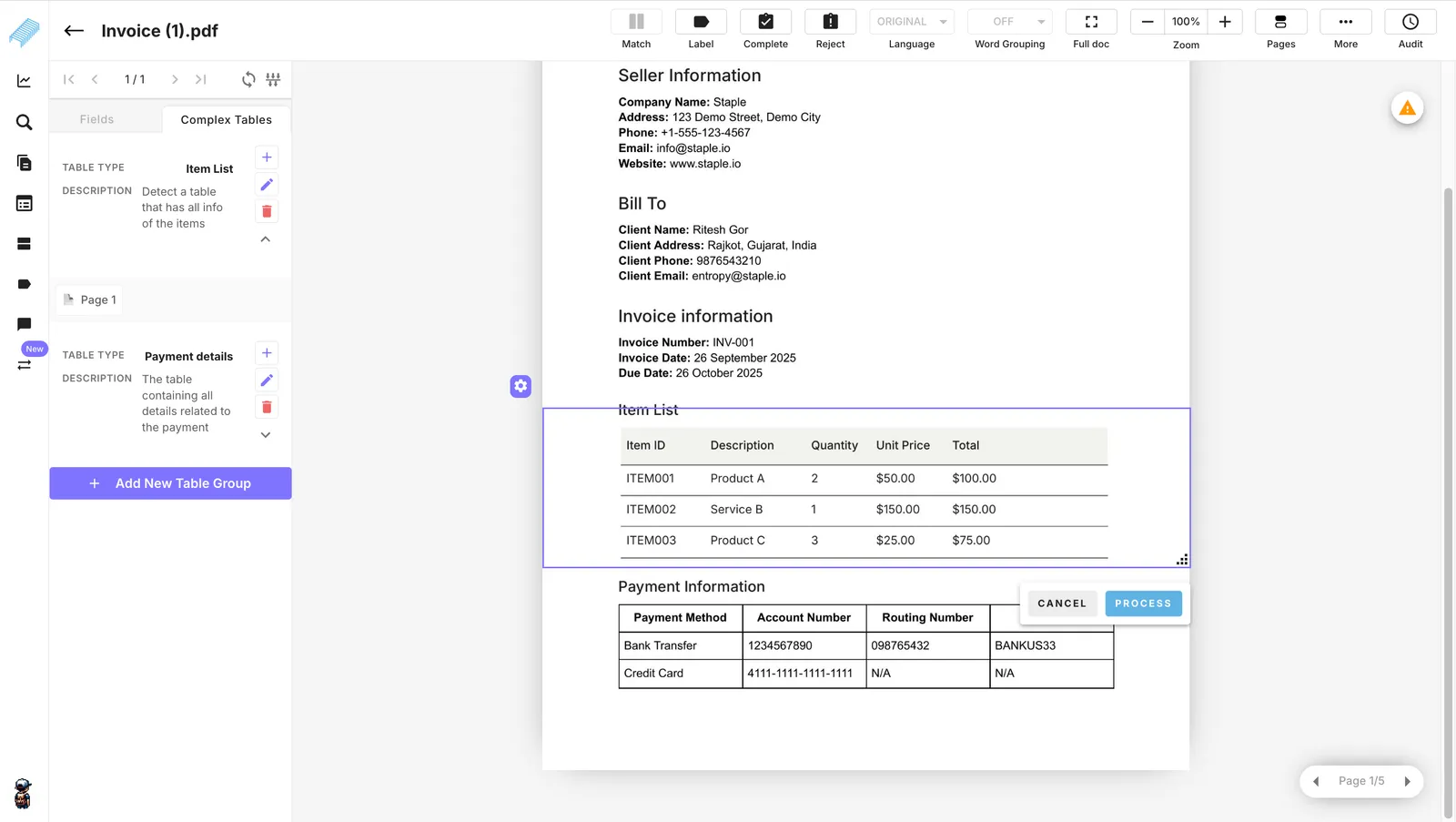
- The system automatically applies the correct standard headers for that table category and performs a “Smart fill” to extract the data, minimizing manual work and errors.
Deleting operation in Tables Types
If there are tables that the user no longer wants, they can be deleted using the delete functionality.
-
Deleting a Standard Table Header
-
Users with “Manage complex tables”permission can see and use thedelete (trash) icons next to headers.
-
For Predefined scanning model, users can see the button in the complex tables on the edit document page.
-
For custom scanning models, all header edits and deletions must be done from the Model Creation page, so the buttons are hidden on the Edit Document page.
-
Deleting a Table Category (Table Type)
-
Only users with the “Manage complex tables”permission can see and use the controls todelete table types.
-
Deletion controls for table types are available only for predefined models with custom table models.
-
Effect: Deleting a Table Category will remove it from the table type model. If the deleted category contained any complex tables, those tables would likely become unassigned or need to be manually assigned. The complex table type will be deleted from the scanning queue and the table model. This applies to the table models created using custom scanning models and predefined scanning models.
-
Deleting a complex table instance
-
To delete a complex table instance, the user can click on the purple box around the complex table and hover over the drag icon. The delete icon will pop up next to it. They can use this button to delete a complex table.
-
Effect: For Custom scanning model builder - when a user deletes a complex table instance from a table type (known as pages), then that complex table instance in that table type will be deleted from all templates in which that table type is detected. For the Document edit page - If the user deletes a complex table from any table type, it will be deleted only from that document. It will not affect the table type.
New Permissions
A new permission role, “Manage complex tables,” has been introduced. Users with this permission can add and edit table categories, as well as add, edit, and delete standard headers. Users without this permission can view existing table types but cannot create or edit them.
UI Terminology Changes
To make everything clearer, some names are changing.
- “Name of table”is being renamed to”Table Category”.
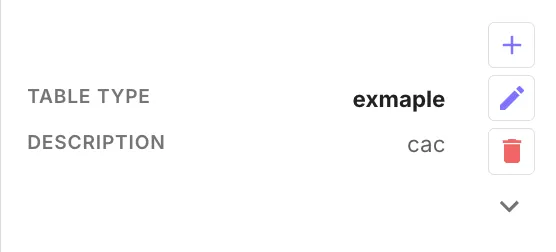
- “Title of table”is being removed from theModel Creation page.
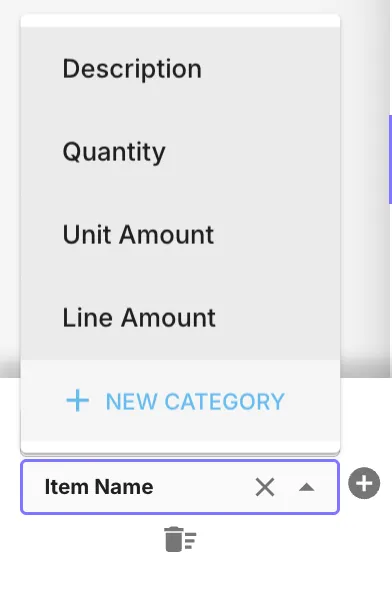
- The ”+ NEW CATEGORY”button is being renamed to”+ NEW HEADER”.
Summary of Changes