
Implement the matching queue
Manually matching documents
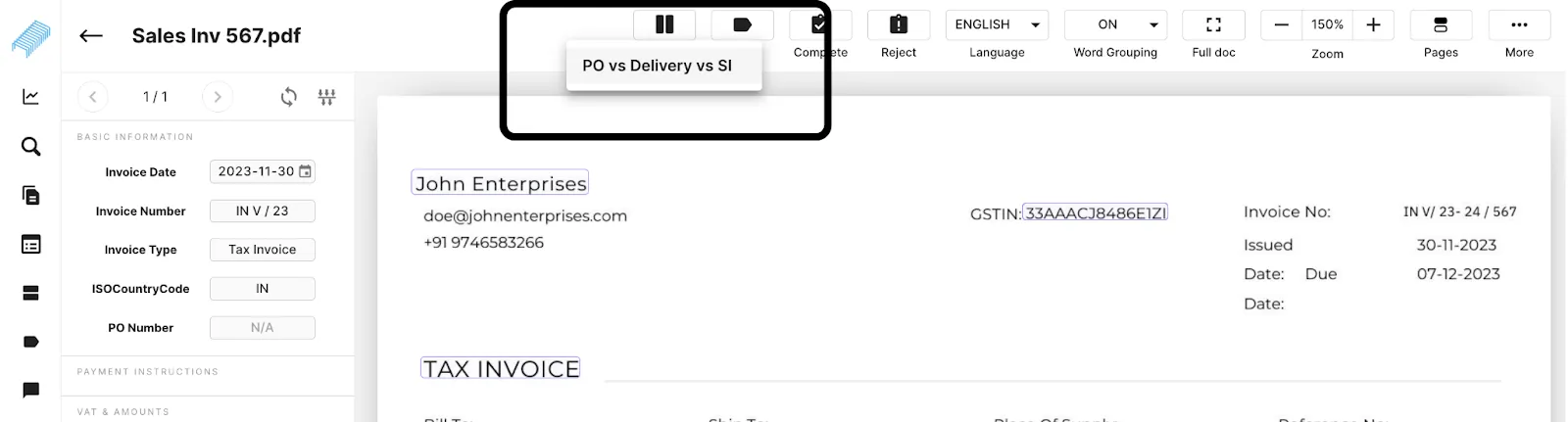
Once the matching rules are set, to implement the matching queue, the user needs to open the document from the selected queues and hover over the top bar where an icon for matching will be seen. On clicking the matching button, a list of possible matching rules is displayed. Select the desired option. This will lead the user to a page where the other documents eligible for matching according to the selected rule set is displayed.
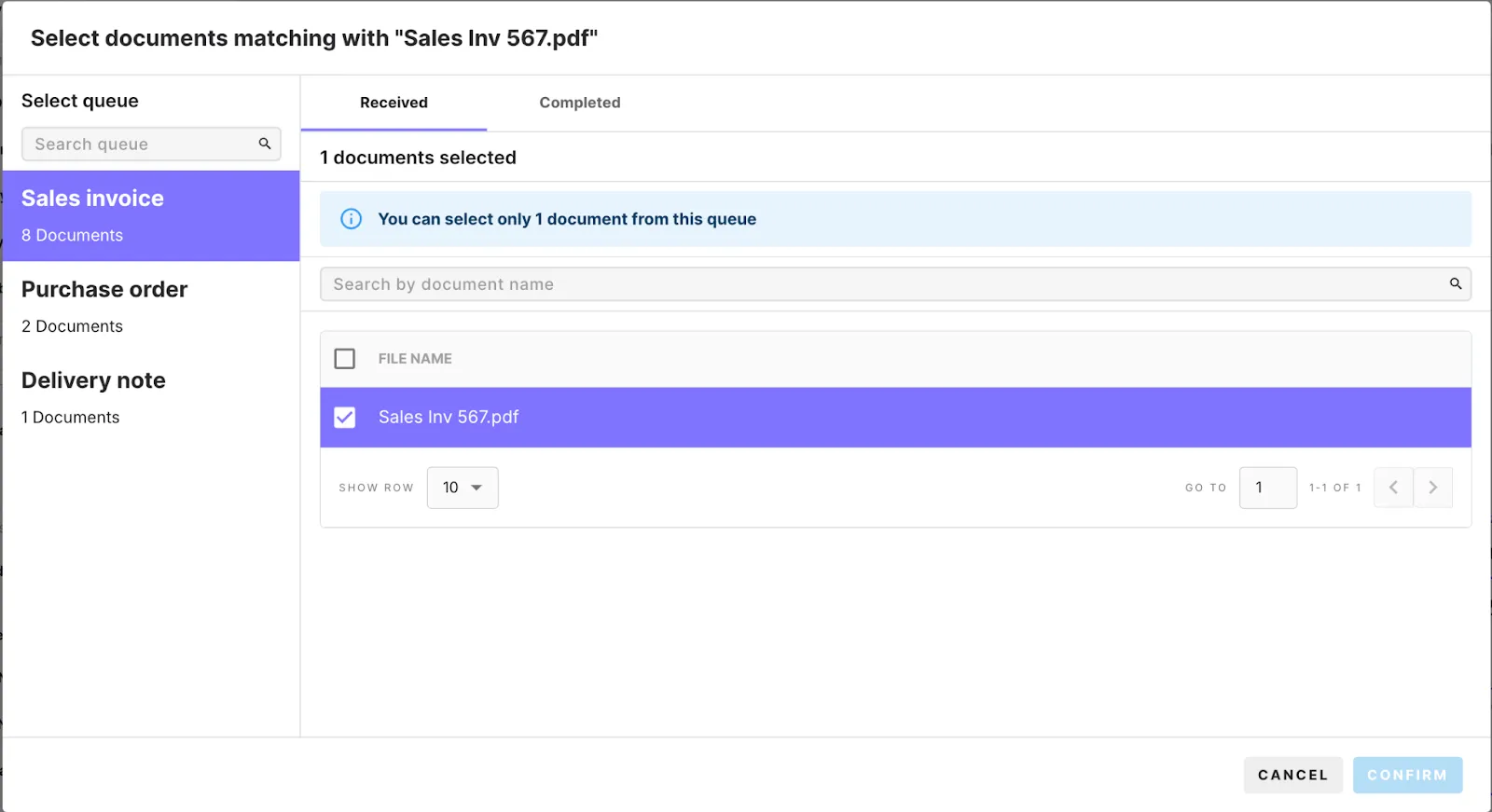
Once clicked, it will display the options for which the matching rule set is to be applied. Next, The user has to select another document to be matched. After selecting the document and confirming it, the server handles the matching.
If the match is successful, a green tab at the bottom right corner will inform the user that the match was successful. Users can view the match in the corresponding matching queue.
In the example below, three queues are added to the matching rules. Hence, you can see three queues on the left. Now, you need to pick a document from the three queues.
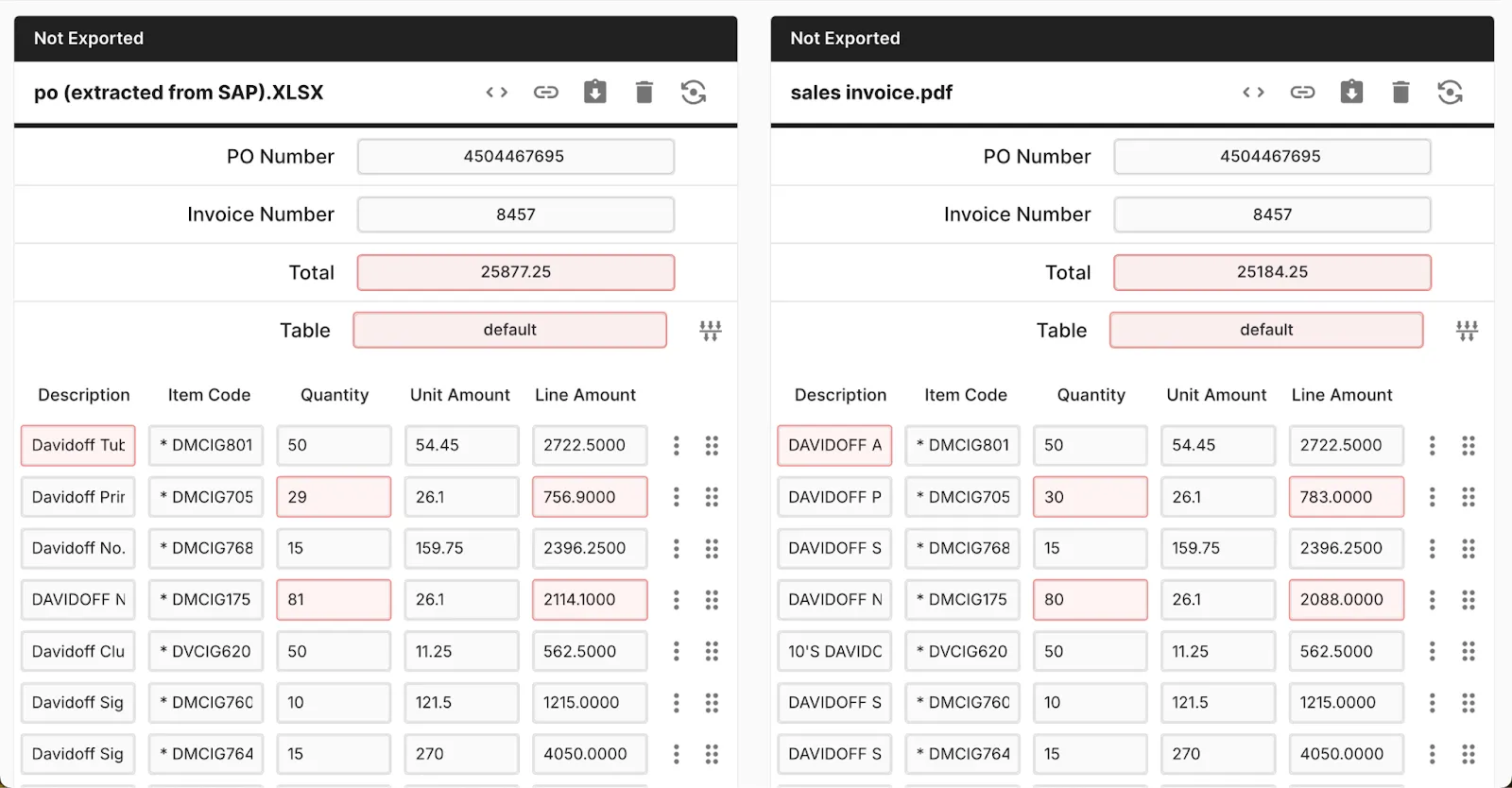
To view the matched fields from each document, the user has to open the document pair
(Go to matching screen -> Choose the matching collection created -> Find the latest match created with new documents).
Here, the document can be viewed by clicking on the link icon on top of each option. To delete the match, Click on the bin icon. Users can add other matches from documents by adding documents from the three lines at the top right corner.
Automatically matching documents
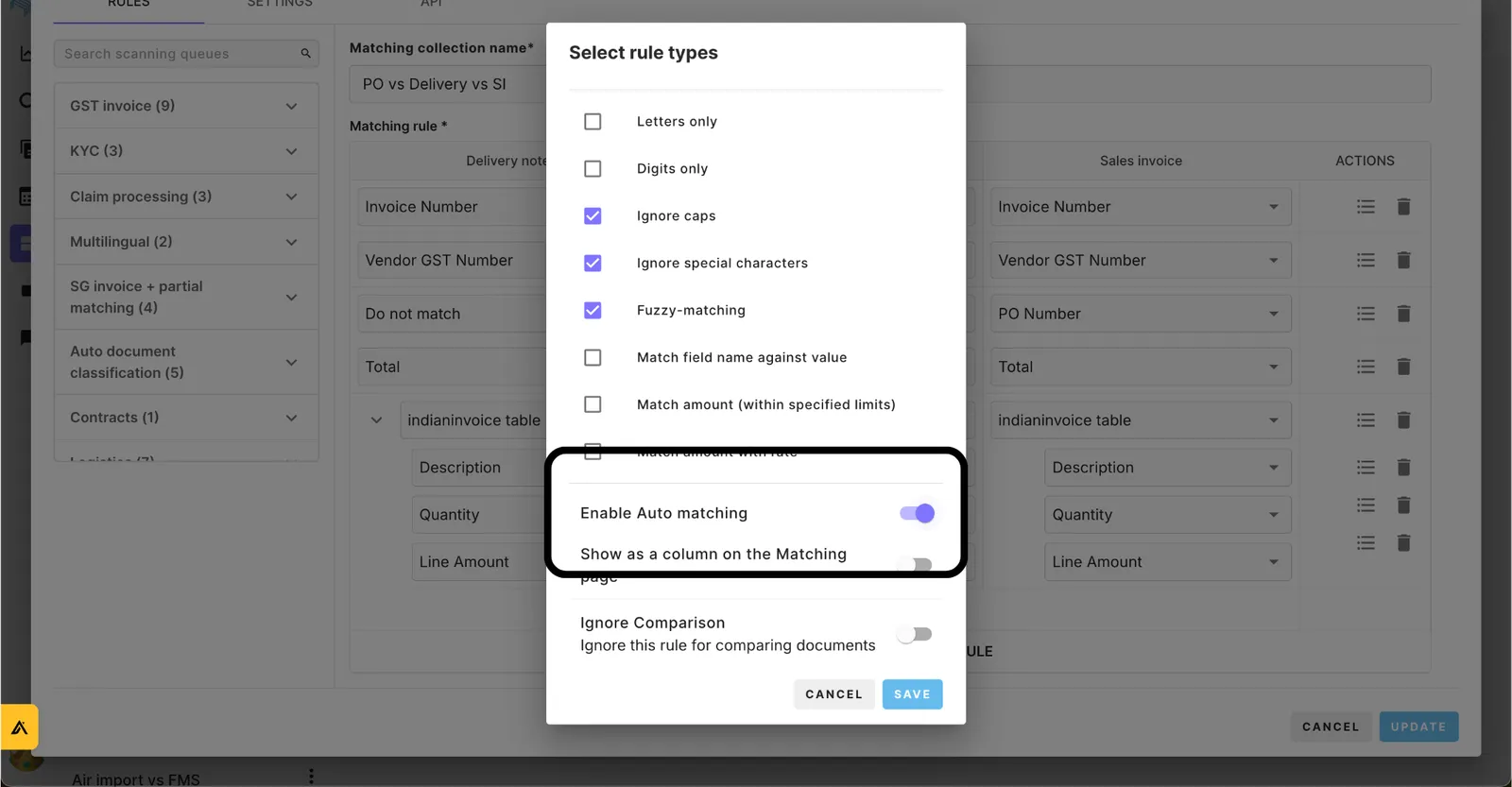
Staple can automatically find which document for which to apply these matching rules. For example, we may wish to compare Invoices, POs and Delivery orders. In order to find the documents to reconcile automatically, one of the rules should be set as the auto-matching rule. This can only be applied to a single rule.
Enable auto matching: This means that this specific rule is satisfied for any documents - they will be grouped, and the rest of the reconciliation rules will be compared automatically.