

SAP Concur integration
A document can be exported directly from Staple AI to Concur. To do this, the user account must be connected to a Concur account.
This can be achieved as follows:
Connecting from the App Center
To enable an app the:
- Concur App Center must be enabled for your company.
- The user enabling the app must be an authorized SAP Concur Administrator. If you are unsure whether you are an SAP Concur Administrator, please refer to the section Assigning Authorized SAP Concur Administrator Permissions
Step 1: Confirm the App Center Is Enabled
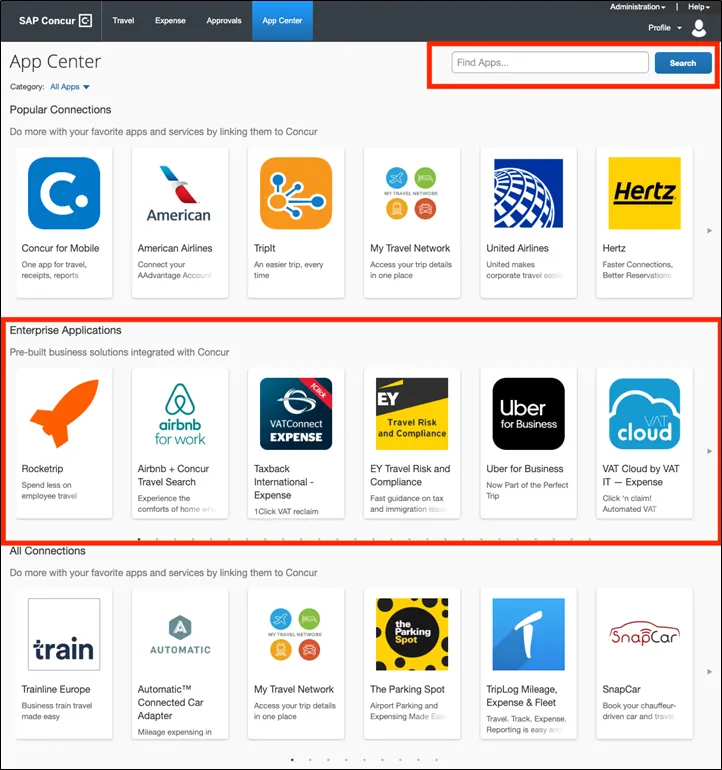
Activating an enterprise application requires that your company has enabled the App Center. If the App Center is enabled, you will see the “App Center” tab when logged into SAP Concur.

If the App Center tab is unavailable, please log a ticket with the SAP Concur Helpdesk.
Step 2: Locate the application in the App Center
To find the application, you may use the “search” option or navigate to the app by clicking on the arrows “>”. Enterprise applications will be in the “Enterprise Applications” row.
Step 3: Enable the App
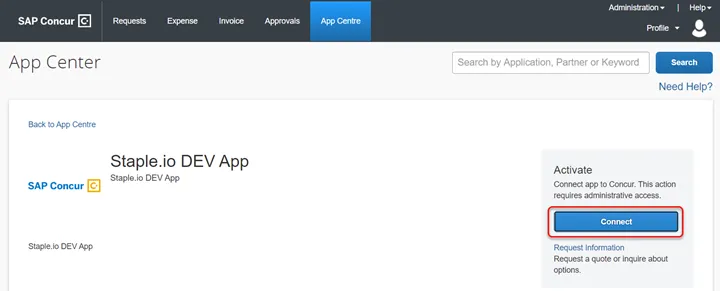
The authorized SAP Concur Administrator can connect to the application using the “Connect” button on the listing.
Step 4: App Activation
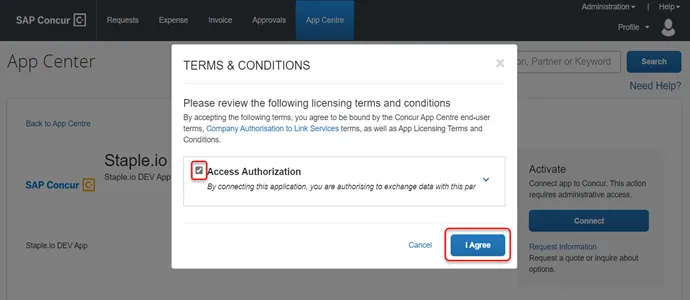
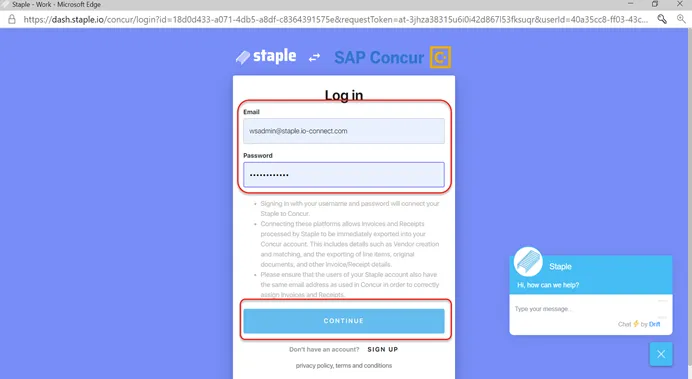
Once the user will be successfully logged into Staple.io portal, then only the Staple.io app will get connected.
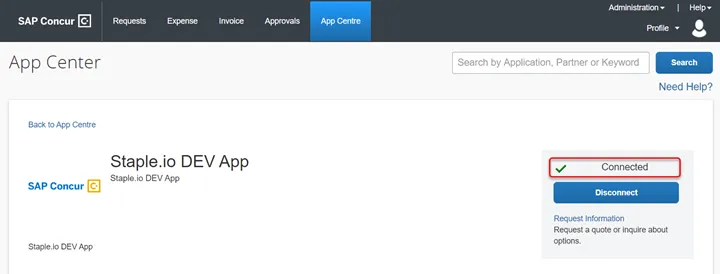
The full client guide covering the subsequent enablement steps can be found here:
App Center Administration Guide
Note: This step can either be completed by your own authorized SAP Concur Administrator or you can log a ticket with the SAP Concur Helpdesk to have this step completed for you by our support team.
If you do not have the appropriate permissions to activate the app, the Connect button will be disabled as shown below.
Following this, once a document has been marked as complete within the interface, it can be selected and exported to Concur.
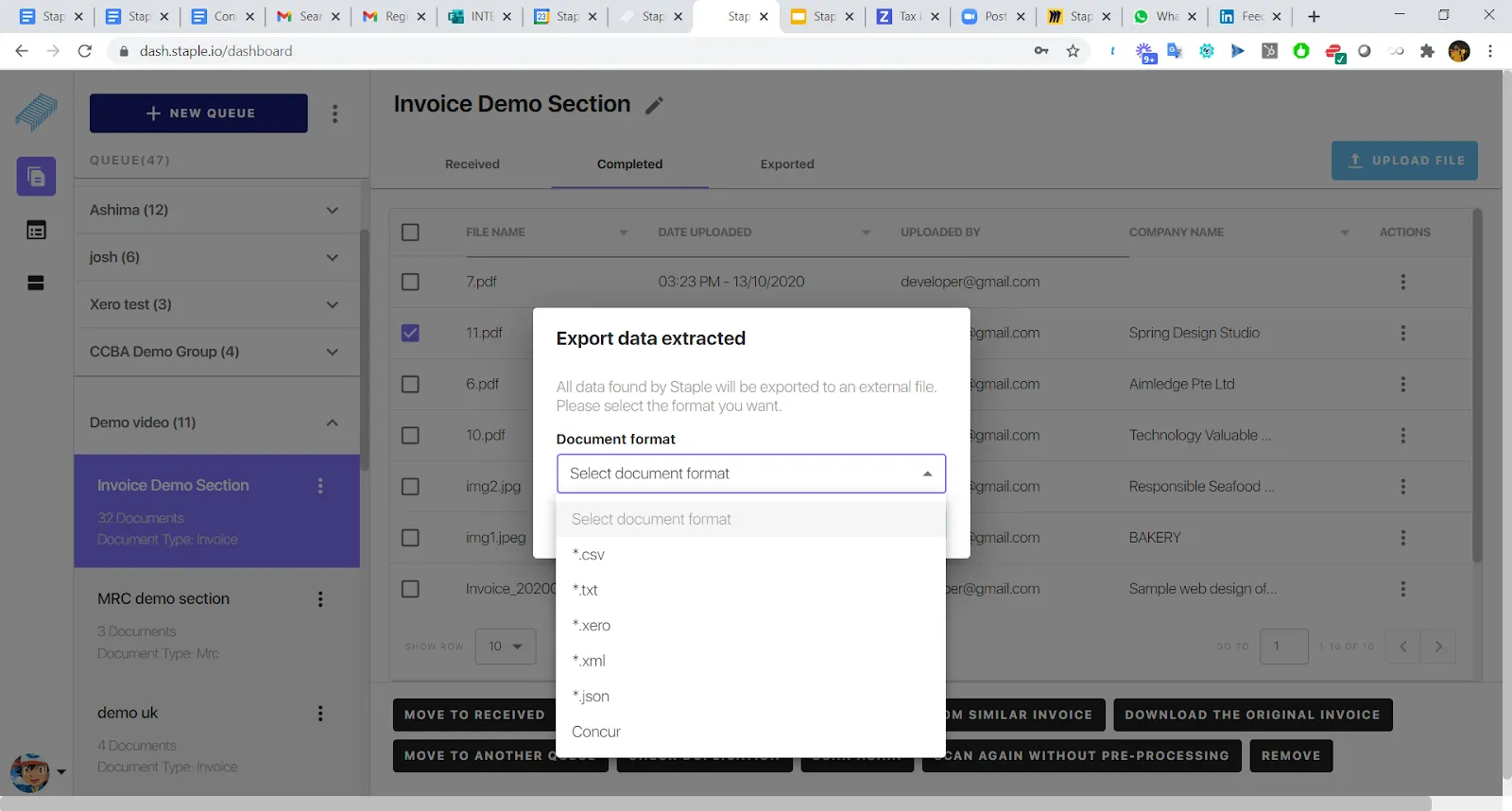
This will automatically create or match the vendor from the invoice against those present in Concur. It will then create a new invoice in concur as an unsigned invoice, where the original file will also be uploaded for audit purposes.
Errors when exporting Data to Concur
When exporting a document to Concur (or any other account system), a small snackbar will appear showing the export is ongoing.
A second green snackbar will appear when the posting is confirmed to be successful.
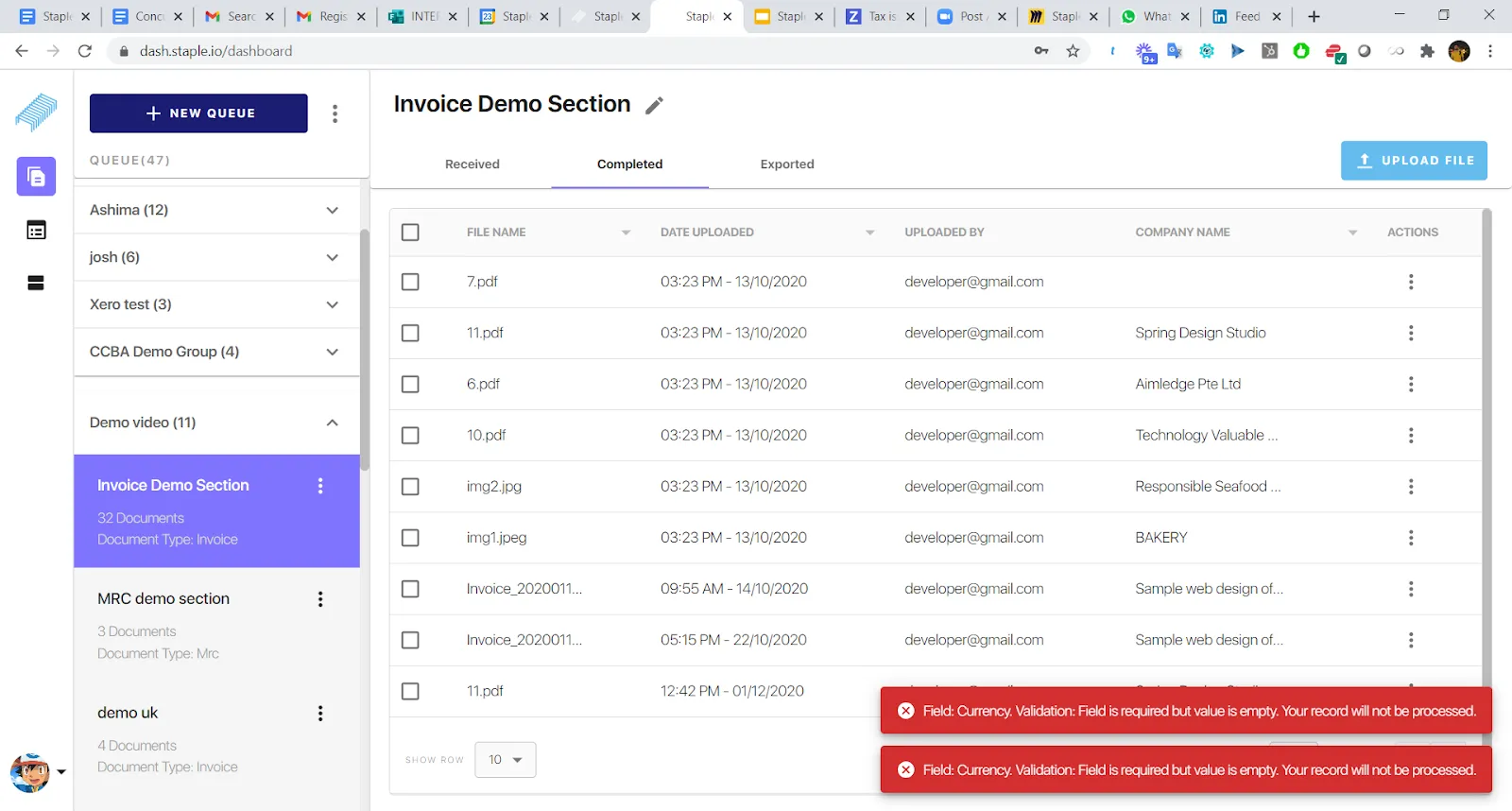
Errors while exporting data to Concur
A red snackbar popup indicates an error has occurred with the posting, and the post was not successful. The text in the snackbar describes the error that is occurring. Usually, this will occur because there were insufficient documents to post. This may include not having a currency, or vendor name present.