

Using the UI with the API
Use of the API is relatively easy, however, a small amount of knowledge about how to interact with Restful APIs is required.
API use is not required, however, it can be utilised to automate parts of the processing workflow.
A basic method to process documents with a queue’s configured model is as follows:
- The user uses the “Login” API endpoint to retrieve a user token and API key using their credentials.
- The user then makes a queue (which can be done in the interface as described previously or using the Queues API endpoint.
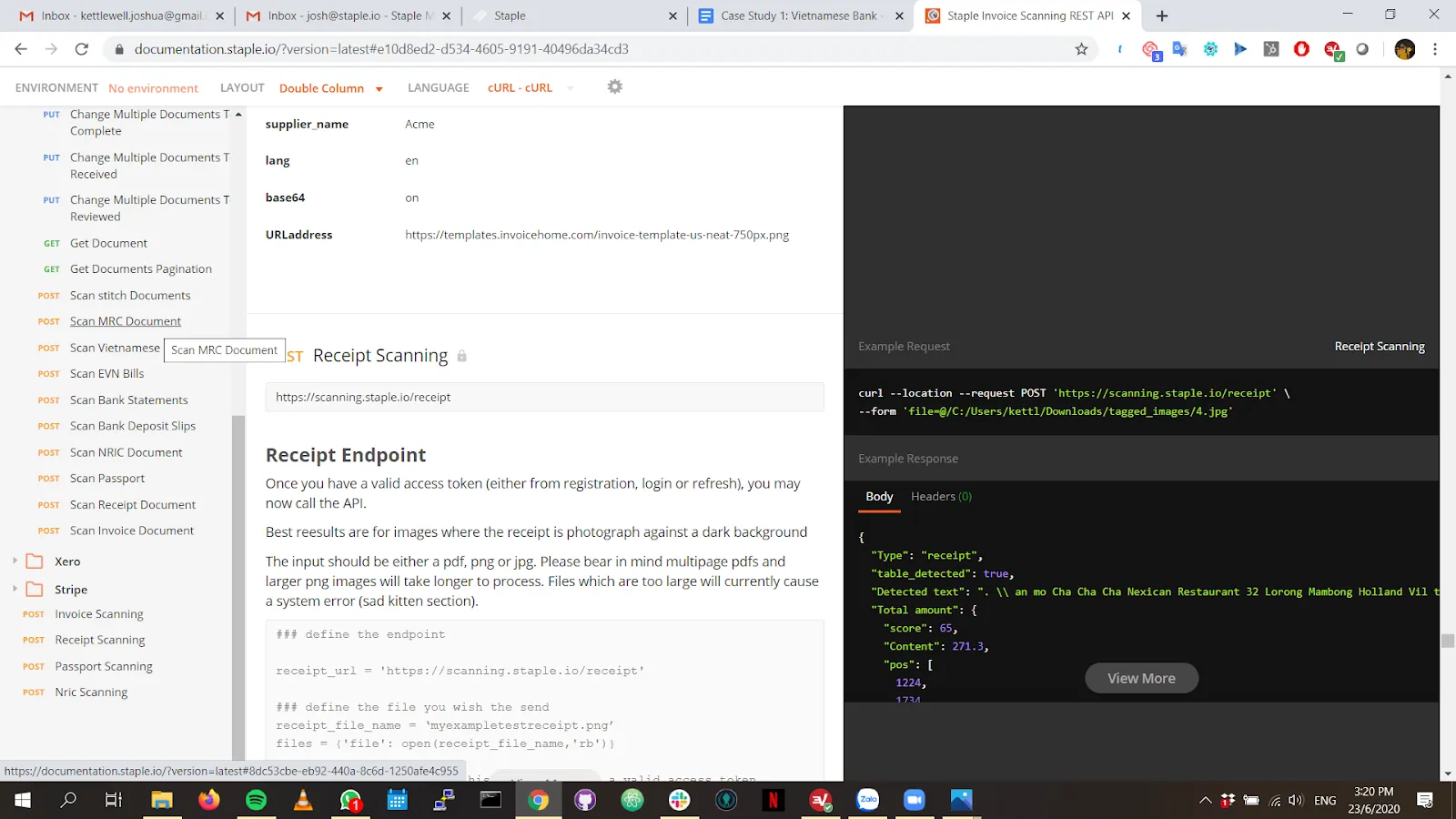
Documentation on the API, available at“https://www.documentation.staple.io”
- Using Scan Asynchronous Document, the user posts a document using the QID of the queue created. The response returns a document ID for tracking.
- Processing runs asynchronously. Once scanning finishes, the user can retrieve the extracted data with Get Document by ID.
- The user can view the document in the queue and make any required corrections.
- Clicking on the document allows the viewing of the processed image, and edits or corrections can be made. To save corrections, click the “Complete” button.
- At a later time, the user can call the Get Document endpoint using the desired DocID. This returns the updated information in this document from the user interface, or an indication that the document was rejected during review.
Should the user want to create a model themselves, and then access the model via API, this is also supported. The method for this is as follows:
- The user first creates a model in the system using the Model Creation feature. This model is now immediately available to the user as a “Custom Model” in both the interface and via the API.
- The user uses the “Login” API endpoint to retrieve a user token and API key using their credentials.
- The user then makes a queue (which can be done in the interface as described previously, or using the Queues API endpoint.
- Using the endpoint “POST - Upload Multiple Documents” endpoint, the user posts a document, using the QID of the queue created.
- Documents are then processed and the document is sent to the UI, and the DocID is returned to the user.
- If desired, the user can view these documents in the “Received Queue” in the user interface. Clicking on the document allows the viewing of the Processed image. And edits or corrections can be made. To save corrections, click the “Complete” button.
- At a later time, the user can call the document “Get Document” endpoint using the desired DocID. This returns the updated information in this document from the user interface, or if the document was rejected by underwriting