

Monthly release notes for Staple AI
October '26
October brings documents in straight from email, puts Polish companies on KSeF with self-onboarding, and adds exceptions to Reconciliation 2.0. Rules can now calculate across tables and check confidence scores, each queue sets its own confidence thresholds, and reviewers can save their work without completing a document.
1. Email Inbox Integration for Gmail and Outlook
Customers can now connect their own Google Workspace or Microsoft 365 inboxes, named or shared, straight to a folder by signing in. There is no need to set up auto-forwarding to Staple or to share client secrets.
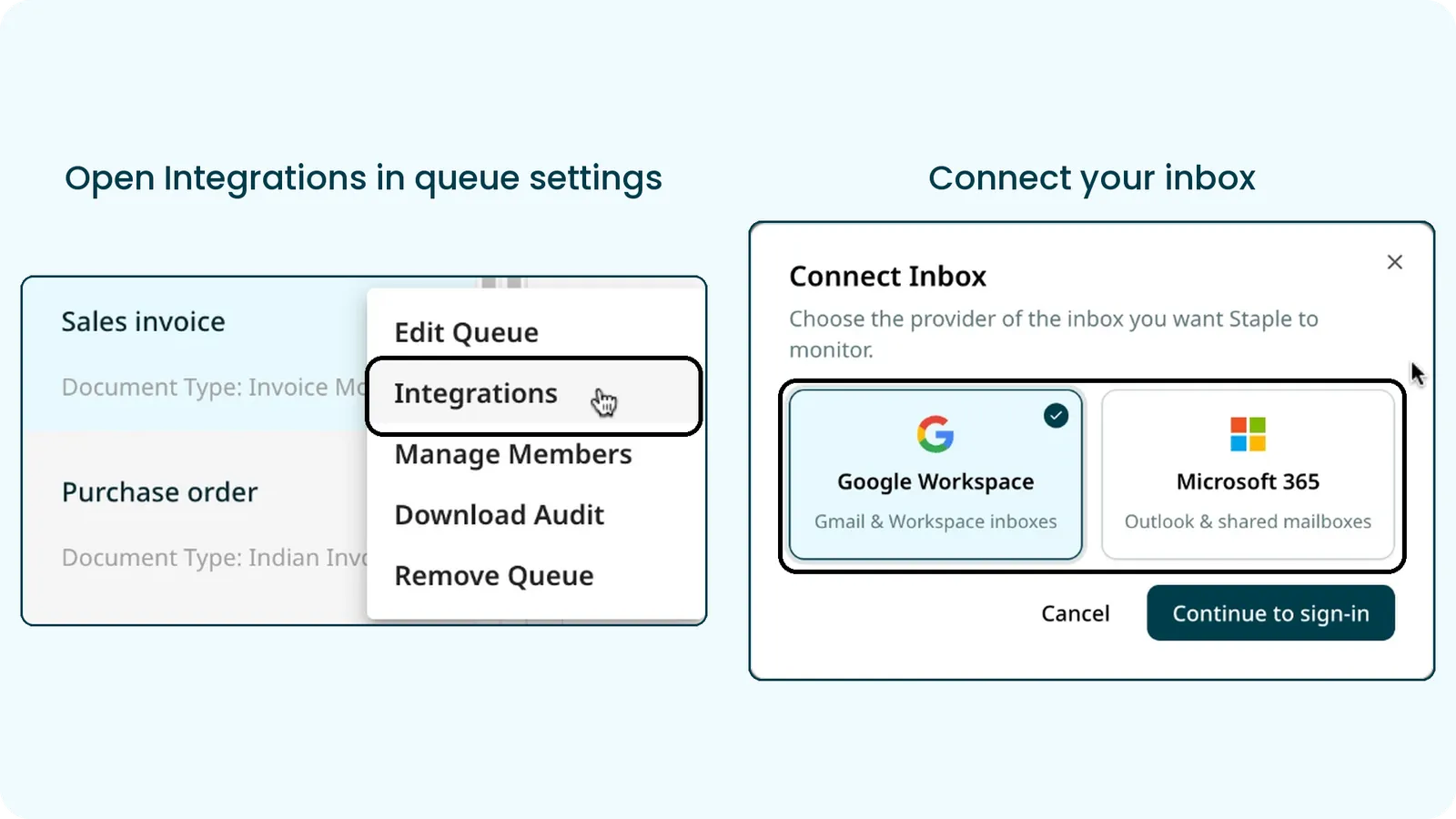
How it works
- Open the folder menu, select Integrations, and on the Email connector card select Connect Inbox
- Choose Google Workspace or Microsoft 365, select Continue to sign-in, and allow access. The inbox shows as Connected
- Connect up to 20 inboxes to one folder. Attachments from new mail are imported automatically
What’s in it
- Sender allow and deny lists, with wildcards, so only the right senders reach the folder
- Attachment filters by minimum resolution, minimum size, file type and file name
- Pause and resume ingestion at any time, and Reconnect when access lapses
- Resync a date range to bring in mail that was missed, without creating duplicates
- Activity log showing every email as Success, Blocked or Failed, with the reason on hover
- Source email details on every document, including which inbox received it
Email forwarding
Every folder also has its own email address, shown on the Email (New) card on the same Integrations page.
- Copy the address from the card, then send or forward emails with attachments to it from any email client
- Each supported attachment arrives in the folder as its own document
- To send a whole mailbox without forwarding by hand, set up an automatic forwarding rule to the folder’s address, or connect the mailbox instead
- Forwarding has its own sender lists, attachment filters, pause and resume, and activity log, set separately from connected inboxes
Benefit
Teams bring documents in straight from the inboxes they already use, by connecting them or forwarding to the folder, with full control over what is imported and a clear record of every email.
2. Poland e-Invoicing: Self-Onboarding and Receiving
Customers can now onboard their Polish companies to KSeF, Poland’s national e-invoicing system, themselves, and receive their e-invoices straight into Staple.
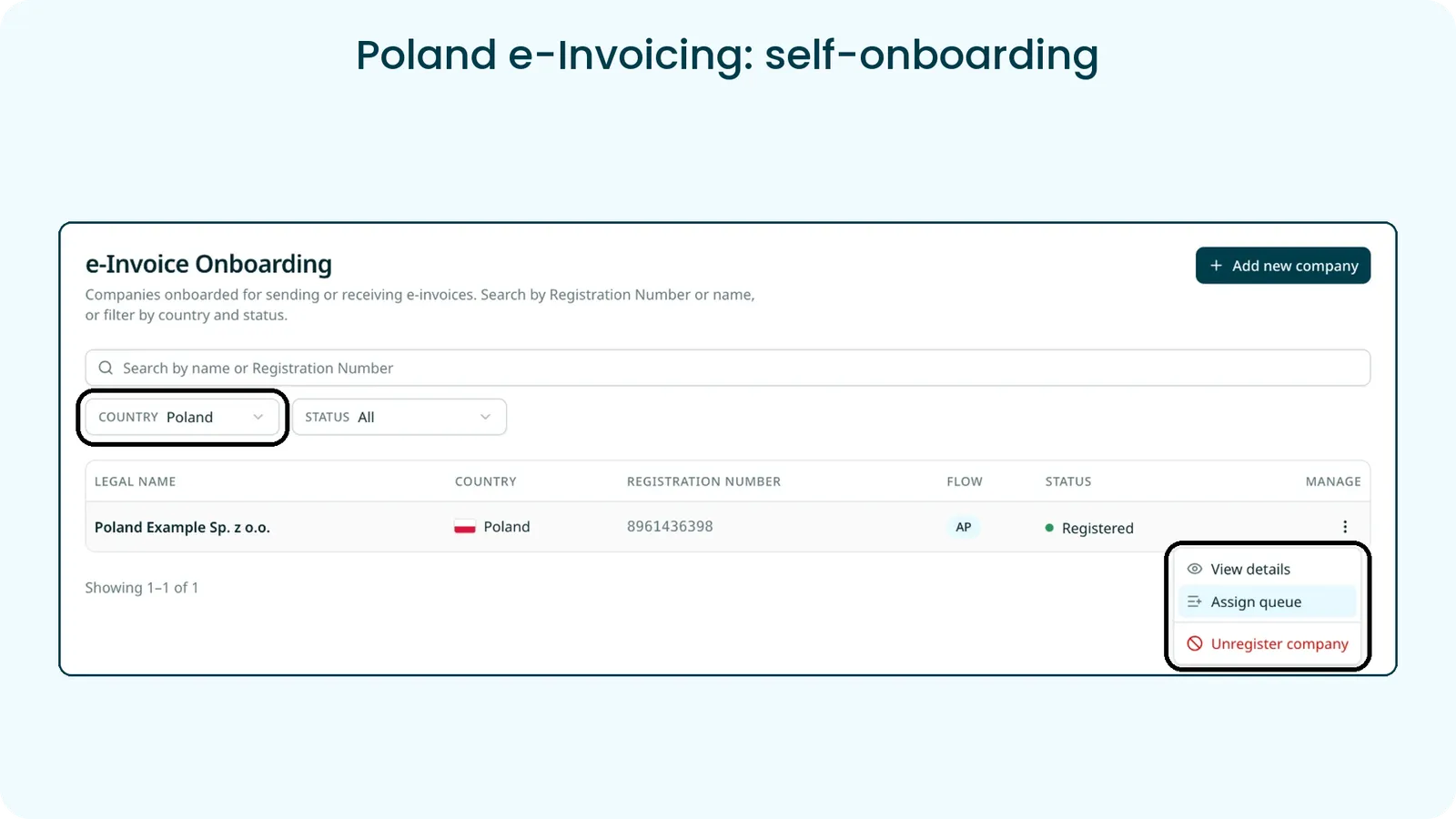
How it works
- Go to Profile Settings, e-Invoice Onboarding, select Add new company, and choose Poland
- Enter the legal entity name and the 10-digit NIP, then upload the KSeF certificate and private key and enter the certificate password
- Once the company shows as Registered, use Assign queue to choose where its e-invoices land
- Incoming FA(3) invoices are synced from KSeF, matched to the right company by NIP, and created as documents in the assigned queues
- The original XML of every invoice is kept in encrypted storage for the 5-year legal retention period
Benefit
Polish subsidiaries are set up without waiting on anyone, and their supplier invoices arrive in Staple automatically.
3. Reconciliation Exceptions
Not every mismatch matters equally. A wrong amount must be fixed before a set is closed, while a small difference in a reference field may need no action at all. Reconciliation 2.0 now lets you decide how each outcome of a comparison is treated.
Set up how outcomes are treated
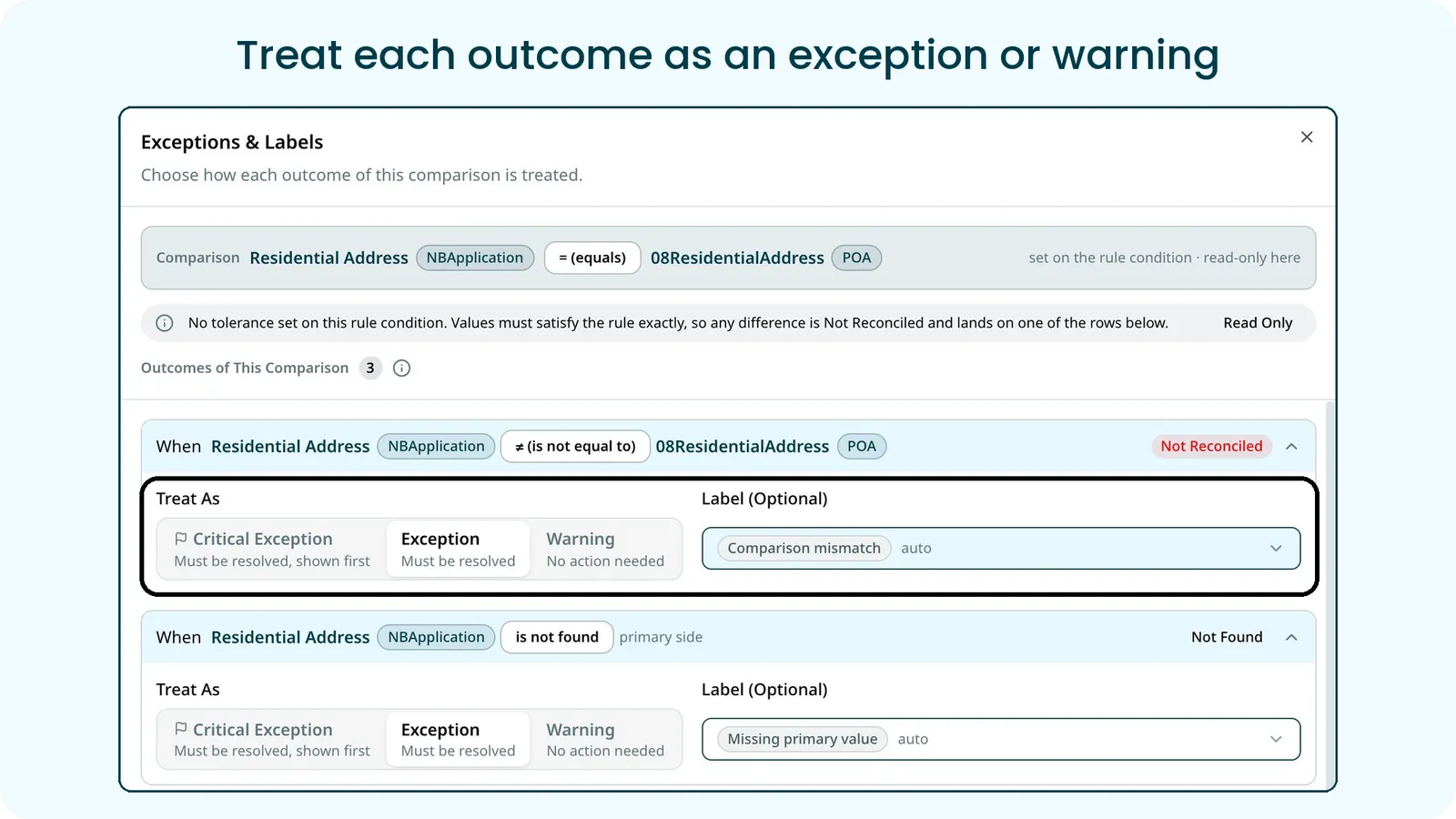
For every comparison in a linking set, Staple lists each way it can fail, for example the values are not equal, or the value is not found on either side. For each outcome you choose how to treat it:
- Critical Exception: must be resolved, and shown first
- Exception: must be resolved
- Warning: no action needed, and it never changes the reconcile status
Each outcome can also carry its own optional label, such as Comparison mismatch or Missing primary value, so the result is easy to filter and act on.
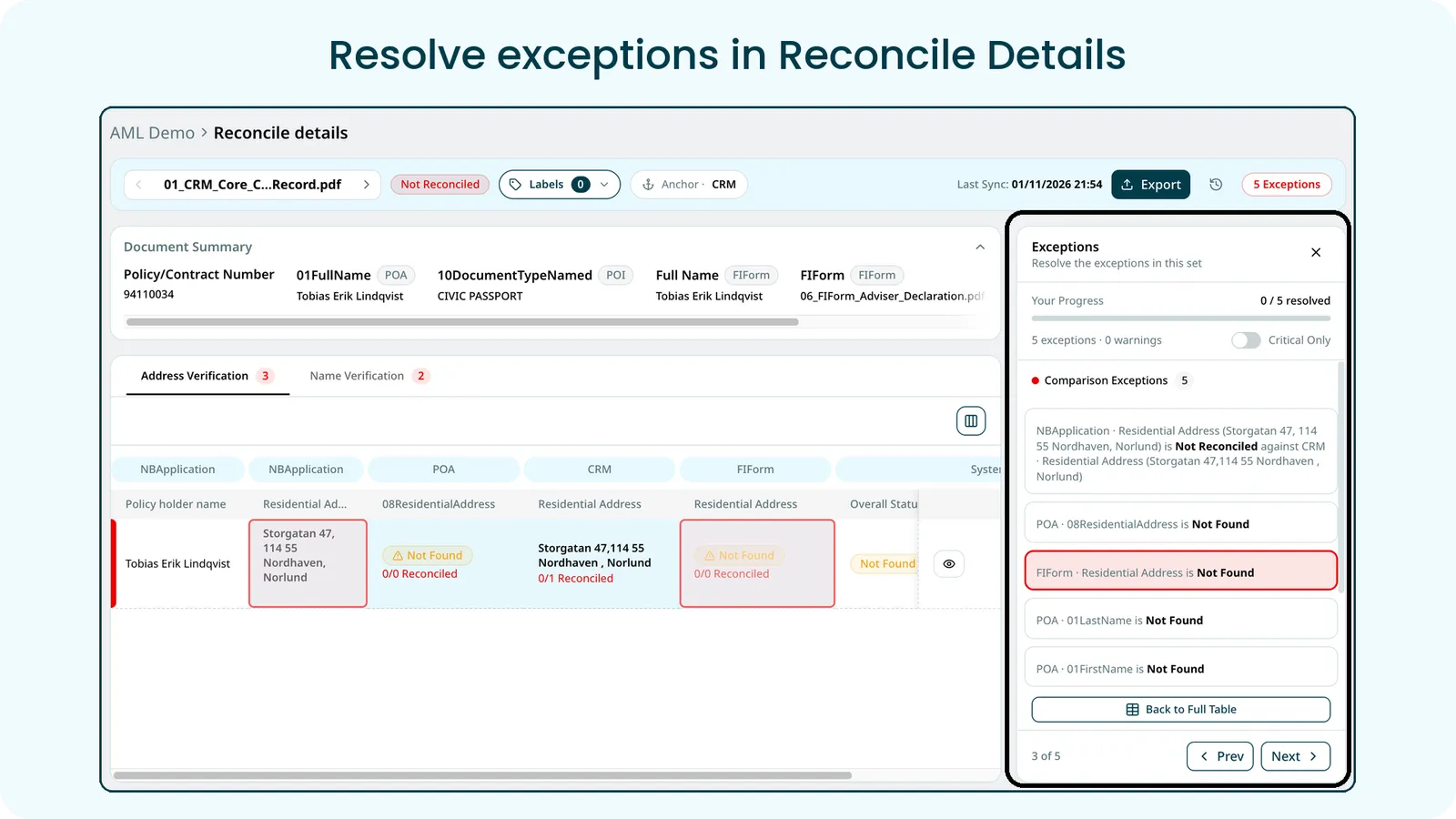
Resolve exceptions in Reconcile Details
- An Exceptions panel lists every open exception in the document set, with your progress shown as resolved out of total
- Turn on Critical Only to work through the critical exceptions first
- Select an exception to jump to the row and highlight the values that disagree, then use Prev and Next to move through the rest
Benefit
Reviewers know exactly what must be fixed, in what order, and what can safely be left, so every set is closed faster and nothing critical slips through.
4. New updates in Rules
Rules let a queue act on documents without anyone opening them. A rule watches for a stage, such as Document Uploaded, checks its conditions, and when every condition is satisfied it applies the chosen label. The label’s actions then run, such as moving the document to another tab or folder, sending a webhook or an email, or notifying users. A rule can hold several conditions, and a queue can hold up to 100 rules.
This month, rules gain two new kinds of condition.
4.1 Arithmetic Rules on Tables and Fields
Rules used to compare single field values only. Now a condition can calculate a value from table columns and header fields, then compare it with another value in the same document. This turns everyday document validation into a rule, such as checking that the line amounts add up to the subtotal, or that quantity times price equals each line amount.
How it works
- Open Edit Queue, go to Rules, and add a condition of the type Compare Values in This Document
- Pick how each side is calculated: For Each Selected Value, Sum, Count, Average or Multiply
- Choose the fields and table columns to use. The field and column names from your model appear in the pickers, grouped by header fields and by table
- Pick a comparison such as Is Equal To, and set a tolerance if small differences should still count as equal. At a tolerance of 0.01, 100.00 and 100.01 are treated as equal
- A plain-language sentence under each condition confirms what the rule checks
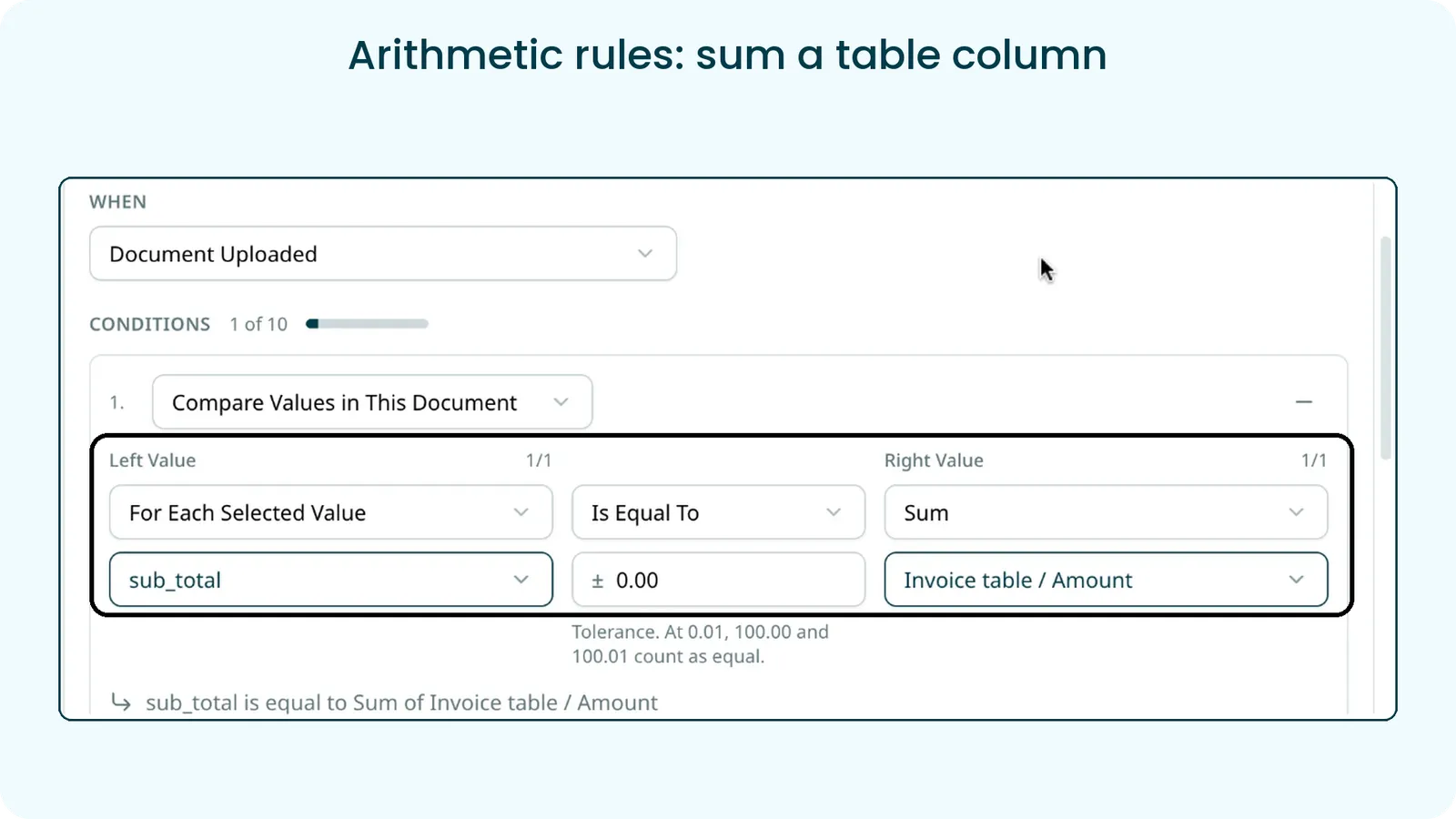
Example 1, the subtotal matches the line items. The condition below adds up every value in the Amount column of the invoice table and checks that the total is equal to sub_total. If it is, the rule’s label is applied.
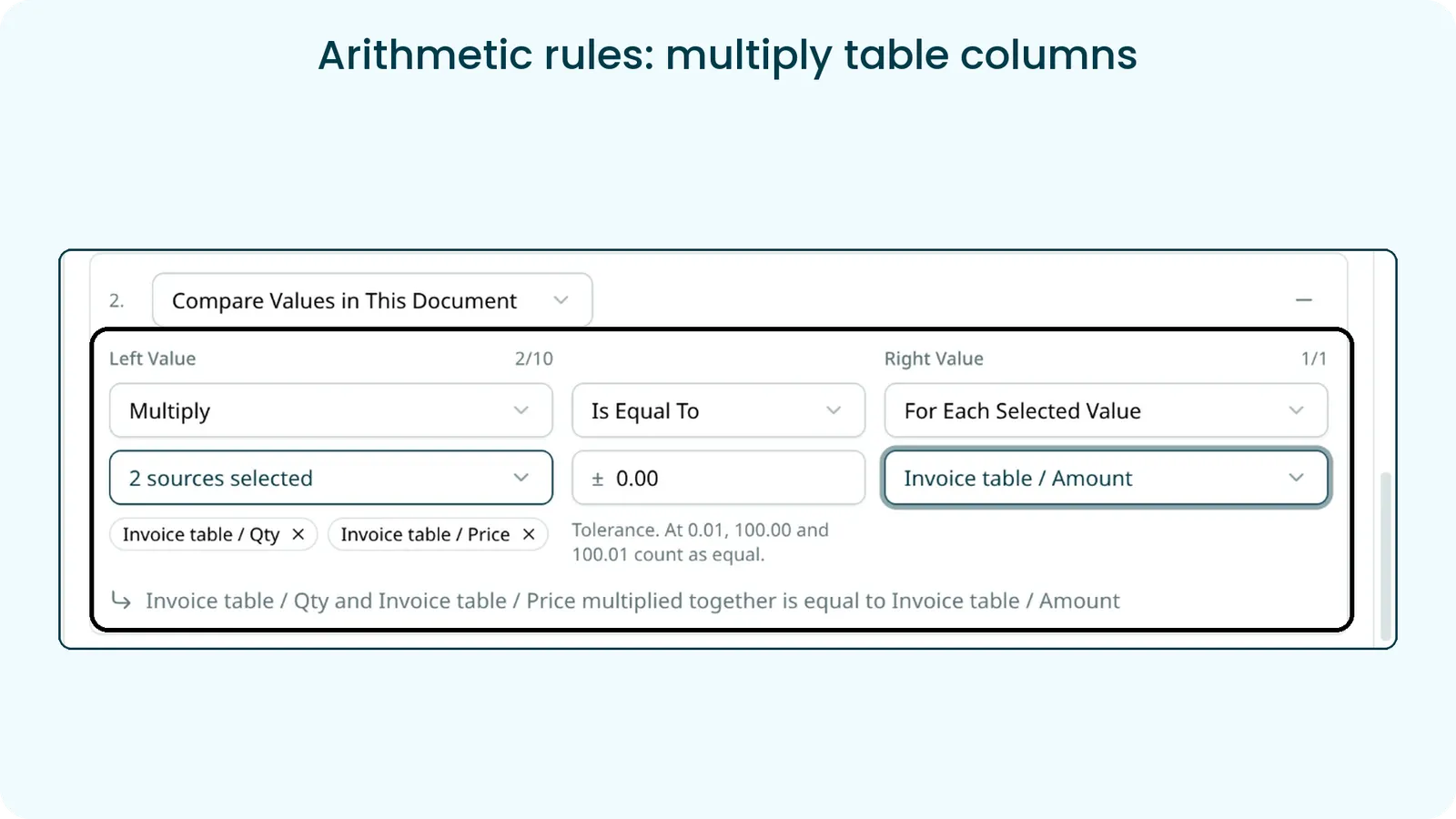
Example 2, every line is priced correctly. Here Multiply takes two sources, Qty and Price from the invoice table, multiplies them for each row, and checks the result against that row’s Amount. A line where the quantity times the price does not equal the amount is caught straight away.
Other checks follow the same pattern, such as flagging a document whose subtotals do not add up to the total, or one where Count finds no line items at all. Existing rules keep working exactly as before.
Benefit
Arithmetic checks that used to need a manual review or an outside tool now run automatically on every document, and the right label and actions follow the moment a document fails or passes.
4.2 Confidence Score in Rules
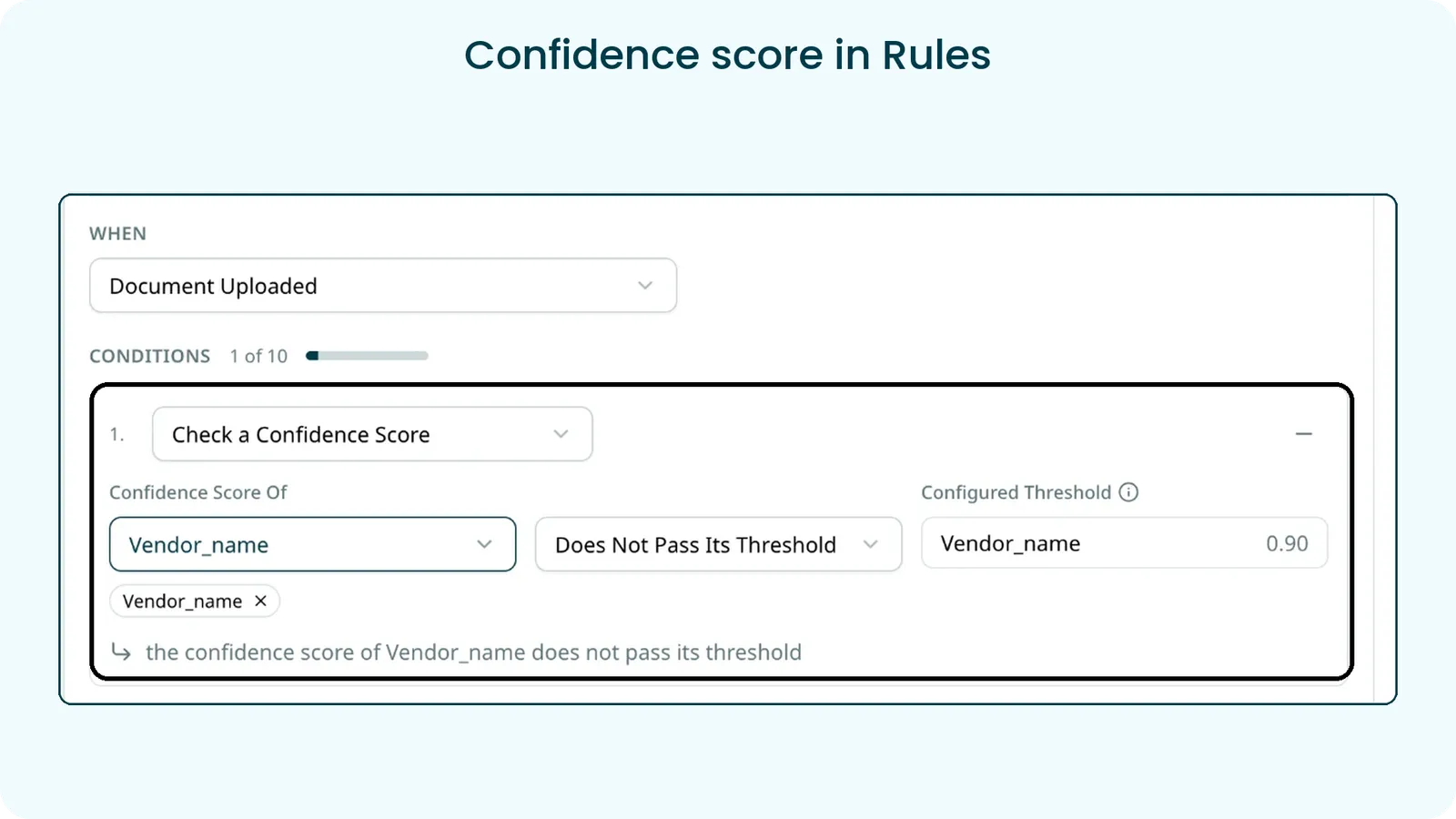
A new condition type, Check a Confidence Score, lets a rule act on how sure Staple is about the extracted values.
How it works
- Add a condition of the type Check a Confidence Score and pick the header fields or table columns to check
- Choose whether they pass or do not pass their threshold. Each item is checked against the minimum threshold set for it in the queue’s Confidence tab, shown on the right as the configured threshold
- In the example above, the rule is satisfied when the confidence score of Vendor_name does not pass its threshold of 0.90, so the label is applied and its actions run, for example routing the document for review or sending a webhook
Benefit
Reviewers only open the documents that need a closer look, and connected systems can be told about low-confidence documents as soon as extraction finishes.
5. New updates in Confidence Score
Two updates put confidence scores in the customer’s hands: each queue now sets its own thresholds, and those thresholds can complete documents automatically.
5.1 User-defined Confidence Thresholds
Every field and table column can now have its own minimum confidence threshold, set per queue.
How it works
- Open Edit Queue and go to the new Confidence tab
- Use Show Confidence Scores to show or hide the scores on the document review page
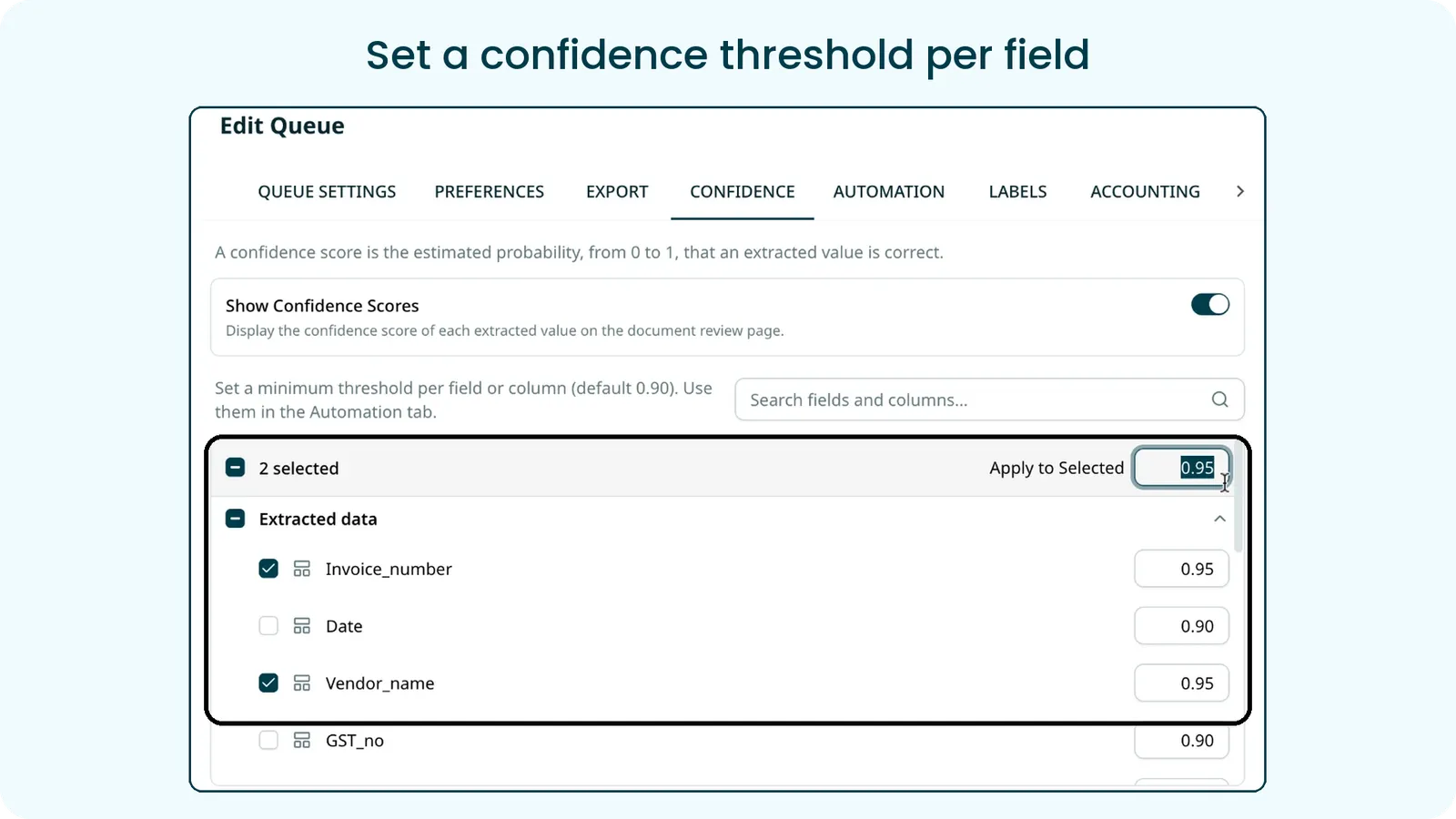
- Set a minimum threshold for each field or column. The default is 0.90. For a field that must be right, such as Invoice_number, raise it to 0.95
- Tick several fields, enter a value in Apply to Selected, and it is applied to all of them at once
- The thresholds are used in Rules and in the Automation tab, and already-scanned documents reflect a new threshold without a rescan
5.2 Confidence in Completed Automation
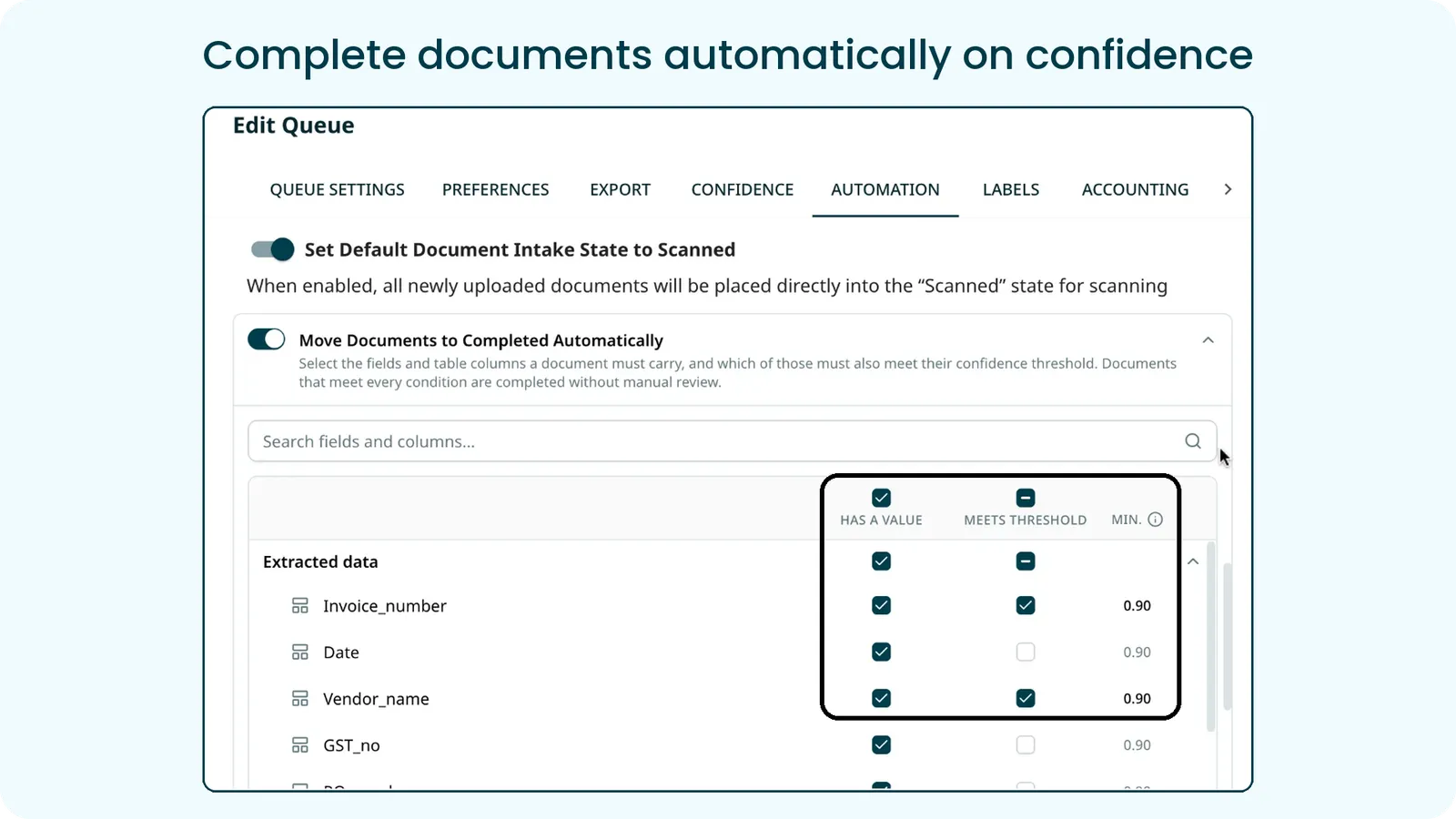
Move Documents to Completed Automatically in the Automation tab can now take confidence into account.
How it works
- For each header field and table column, tick Has a Value if it must be filled, and Meets Threshold if its confidence score must also reach the minimum set in the Confidence tab, shown in the Min. column
- Table columns are checked on every row of the table
- A document that meets every condition is completed without manual review. One that does not stays in Scanned for a reviewer
Benefit
Queues complete the documents Staple is sure about and keep people focused on the ones it is not, with the bar set field by field.
6. Save Without Completing
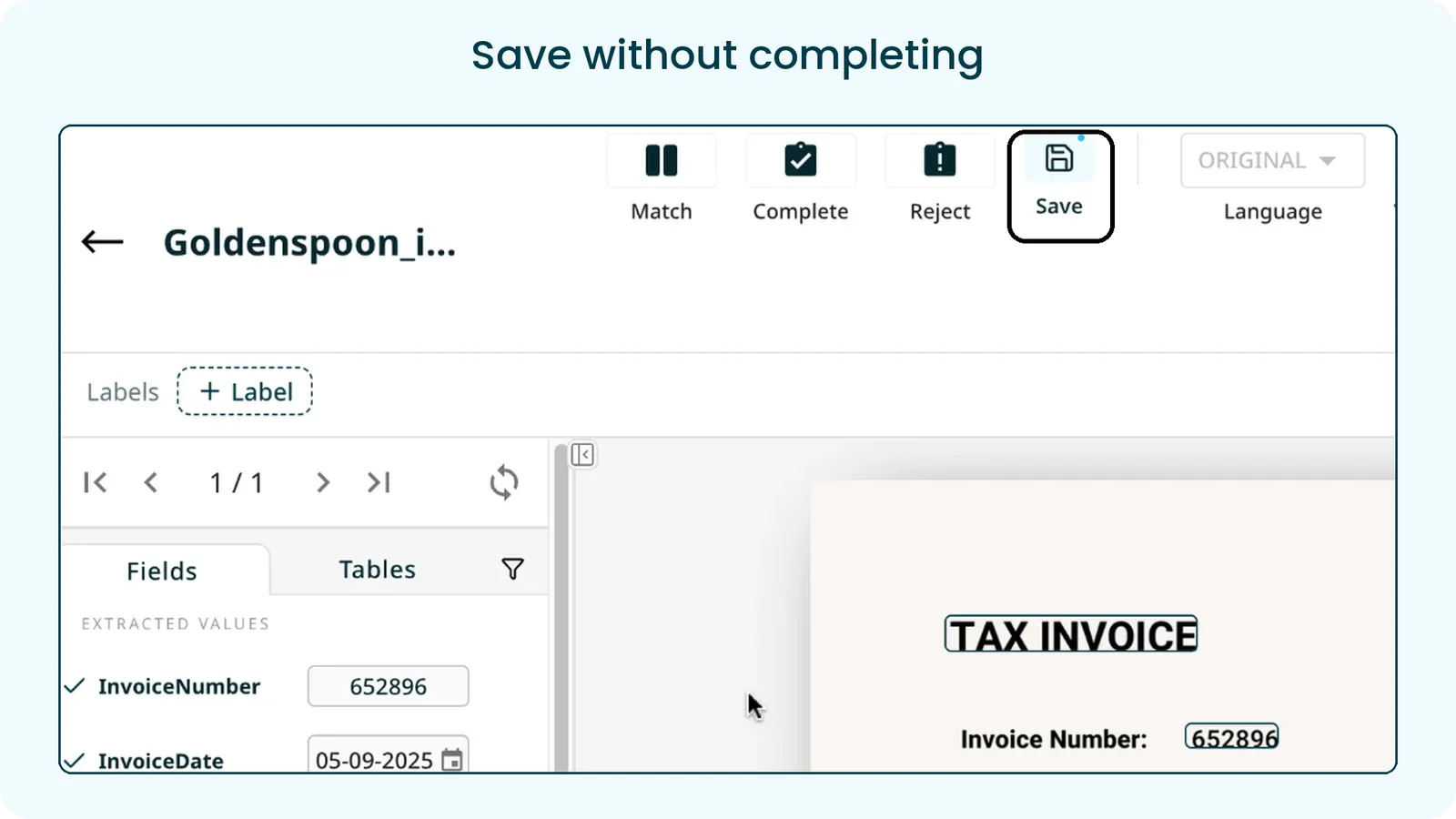
Reviewers can now save their work on the Edit Document page without completing the document.
How it works
- A new Save button sits next to Complete. It stores every field and table value on the page, including values refreshed by data enrichment
- The document keeps its status, no exports or webhooks are triggered, and you stay on the page
- Every save is recorded in the Audit trail with the value before and after each change
- You are warned before leaving the page with unsaved edits
- Integrations can do the same through the Save Document Data API, updating header fields and table rows without changing the status
- Complete works exactly as before
Benefit
Long or complex documents can be reviewed in stages, and corrections are kept safely even when a document is not ready to complete.
Enhancements
Reject documents automatically when fields or table line items are missing
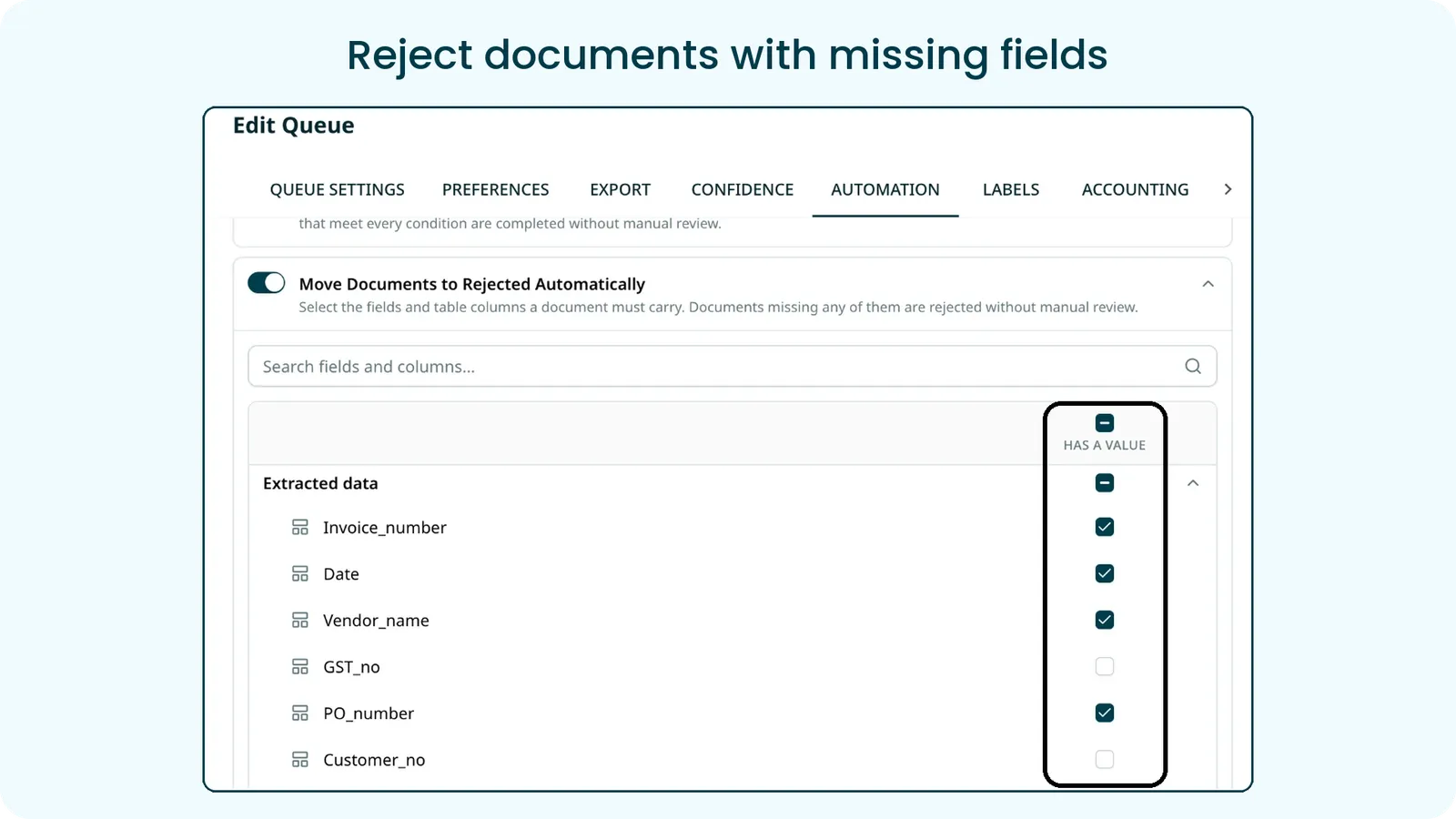
Move Documents to Rejected Automatically in the Automation tab now covers table columns as well as header fields. Tick Has a Value for the fields and columns a document must carry, and any document missing one of them is rejected without manual review. This is especially useful for documents arriving through email integration that come in without key details.
New webhook event: Document upload failed
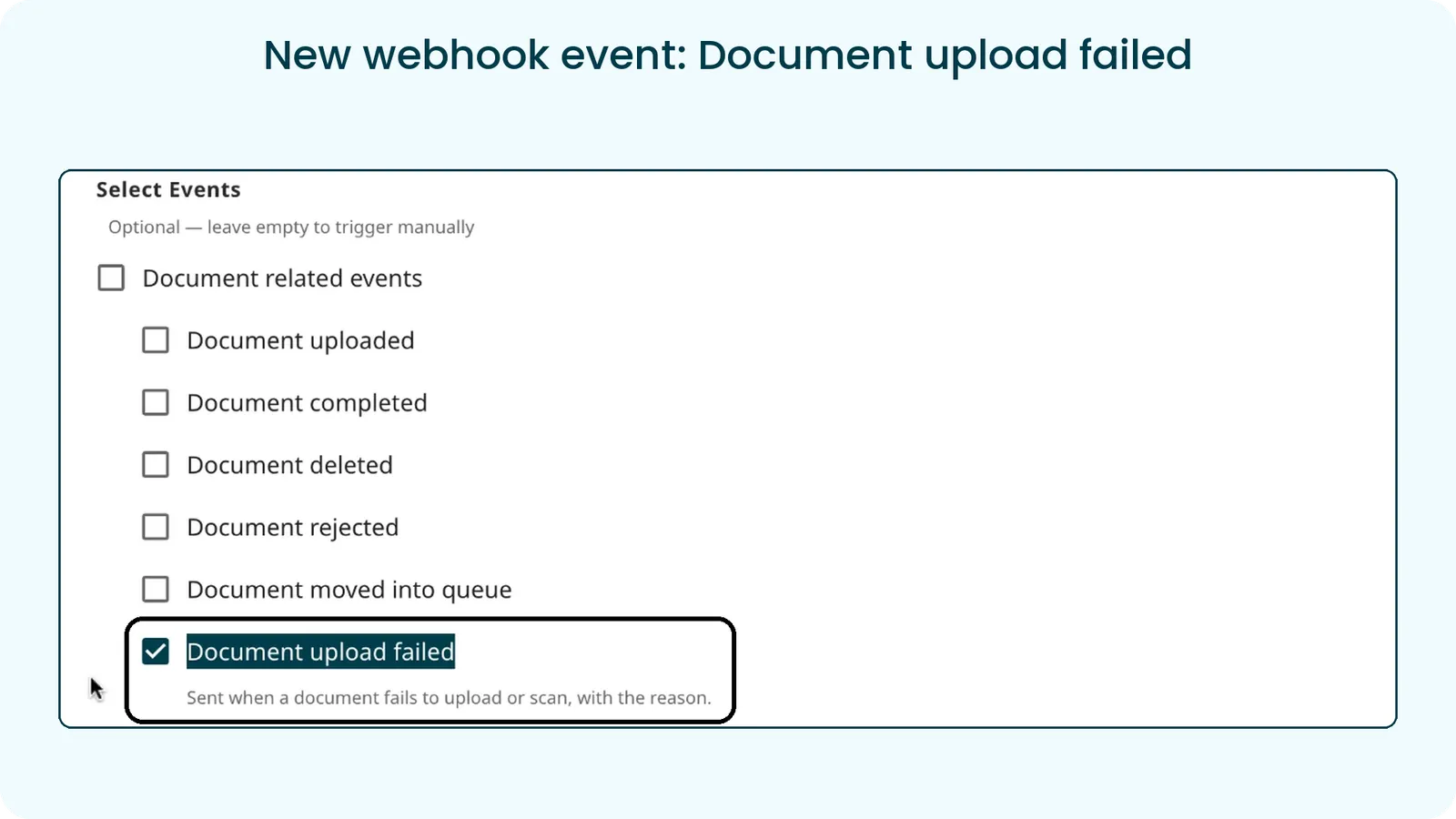
Webhooks can now notify you when a document fails to upload or scan, with the reason. Select Document upload failed when you create or edit a webhook. The event is sent for documents from every source, including the interface, email and the API.
Label Management
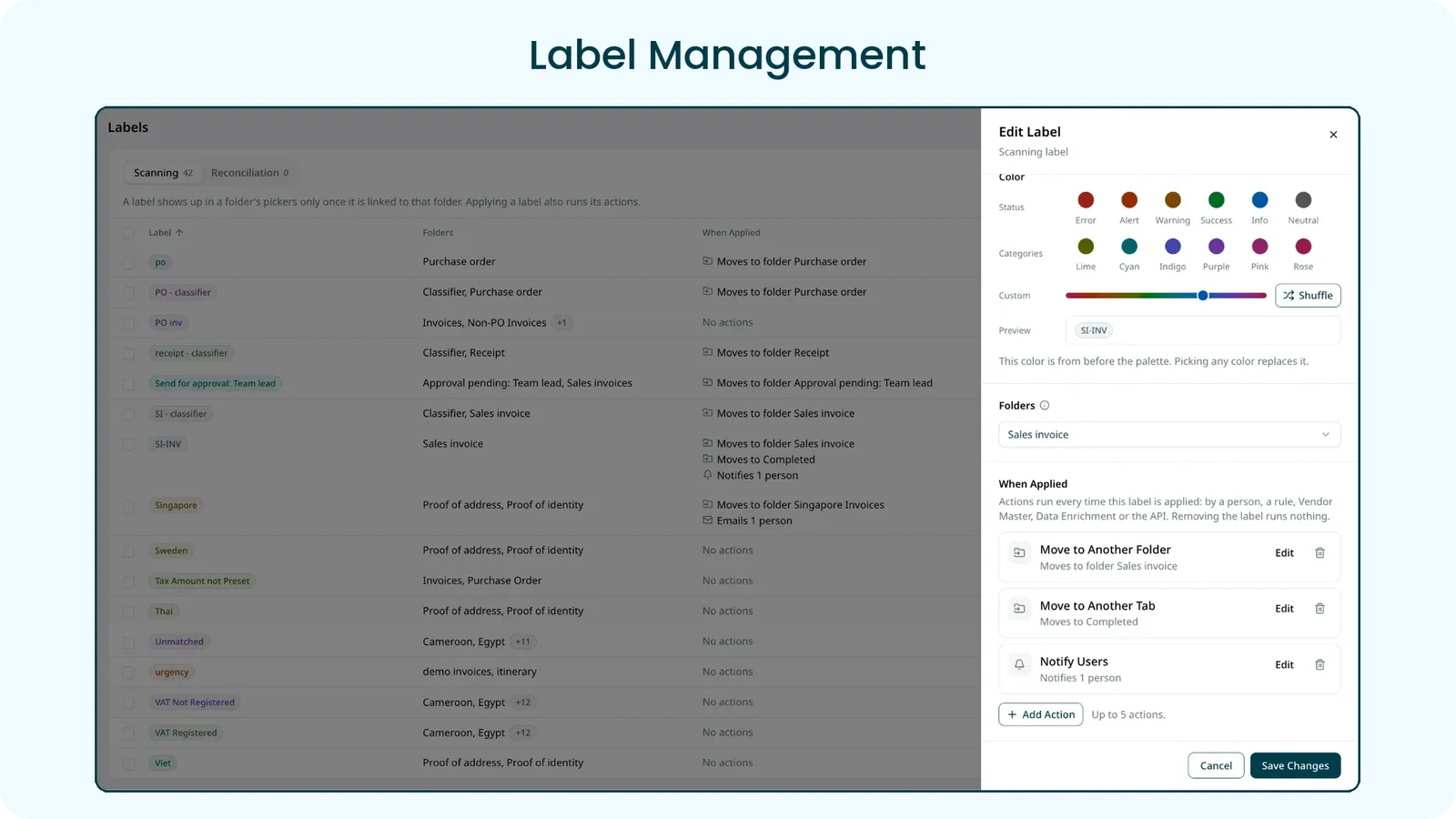
The Labels page has a new layout. Scanning and Reconciliation labels sit on separate tabs, and each label shows the folders it is linked to and what happens when it is applied. Open a label to pick its color from the status and category palettes or a custom shade, link it to folders, and add up to five actions, such as moving the document to another folder or tab, or notifying users.
Role Management
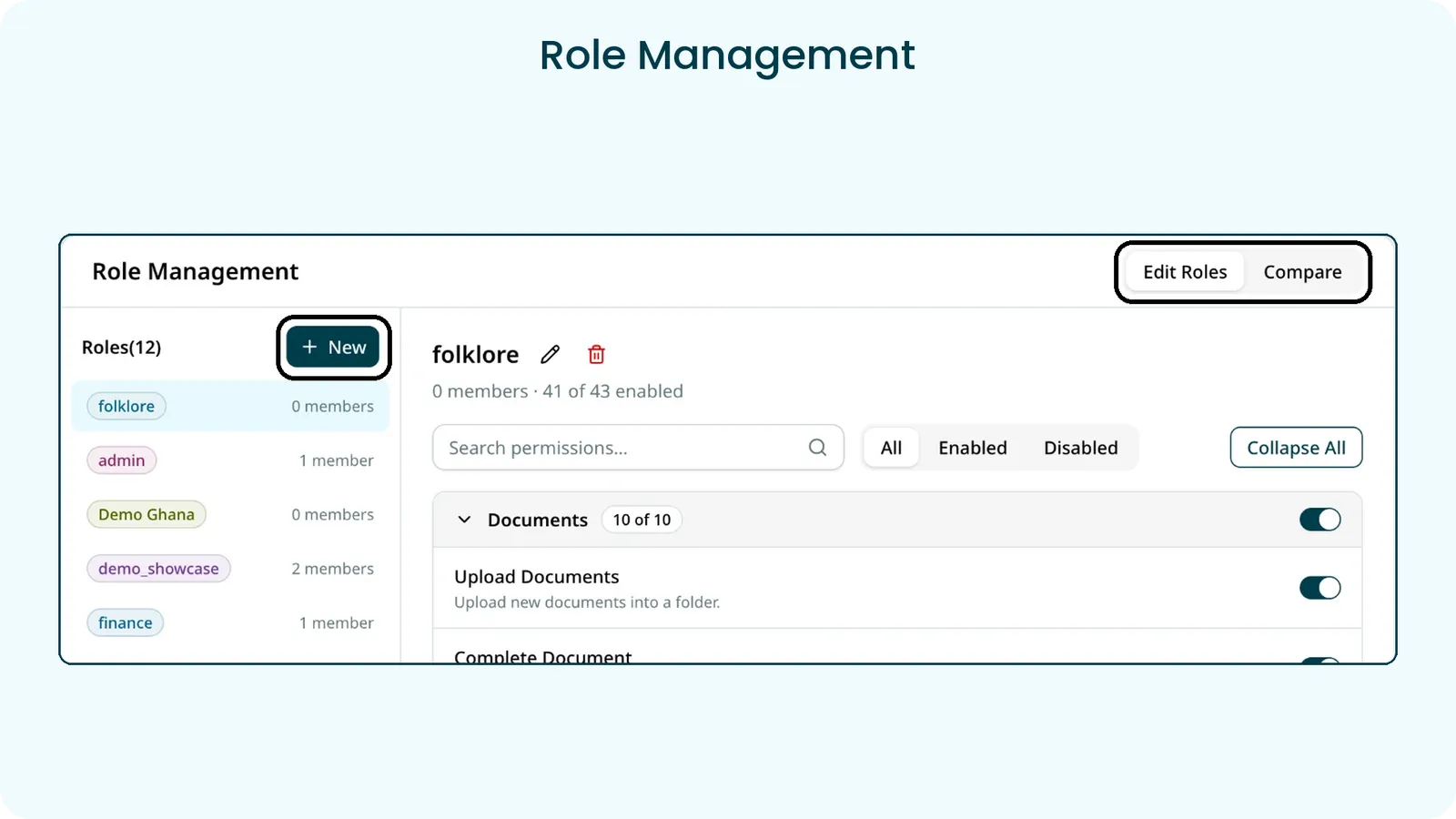
Role Management in Profile Settings has a new layout. Create a role with New, switch every permission on or off module by module, with search and All, Enabled and Disabled filters, and use Compare to see every role side by side. A role can only be deleted once it has no members.
Team Members
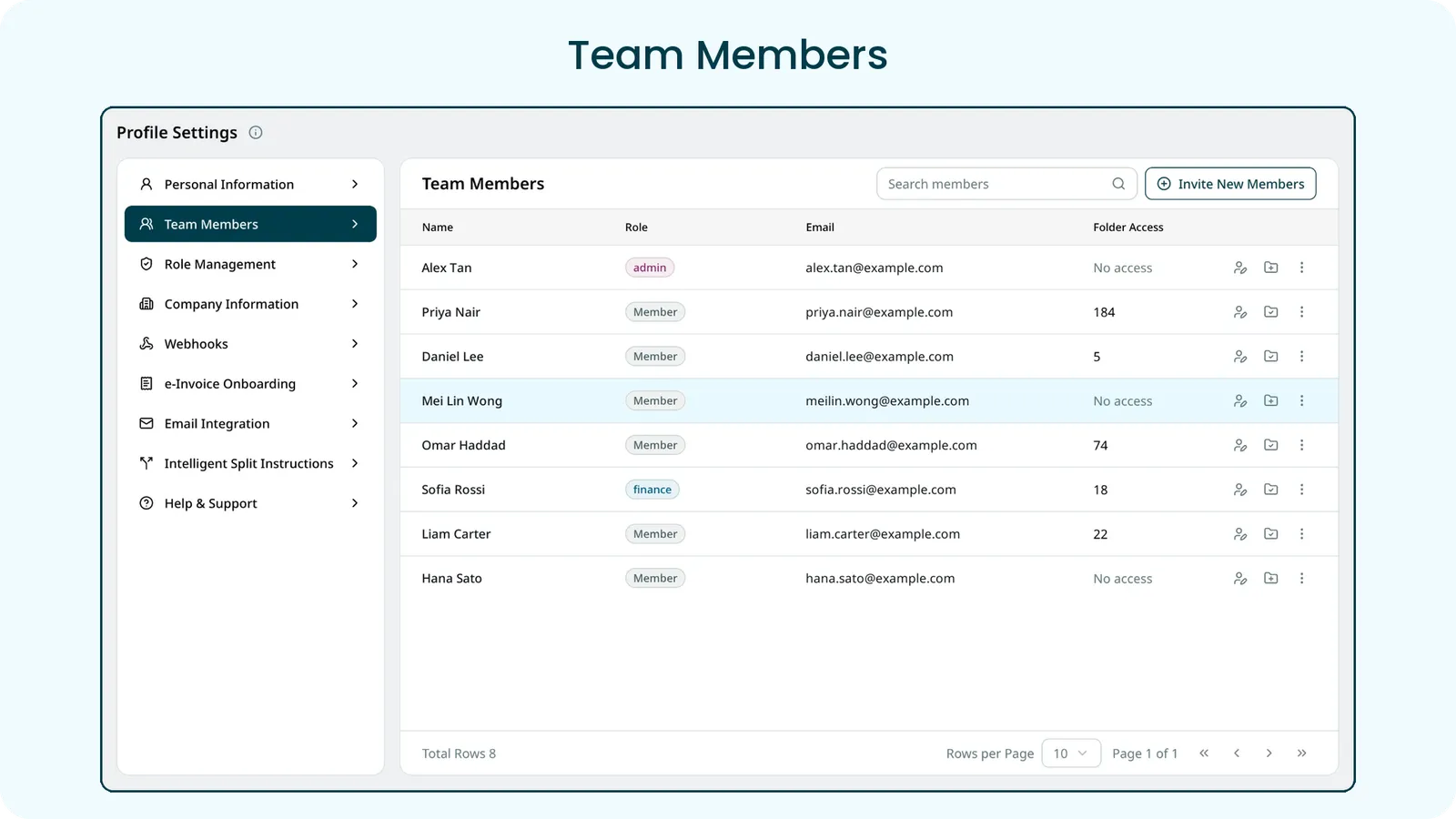
Team Members in Profile Settings has a new layout. Search for a member, invite new members, and see each person’s role, email and folder access at a glance. Everything works as before.
Reports
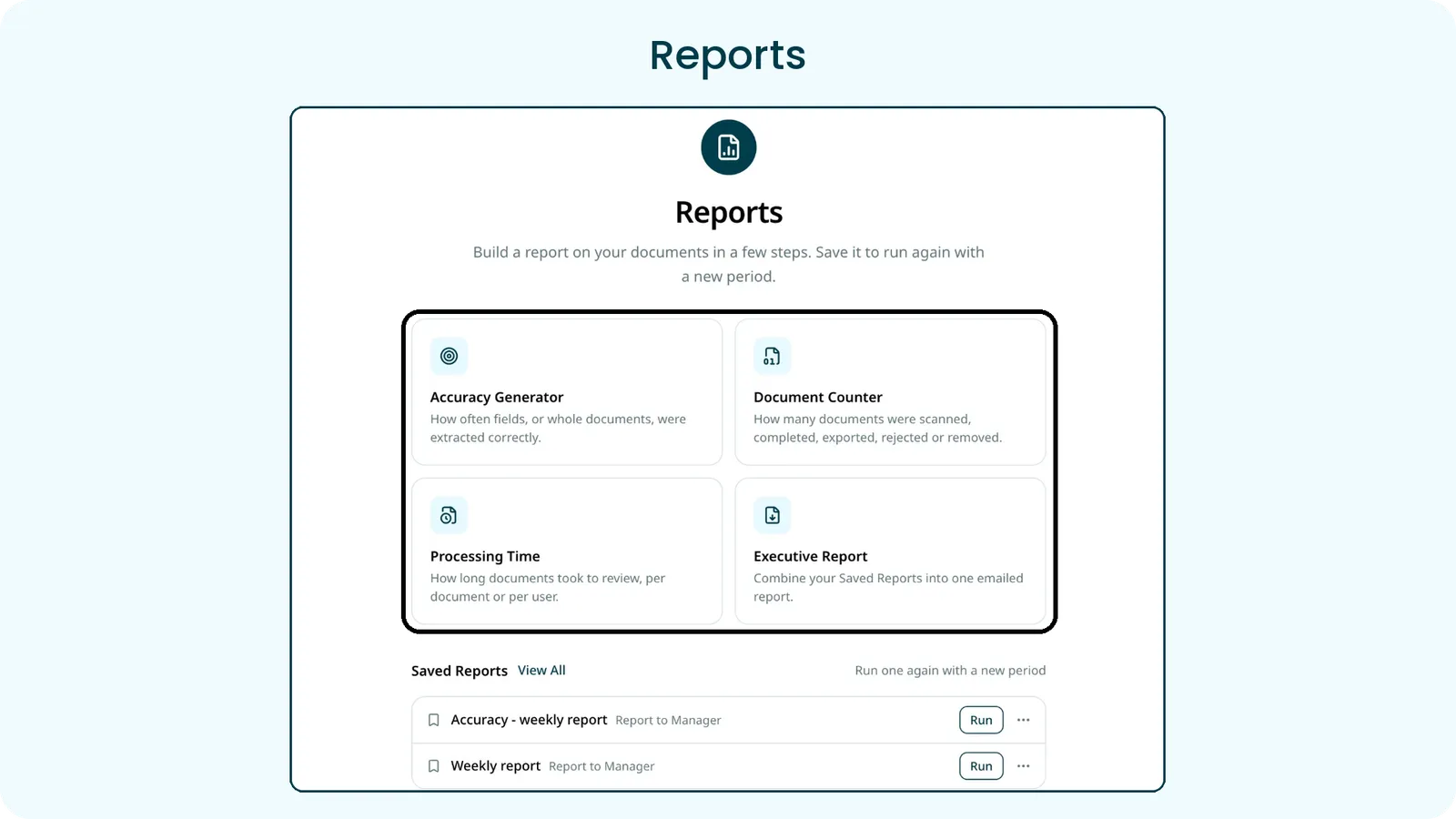
Staple Chat is now Reports, a guided, step-by-step way to build a report on your documents.
- Start from one of four reports: Accuracy Generator, Document Counter, Processing Time or Executive Report
- Answer a few short steps, and the result appears with the scope it covers and options to change the period, copy it or start again
- Save a report and Run it again later with a new period. Saved reports can be organised, renamed and searched
- Executive Report combines your saved reports into one report that is emailed to you
See where a search keyword matched
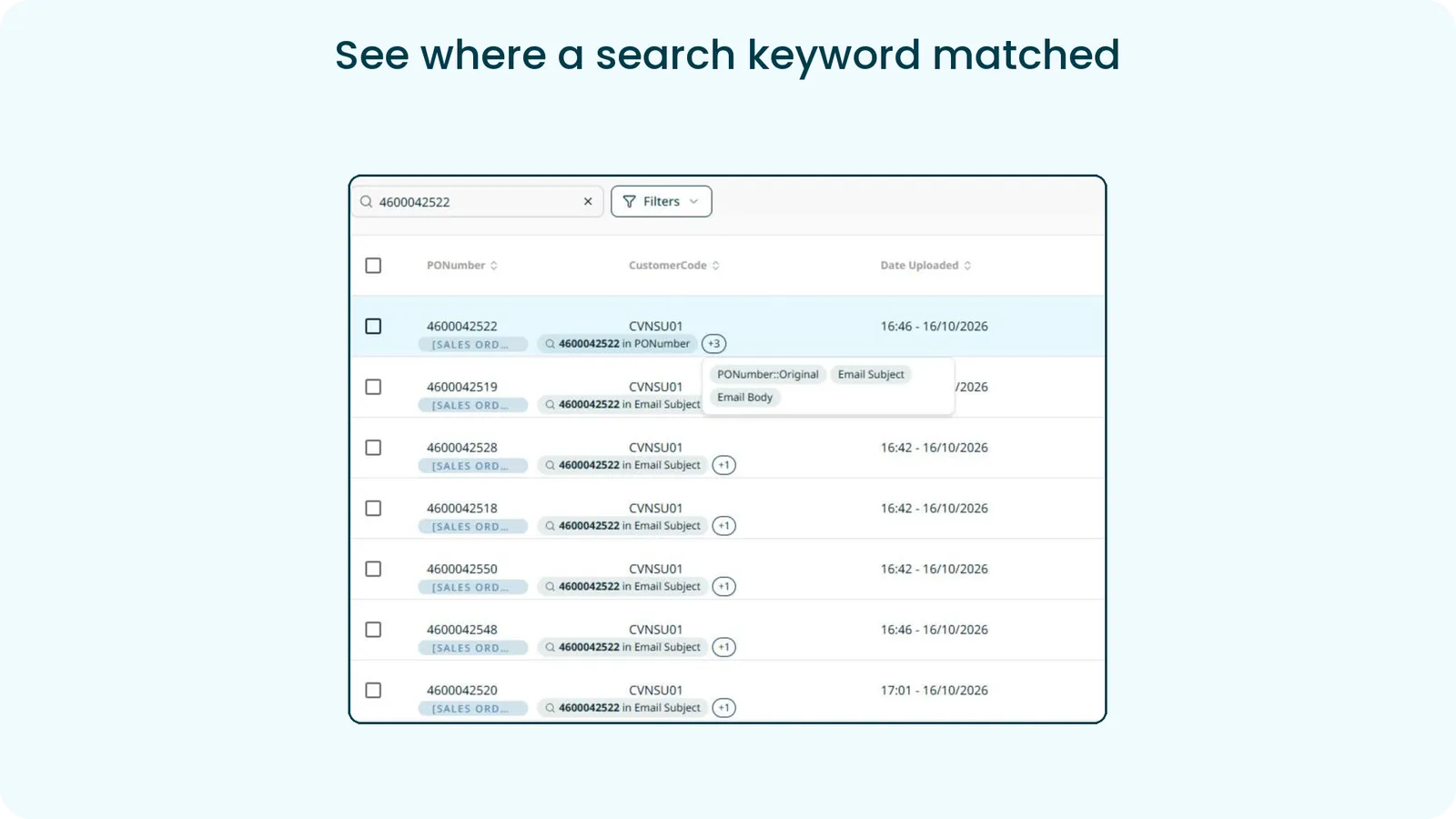
Search on the scanning table looks in header fields, table line items and the details of the email a document came from. Each result now shows where the keyword matched, for example in PONumber or in Email Subject, so a document found through its email no longer looks like a wrong result. When a keyword matches more than one field, a +N badge shows how many more, and hovering over it lists them.
e-Invoicing updates
- Automated OpenPeppol reporting. The monthly reports OpenPeppol requires from every Peppol Access Point are now generated automatically, keeping Staple compliant without manual effort.
- Star JSON download for Singapore e-invoices. Star JSON is Staple’s own JSON format for a document, with the same structure as the JSON you send to create an e-invoice, so the data maps straight into your systems with no XML to parse. Received e-invoices are converted from the sender’s XML into the same shape. Select the documents, choose Download data and pick Star JSON (.json), or call the Download e-invoice endpoint with
docTypeset toSTAR_JSON. The XML is still available and remains the legal record. - Status endpoint for Singapore. Check up to 100 document IDs and 100 UUIDs in one call to Get Status. Each result shows Staple’s checks, Peppol delivery and IRAS submission separately, with IRAS’s own error code on rejections.
- Validation before sending. Outgoing Singapore e-invoices are checked against the seven critical PINT-SG rules before they are created. If any rule fails, nothing is sent and the response lists every failing rule. Invalid incoming e-invoices are stored but held back from tax submission.