

Monthly release notes for Staple AI
September '26
September builds on last month’s foundations. Singapore e-invoicing now runs end to end in both directions with credit notes, you can choose exactly which fields and table columns each queue shows and exports, Reconciliation 2.0 lets you decide how linked documents are compared, and email files can be uploaded straight into Staple.
1. Singapore e-Invoicing: Receiving, Sending and Credit Notes
Last month, Singapore customers gained self-onboarding for InvoiceNow and IRAS tax submission. This release completes the day-to-day flows on top of it: receiving supplier e-invoices, sending your own, and handling credit notes in both directions.
What’s in it
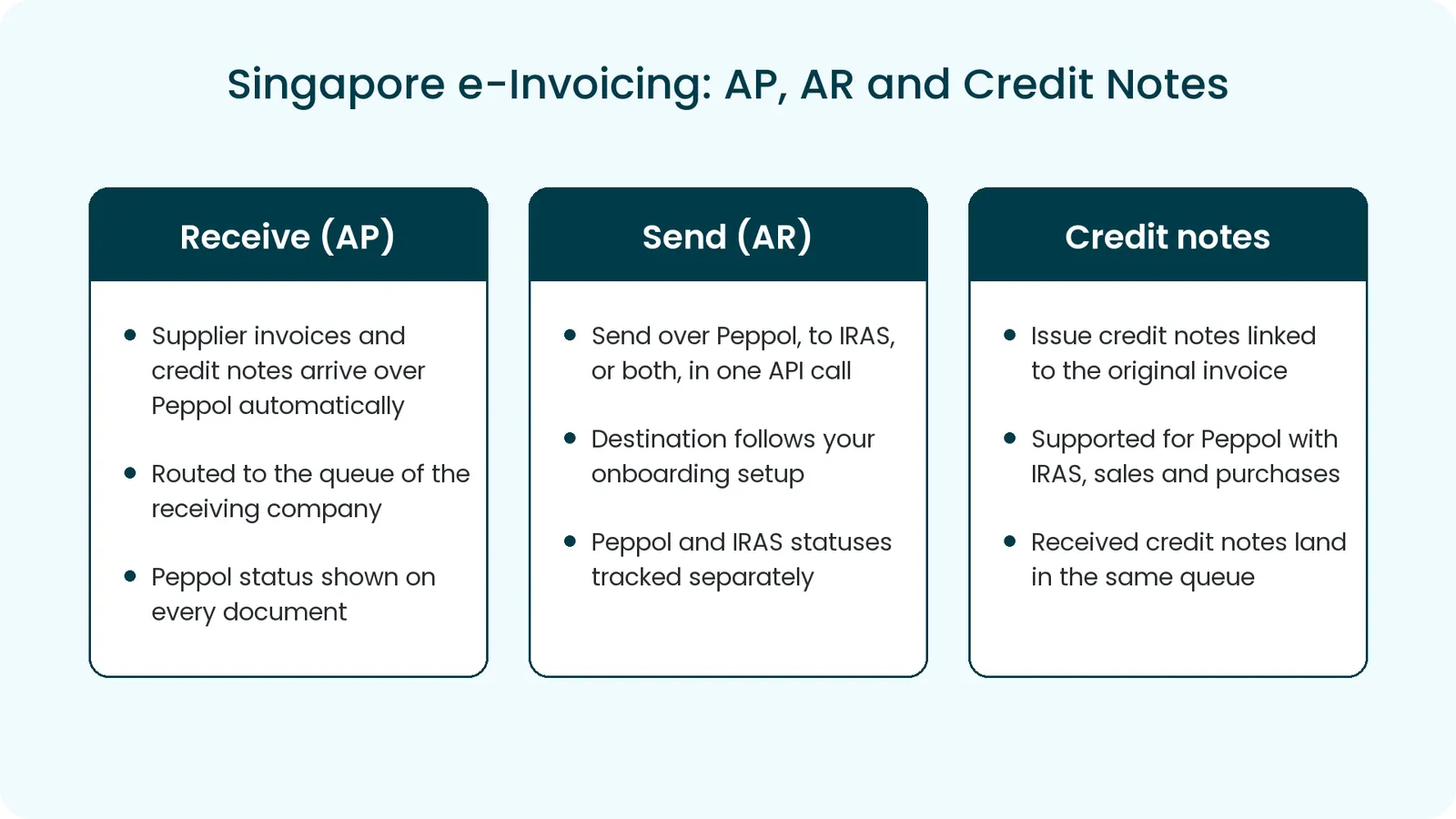
- Receive (AP): supplier invoices and credit notes sent over Peppol arrive in Staple automatically, routed to the queue assigned to the receiving company, with the Peppol status shown on every document
- Send (AR): send an invoice over Peppol, to IRAS, or to both, from a single API call. The destination follows your onboarding configuration, and Peppol and IRAS statuses are tracked separately so a partial failure is easy to spot
- Credit notes: issue credit notes that reference the original invoice, for Peppol with IRAS, sales reported to IRAS and purchases reported to IRAS. Received credit notes land in the same queue as invoices
- Status API: check the Staple, Peppol and IRAS status of up to 100 documents in one call
Benefit
Singapore customers can now run their full e-invoicing cycle through Staple: receive from suppliers, send to customers, correct with credit notes, and report to IRAS, all tracked in one place.
2. Show or Hide Fields and Table Columns
Every queue can now decide exactly which fields and table columns appear on the Edit Document page. Hide what your team does not need, and it is left out of exports and downloads too.
How it works
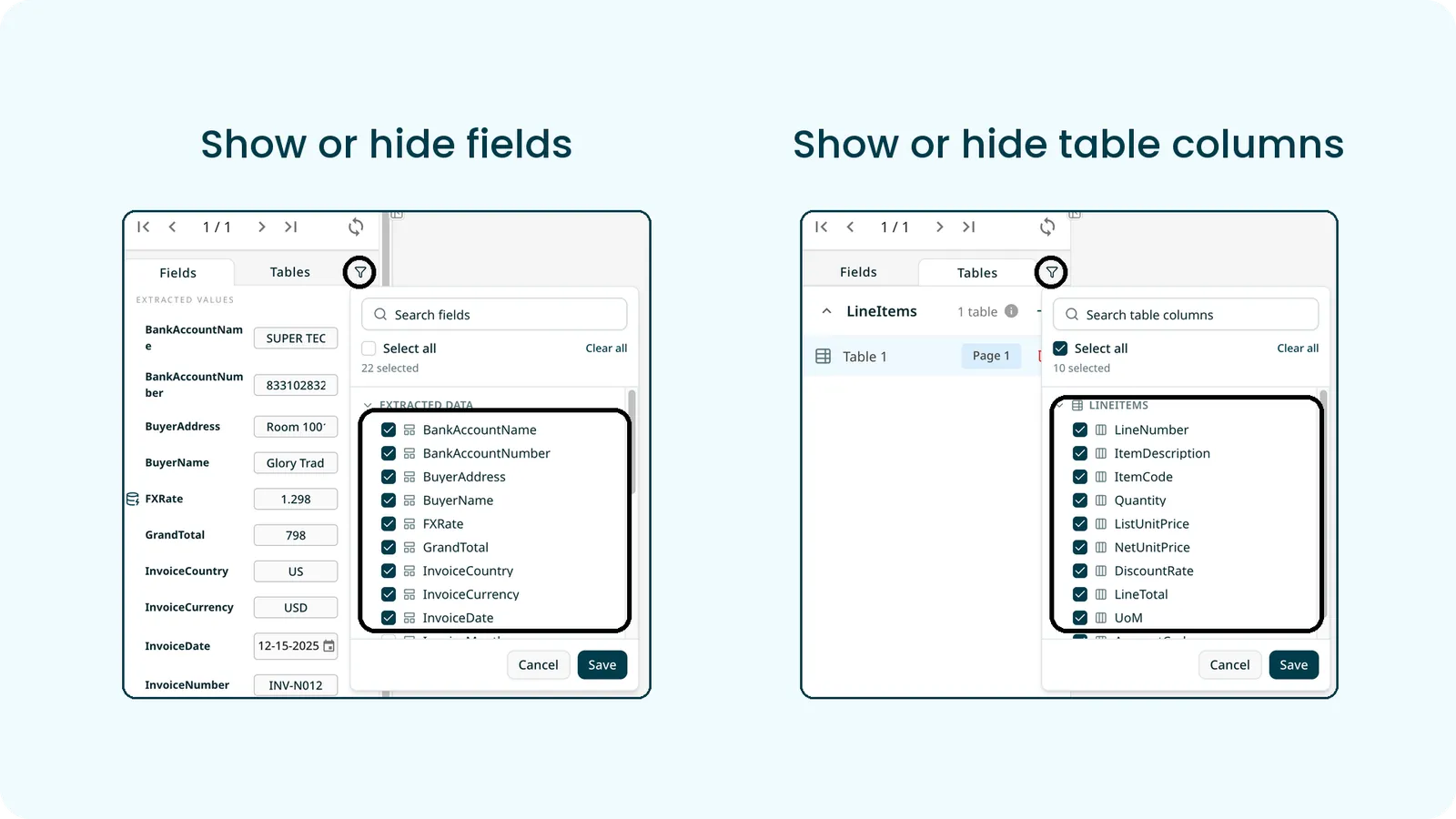
- Open a document and select the filter icon next to the Fields and Tables tabs
- On Fields, tick the fields to show and untick the ones to hide, then Save
- On Tables, each table category lists its columns. Untick columns to hide them, or untick every column to hide the whole table
- Use search, Select all and Clear all to move quickly
- The filter follows the model automatically: new fields appear already ticked and deleted fields disappear
- When a document no longer matches its model, the rescan icon shows a badge. Open it to see which items are missing or no longer defined, and rescan the document in one click
Benefit
Reviewers see only the data that matters to them, and exports and downloads carry exactly the same set, through both the interface and the API. Hidden values are not deleted and remain available to Reconciliation.
3. New updates in Reconciliation 2.0
Two updates to Reconciliation 2.0 this month: you now decide how numbers are compared across linked documents, and filters show which document every field belongs to.
3.1 Individual and Aggregate Comparison
When one anchor document is linked to several others, the same comparison can mean two very different things. A PO billed across several invoices should match the invoices added together. A unit price agreed on a PO should appear unchanged on every invoice line. Until now there was no way to say which one you meant, so the engine had to guess, and whichever way it guessed was wrong for half of the use cases.
Comparison Rules now has an Individual | Aggregate toggle on every numeric comparison, so you state the intent and the engine follows it.
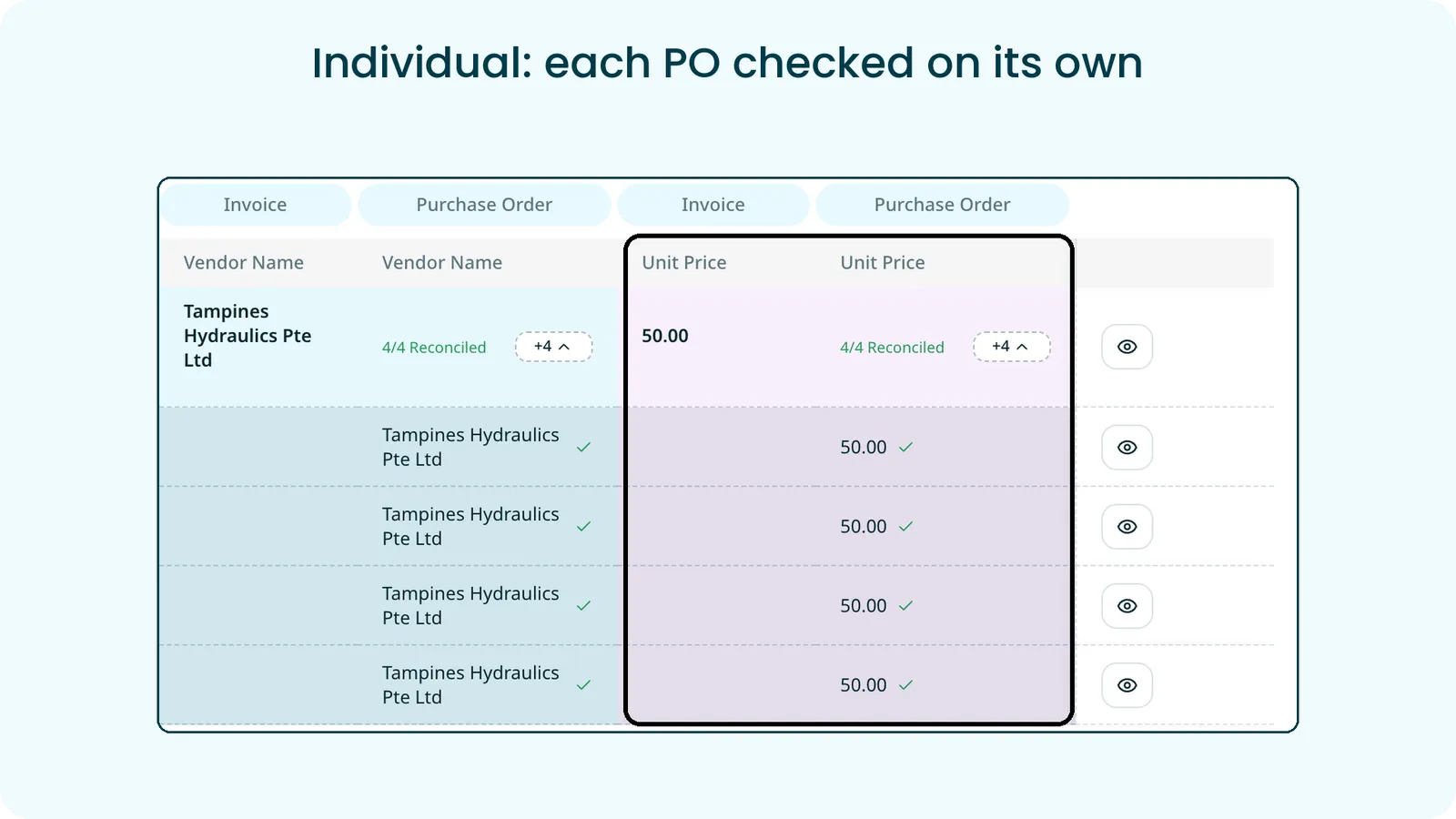
Individual: each linked document is checked on its own
Individual compares the anchor value against each linked document separately, and every one of them has to pass.
Example: the unit price is 50 on the invoice, and the invoice is linked to four POs that each carry a unit price of 50. The values are not added up. Staple checks 50 against 50, then 50, then 50, then 50, and the row reconciles only when all four match.
Aggregate: linked documents are added up and compared as a total
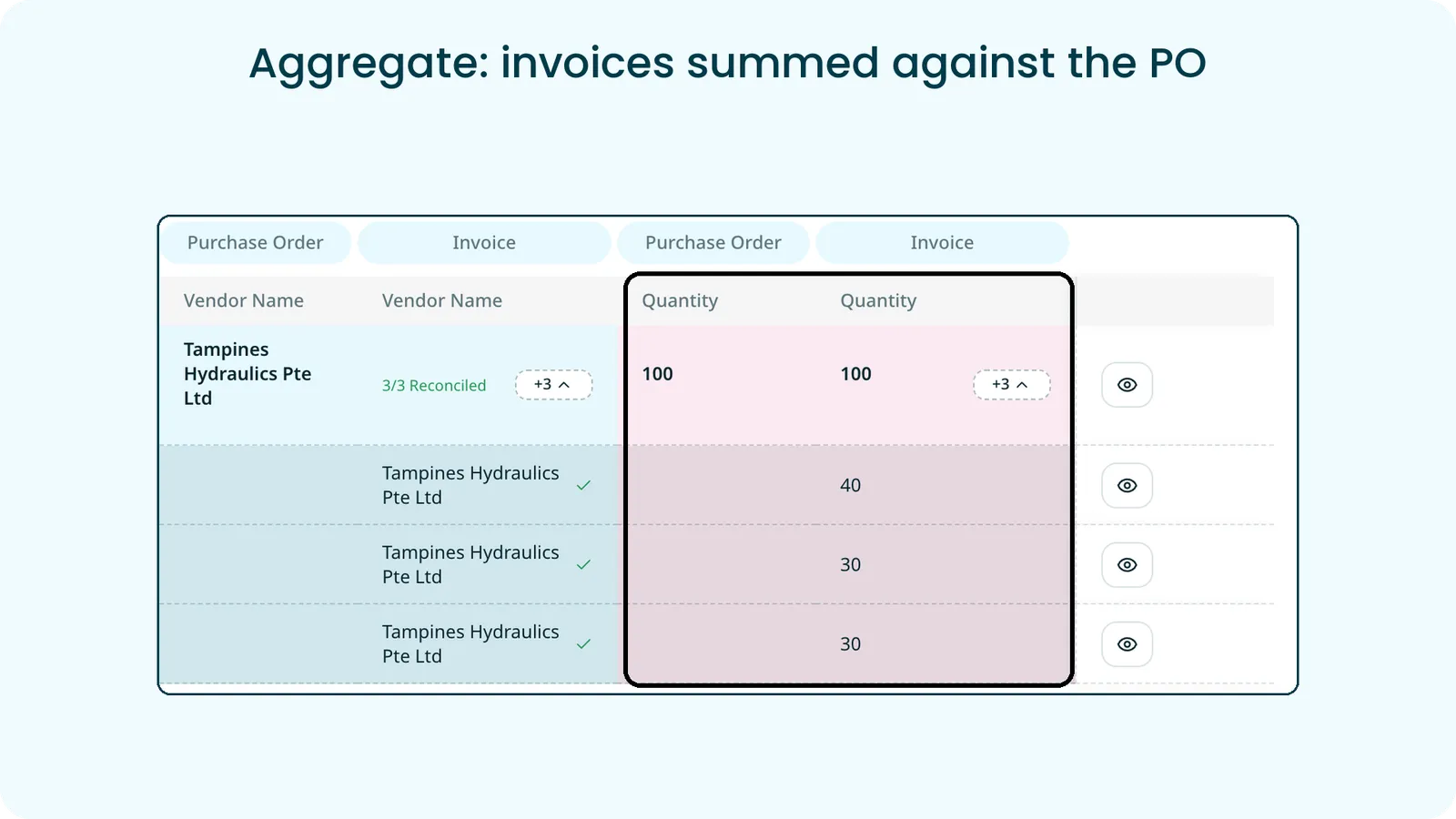
Aggregate adds up the values from all linked documents and compares the total against the anchor.
Example: a PO is raised for 100 units and billed across three invoices of 40, 30 and 30 units. Staple adds the invoices together, 40 + 30 + 30 = 100, compares the total against the PO quantity of 100, and the row reconciles.
How it works
- In Edit Linking Set, go to Comparison Rules and pick the fields to compare
- When both sides are numeric, the Individual | Aggregate toggle appears on the row. Select the info icon beside it for a quick definition of each mode
- Tolerance follows the mode you pick: in Aggregate it applies to the total, in Individual it applies to each linked document
Benefit
The engine no longer guesses. Split billing, repeated deliveries and fixed unit prices each reconcile the way your business actually works.
3.2 Group Name Beside Every Filter Field
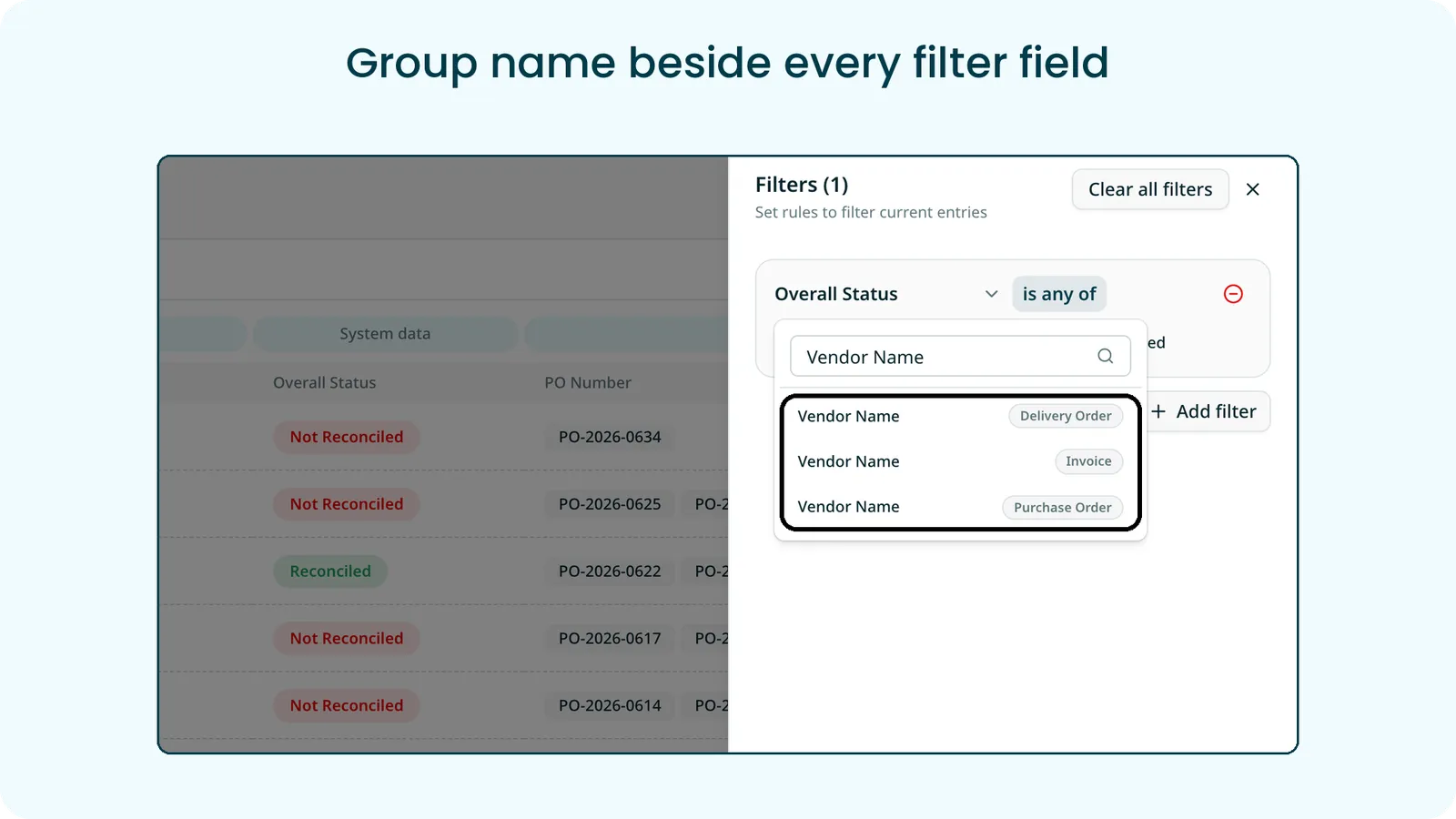
In a linking set, the same field often exists on more than one document type: Vendor Name appears on the invoice, the PO and the delivery order, and PO Number appears on both the invoice and the PO. In the Document Set List filter, those fields used to look identical, so it was hard to tell which one you were filtering on.
Every field in the filter list now carries the name of its group beside it, such as Invoice, Purchase Order or Delivery Order. Search for a field and you see every version of it, clearly labelled, and you pick exactly the one you need.
Benefit
Filters return the document sets you actually meant, without trial and error.
4. Upload Email Files (.eml and .msg)
Saved emails can now be uploaded straight into Staple. Previously a downloaded .eml or .msg file was blocked, so teams had to open it, pull out the attachments and upload them again. That step is gone.
How it works
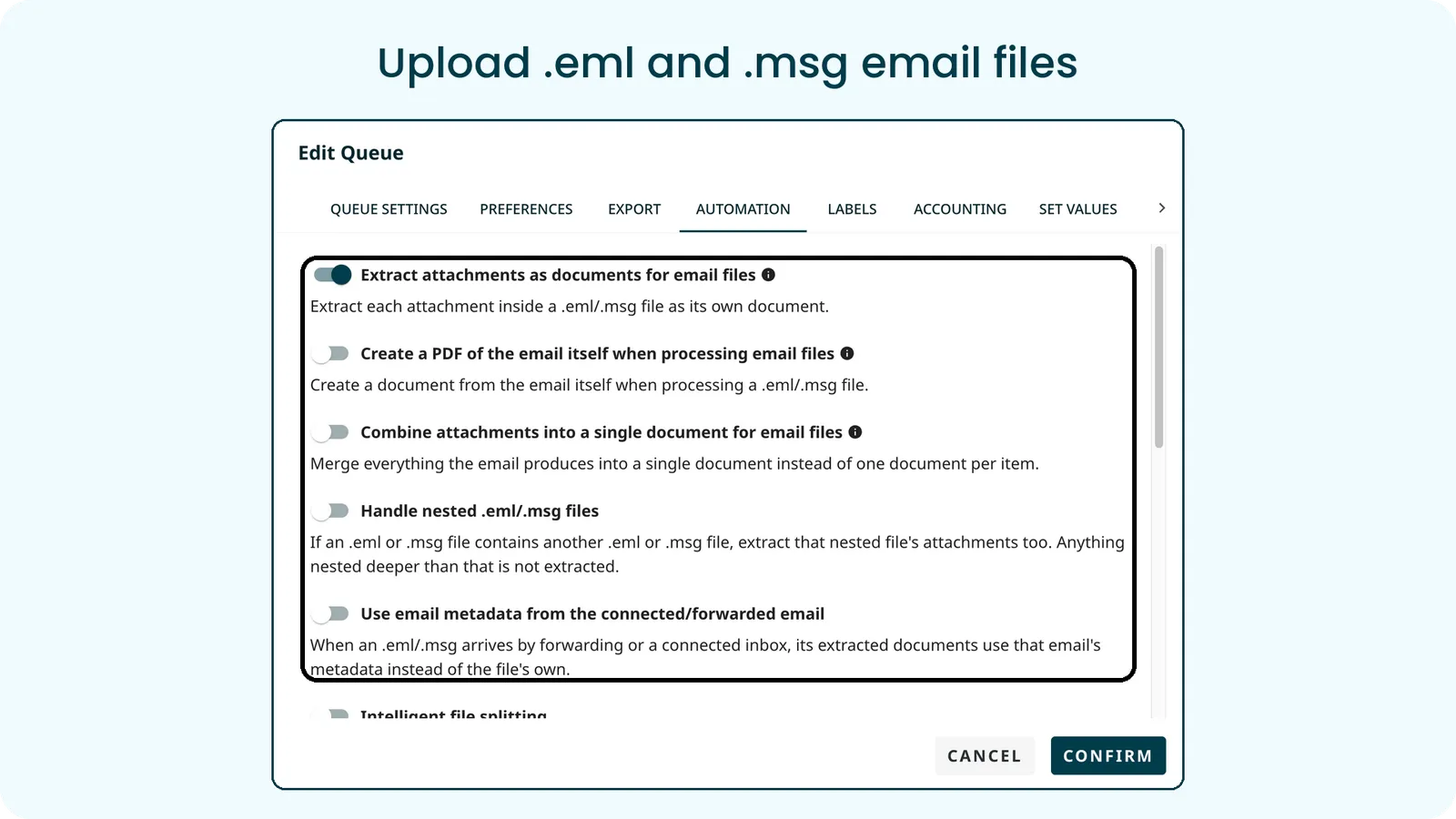
Email files are handled through manual upload, API upload, forwarding and connected inboxes. Five settings in Edit Queue, Automation control what Staple creates from each email:
- Extract attachments as documents: each attachment becomes its own document. On by default
- Create a PDF of the email itself: a document showing From, To, Cc, Subject and Date above the message body
- Combine attachments into a single document: everything the email produces becomes one document, in the order it appears
- Handle nested .eml/.msg files: extract attachments from an email attached inside an email, one level deep
- Use email metadata from the connected or forwarded email: documents take the metadata of the email they arrived in
Benefit
Emails go into Staple exactly as they were received, with no manual unpacking, and each queue decides how their contents become documents.
5. Refreshed Document Editor
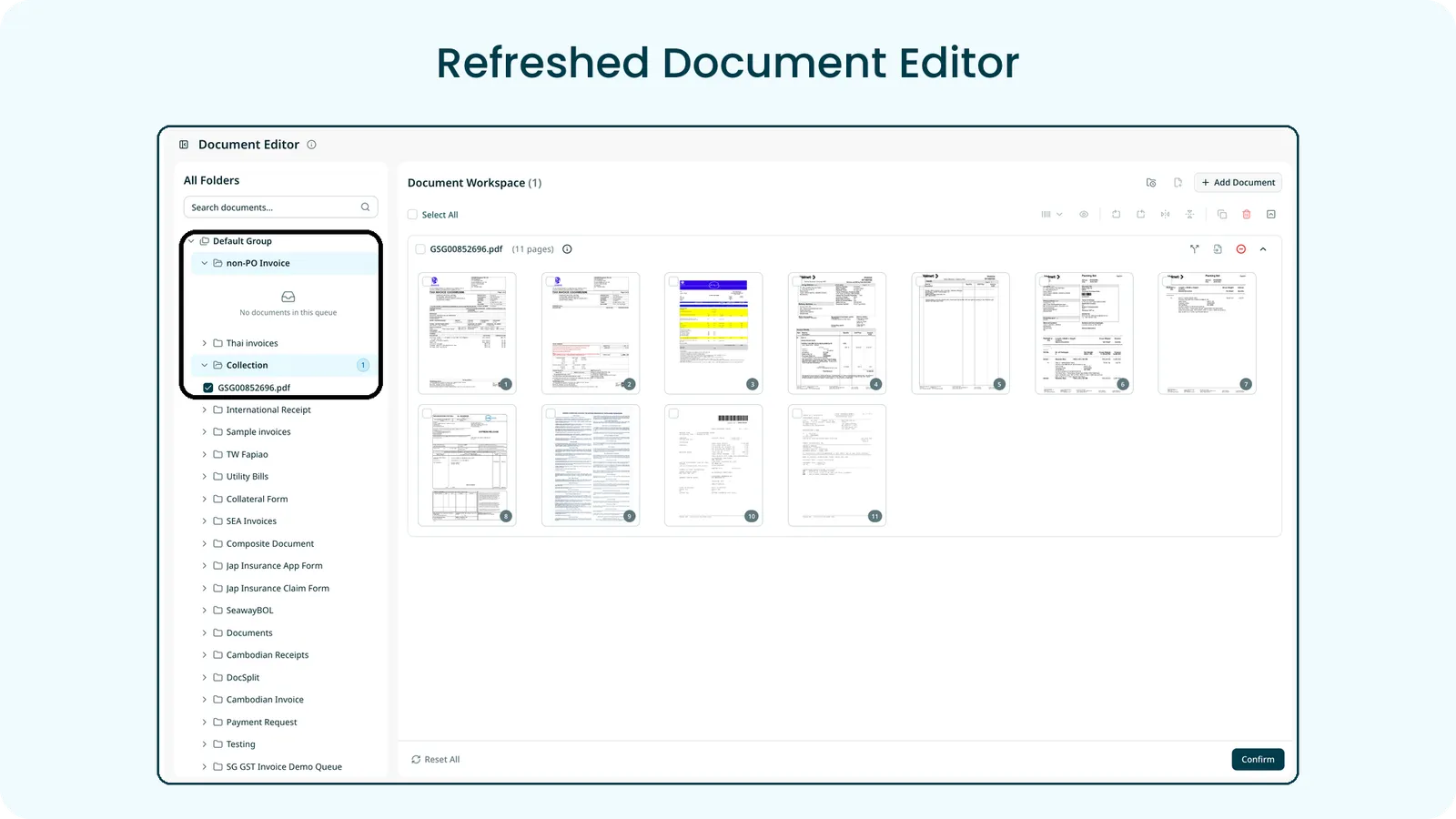
The Document Editor has a cleaner look and fewer clicks. The folder tree has new icons and shows how many uploaded documents each queue holds, and the toolbar icons are updated. In Intelligent Split, the first split instruction opens by default and a new Apply This Split button applies it.
6. Translate API
Supporting documents in any language can now be translated into English through the API. The translated document keeps the layout of the original, and it is stored alongside the original as a supporting document, so teams get an English copy they can read and archive without any manual translation.
Enhancements
- Export remembers your last format. The Export dialog now opens on the format you last used in that queue, so a repeat export is one click shorter.
- Knowledge Base columns use the same data types as model fields. Choose from ten types when uploading a sheet. String is now called Text, and the previous Text type is now Text (Embeddings). Enrichment rules show an error when a field and a column are not compatible.
- New rejection reason: PO number missing or invalid. A tenth reason has been added to the Reject document menu.
- Teammate upload notifications only for the queue you are viewing, instead of on every screen for every shared queue.
- Confidence scores in downloads. Download data extracted can include confidence scores in JSON and XML, in the interface and through the Download Data API.
Bug Fixes
- Complex tables: extraction of complex tables is more consistent, with fewer tables detected with headers but no rows.
- Reconciliation filters: filter fields picked from more than one data type are all kept.
- Data Enrichment: table enrichment now writes the mapped value when the knowledge base column is a Number.
- Export: exporting with exactly one document selected from the action bar works again.
- Scanning: the file size message now shows the current page limit of 400.