

Monthly release notes for Staple AI
July '26
July’s release focuses on trust and verifiability, a faster scanning experience, and cleaner data by design. Reviewers can now see how confident the AI is in every field, filter large queues down to exactly what they need, verify the integrity of any export, and give every line item column a data type.
1. Search and Filter in the Scanning Table
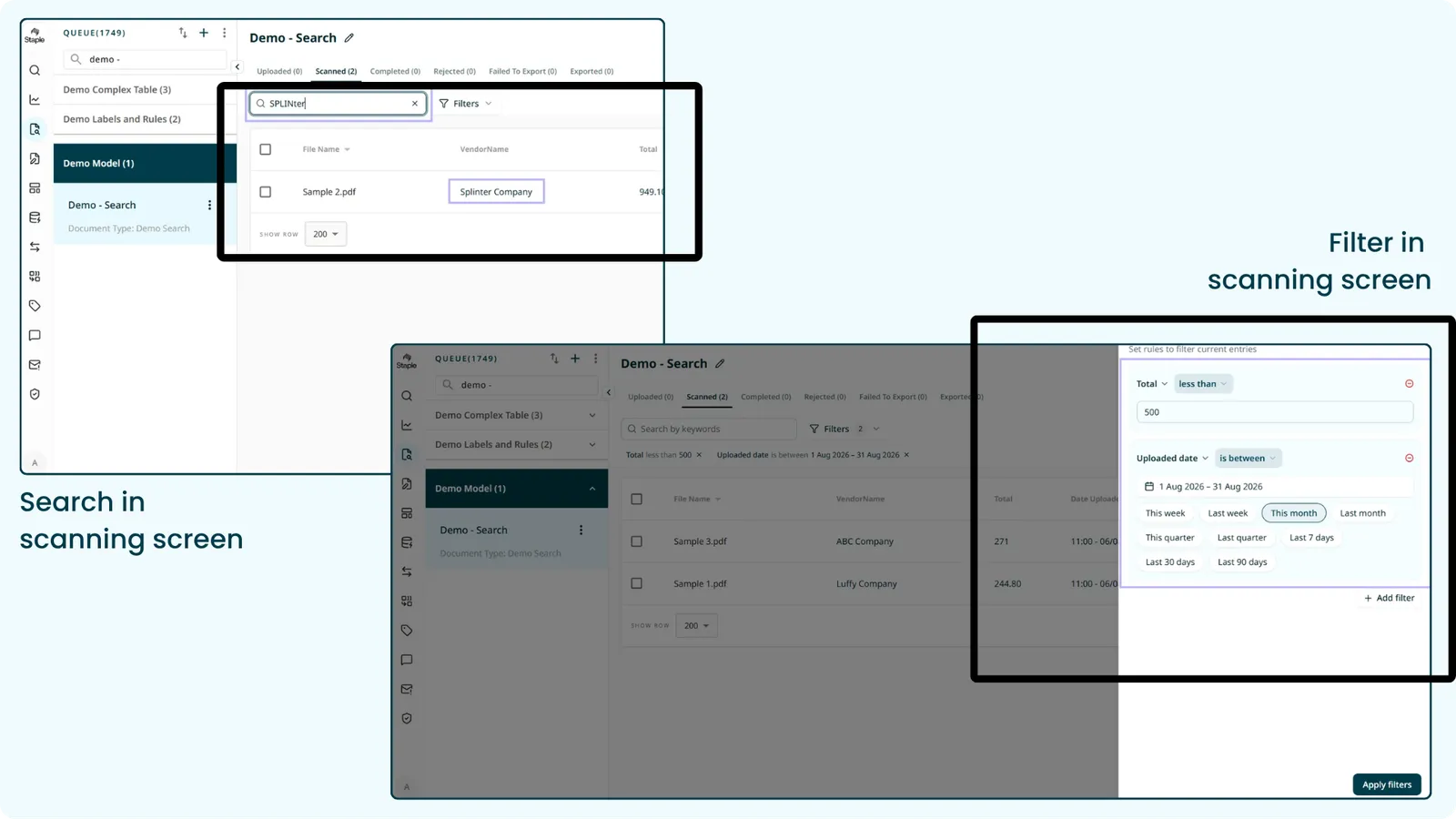
A major upgrade to the scanning table. Each reviewer can now narrow a shared queue down to just the documents they care about, searching and filtering across every field Staple captured, even hidden ones, with the view persisting between sessions.
How it works
- Filter on any captured field, enriched field (such as a vendor code looked up from a vendor name), document detail (file name, doc ID, upload or completion or export or rejection dates), email detail (sender, subject, body), label, or status detail (scan outcome, match status, rejection reason, export failure reason)
- Field appropriate operators: numbers (equals, greater or less than, between), text (contains, starts with, equals), dates (on, before, after, between, plus presets like last 7, 30, 90 days), currency, yes/no, and people
- Combine multiple conditions, each shown as a removable tag above the table
- Case insensitive keyword search across all captured fields, working together with filters
- The filter persists per reviewer per queue across tab switches, logout, and other devices, without affecting teammates’ views
Benefit
Reviewers jump straight to their slice of a large shared queue instead of scrolling and paging, reducing missed or double handled documents.
2. Confidence Score in the Review Screen
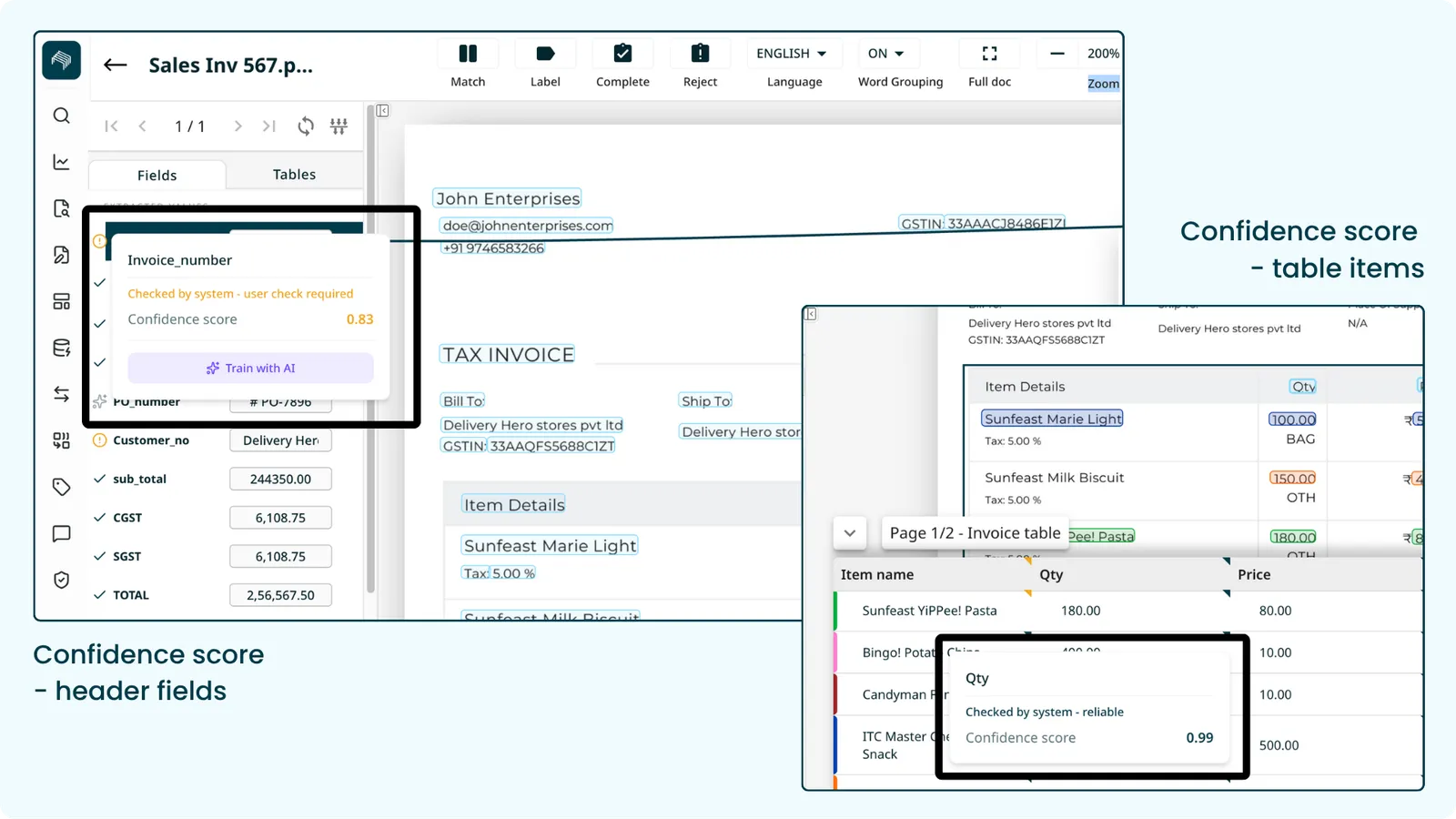
Every field and table extracted by a custom model now shows a “how sure am I?” signal, so reviewers can spend their time on the fields that actually need a look instead of checking everything.
How it works
- A dark tick marks high confidence, meaning a score of 0.90 and above. An orange warning marks low confidence, a score below 0.90
- Hover any icon to see the exact score and status message
- Appears on sidebar fields, table column headers, and individual table cells
- When you edit the value of a low confidence field, the orange warning updates to a dark tick
- Queue admins can toggle it off in Queue Settings, then Preferences
3. Mexico CFDI E-Invoice Validation and XML Import Framework
A new end to end capability to validate Mexican CFDI e-invoices inside Staple. CFDI XML files are imported, converted into a stored document and PDF, and validated against Mexican tax authority (SAT) requirements, with results exposed through APIs and a complete audit trail.
How it works
- Import: a CFDI XML is imported, mapped to the queue’s model (custom models and complex tables supported), and turned into a stored document record with a generated PDF
- Three step validation, run in order:
- Schema validation confirms the invoice matches the official SAT CFDI 4.0 structure and version
- SAT status validation calls SAT’s service to confirm the invoice is genuinely active, so a cancelled or unknown invoice fails, with automatic retries
- RFC validation confirms the receiver’s tax ID on the invoice matches the configured recipient, proving the invoice is actually addressed to you
- Structured results via API, retrievable by document ID or CFDI UUID
- Full audit trail records every step and the final outcome as the authoritative compliance record
Benefit
Automatically confirms each CFDI is genuine, currently valid, and correctly addressed before it is trusted or reimbursed, removing slow manual verification and reducing audit exposure.
4. Data Type Selection for Line Item Table Headers
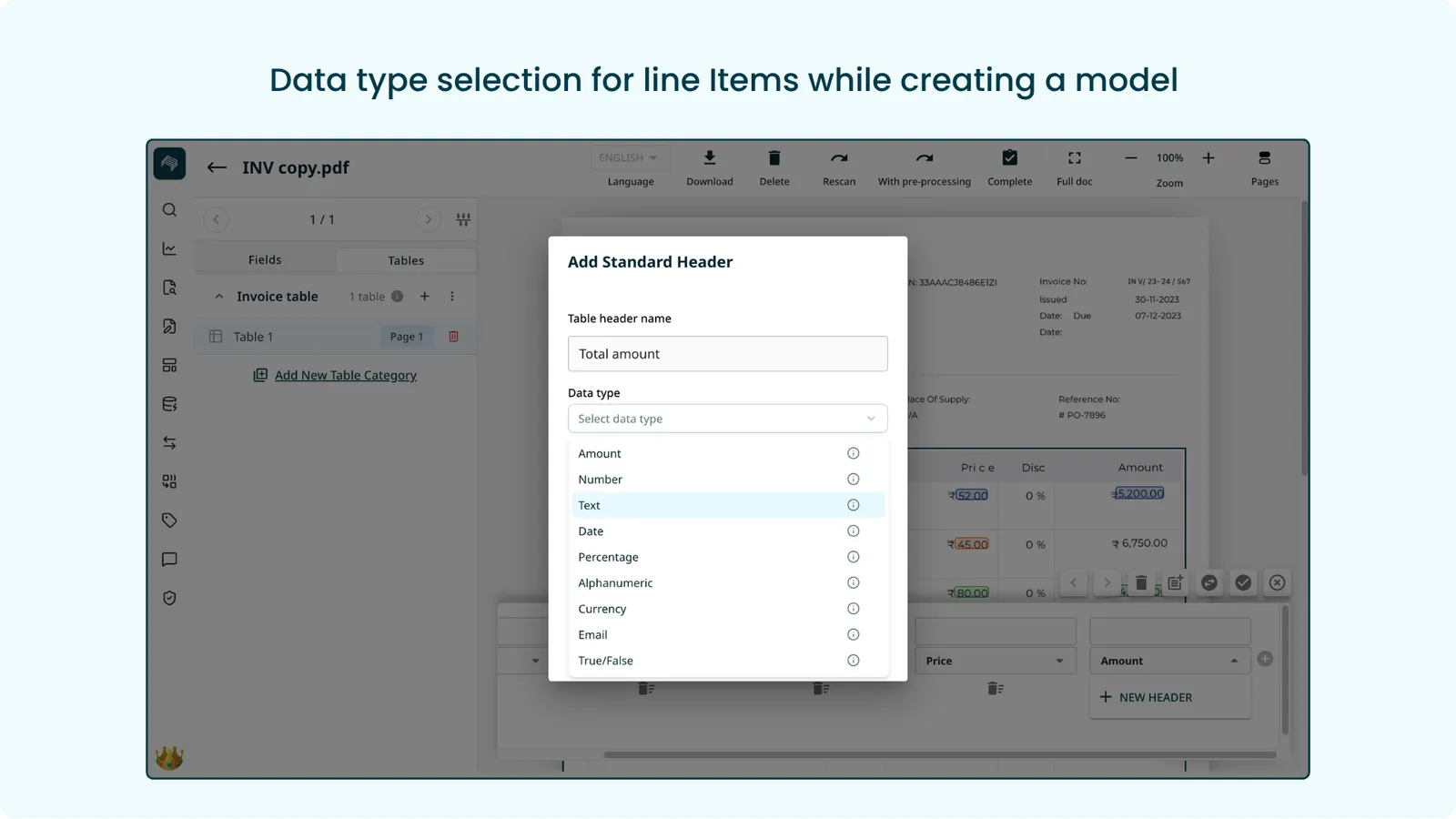
Line item table columns can now carry a data type, so Staple knows what each column represents. Amounts stay amounts, dates stay dates, and the whole product now speaks one consistent data language.
How it works
- Assign a data type to each line item column, drawn from the same 14 data types used for document level fields, with identical behavior across the product
- Cleaner captured data at scanning time, with better accuracy and fewer manual corrections
- Built for global invoicing: credit note negatives like ($2,690.57) become -2690.57, European amount formats are supported, and Asian dates are converted
- Consistent, comparable data unlocks reconciliation across purchase orders, goods receipts, and invoices
Benefit
Line item data is clean by design, with no downstream cleanup. Existing table headers default to Text and deprecated field types are migrated automatically, so no action is needed.
5. Audit Verification
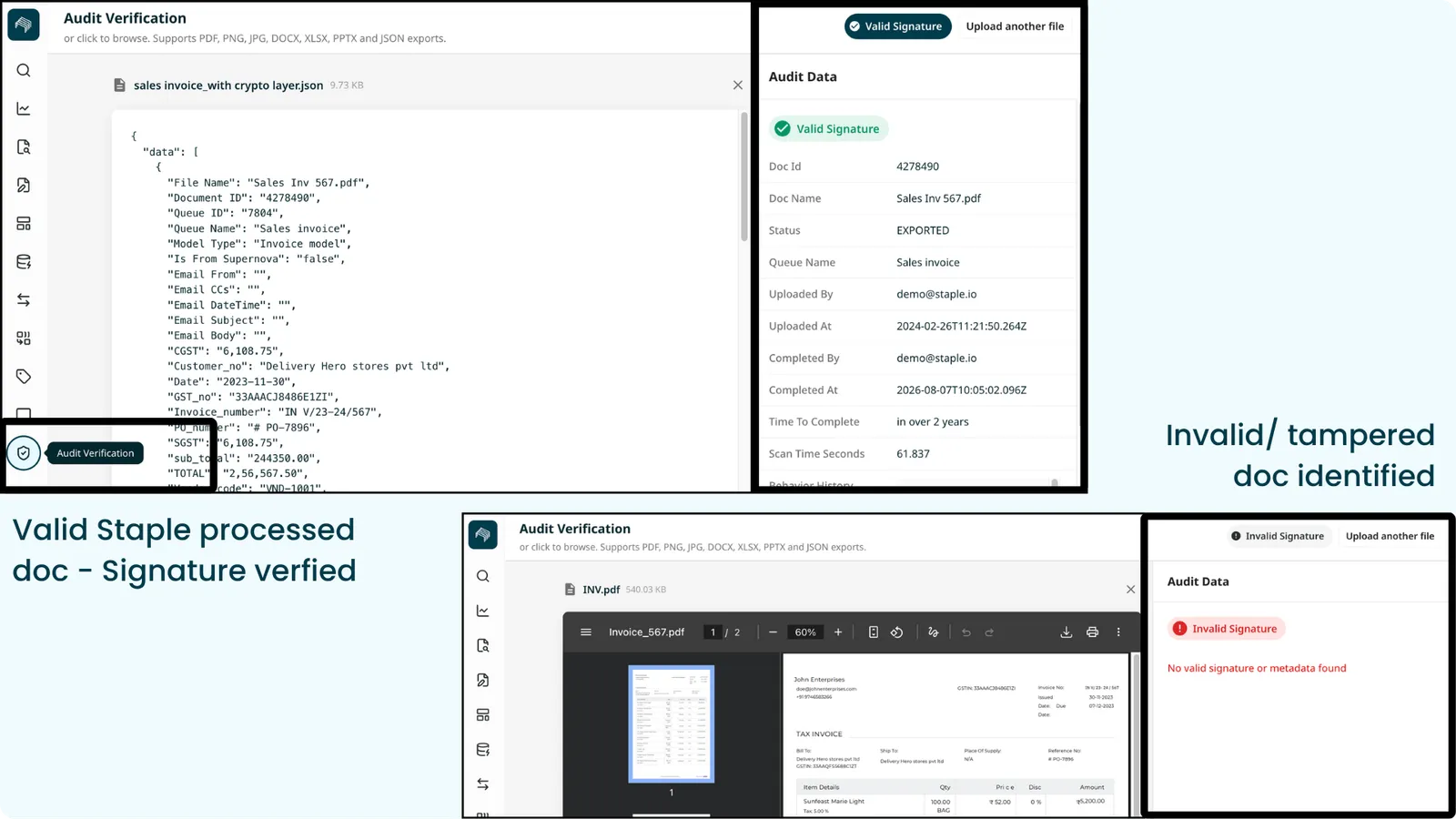
Staple now has an Audit Verification screen that confirms whether a document is a genuine, unaltered Staple output. Drop a file into the screen and Staple reads the cryptographically signed record embedded in it and tells you instantly whether the signature is valid.
How it works
- Open the Audit Verification screen and drop in a file, or click to browse. It supports PDF, PNG, JPG, DOCX, XLSX, PPTX, and JSON exports
- For a genuine Staple processed document, it shows a green “Valid Signature” along with the audit data: document ID and name, status, queue, who uploaded and completed it, the timestamps, time to complete, and the behavior history
- For a tampered or non-Staple file, it shows a red “Invalid Signature” with “No valid signature or metadata found”
- Verification reads the signed record embedded at export, so anyone can confirm a document’s integrity independently
Benefit
Customers, auditors, and regulators can confirm in seconds whether a document genuinely came from Staple and has not been altered, without contacting Staple.
6. Editable Table Line Items in Documents Created from XML and JSON
Some documents arrive as structured files rather than scans. E-invoices from government portals and networks, for example, come as XML or JSON. Staple converts these into a readable document in the UI, with header fields and a line item table, and this release lets you edit the table line items in them.
How it works
- Table rows can now be edited, added, and corrected directly in the document view, just like a scanned document
- Each line item keeps a stable identifier through ingestion, enrichment, and export, so your edits flow cleanly to downstream systems
- Set Value rules and Data Enrichment now also run on these documents
Benefit
Structured file documents, including government and network e-invoices, are no longer read only at the line item level, so reviewers can correct and complete them in place before export.
Enhancements
E-Invoice
- Inbound for Germany and France: inbound e-invoices for Germany and France are pulled into Staple automatically and created as documents in the right queues, ready for the usual review and export. Duplicate deliveries are de-duplicated and failed deliveries are retried.
Data Enrichment
- Smarter fuzzy matching: vendor name matching now handles spacing differences, for example “MHBland” versus “MH Bland,” and produces fewer false matches from generic shared words like “Ship Suppliers” or “Trading.”
- Master data sync with Concur: the master data (knowledge base) used for enrichment and validation can now be kept in sync with the connected finance system.
Reconciliation
- Force match a single linked document: you can now force match when only one document is linked to the anchor document, which was previously blocked.
Webhook
- Move document to another queue: a new webhook fires whenever a document is moved from one queue to another, so downstream systems are notified in real time instead of polling. Subscribe to it as “Document Moved Into Queue” in Webhook Setup.
Scanning
- Default “Latest First” ordering: every scanning tab now opens newest first on its most relevant timestamp, and that order is preserved as you page through documents, including with custom columns. The Rejected tab flipped from oldest first to newest first.
- File size as a custom column: add a File Size column to the scanning list view to spot oversized, at risk files before you export.
- Unlimited custom columns: the previous cap of 10 custom columns has been removed, so teams can tailor the list view to exactly how they work.
- Asian date normalisation: dates written in Asian scripts and non-Gregorian calendars now normalise correctly, including CJK year, month, day formats, Japanese eras, Taiwan ROC years, and Thai Buddhist dates.
Export
- Export status in the Progress Panel: the Progress Panel now shows export and exported status alongside upload and scan status, including failed exports.
- Export from the “Failed to Export” screen: export is now available directly from a failed to export document, so you can re-trigger it after fixing the issue.
- Concur export, automatic compression over 10MB: a new queue setting compresses oversized PDFs automatically so documents above Concur’s 10MB limit export successfully, with the compressed file size visible in the Progress Panel.